Social Posts — AI Social Suites (Admin)
The Social Posts management area provides a comprehensive view of all content generated and scheduled through AI Social Suites. Administrators can review post content, check publication status, and manage posts across all user accounts.
Quick Navigation
What It Is
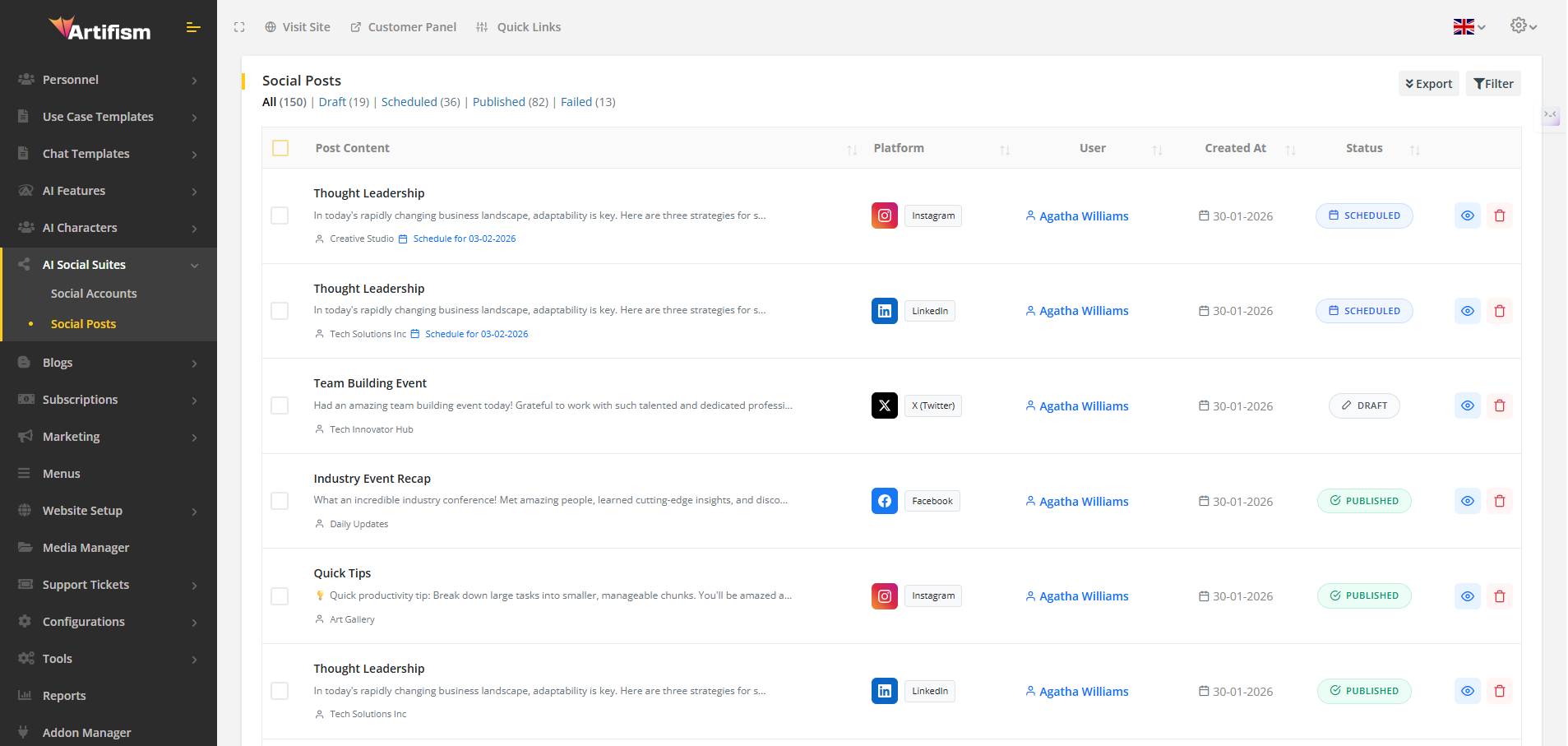
The Social Posts table lists every post created within the suite. It allows you to track whether posts were successfully published, are still scheduled, or have failed. You can also view the full content of any post, including attached media.
Where to Find It
- Menu: Admin → Ai Social Suites → Social Posts.
Columns & Data
| Column | Description |
|---|---|
| Post Content | Displays the title/caption preview, the target account, and the scheduled time. |
| Platform | Shows the target platform (Facebook, Instagram, X, LinkedIn, TikTok) with its icon. |
| User | The user who created the post, with a link to their profile. |
| Created At | The date and time the post was originally created. |
| Status | Published, Scheduled, Failed, Draft, or Pending. |
| Action | View (opens detailed modal) or Delete. |
Filtering & Search
Manage large volumes of content using these powerful tools:
- Global Search — Search by post content, account name, or user.
- Platform Filter — Filter posts by specific social networks.
- Status Tabs — View posts based on their outcome: Published, Scheduled, or Failed.
Administrative Actions
- View Details — Open a modal to see the full caption, hashtags, and media (images/videos).
- Batch Delete — Select multiple posts to remove them from the system.
- Export Data — Download the post history as PDF or CSV.
- Filter Management — Toggle the visibility of the advanced filter sidebar.
Use Case Example
Scenario: A user reports that their scheduled posts are not appearing. 1. Navigate to Social Posts. 2. Click the Failed status tab. 3. Use the Search to find the user's posts. 4. Click View to inspect the post and check for error indicators.
Screenshot
Connected Guides
- Social Accounts Management — Manage connected user profiles.
- Feature Preferences — Control platform availability.
- AI Provider Configuration — Configure AI for text and media.
- User Side Guide — How users use the social suite.