🚀 AI Social Suites
Elevate your social media presence with the power of AI. Manage, create, and schedule content across all major platforms from a single, unified dashboard.
🌟 What is AI Social Suites?
AI Social Suites is your all-in-one command center for social media management. Designed for creators, marketers, and businesses, it eliminates the chaos of juggling multiple apps. Whether you're drafting a quick tip for LinkedIn, crafting a thread for X (Twitter), or generating an AI-powered image for Instagram, the suite provides the tools you need to stay consistent and engaging.
- Unified workflow — One place to write, preview, schedule, and track posts.
- AI-powered creation — Generate captions, hashtags, images, and short-form video with built-in AI.
- Cross-platform publishing — Connect once, publish to Facebook, Instagram, X, LinkedIn, and TikTok from a single post.
Supported Platforms (default):
Facebook • Instagram • X (Twitter) • LinkedIn • TikTok
📱 Platform Overview
Each platform has its own media rules and best practices. AI Social Suites validates posts per platform so your content publishes successfully.
🔥 Key Features
📊 Dynamic Dashboard
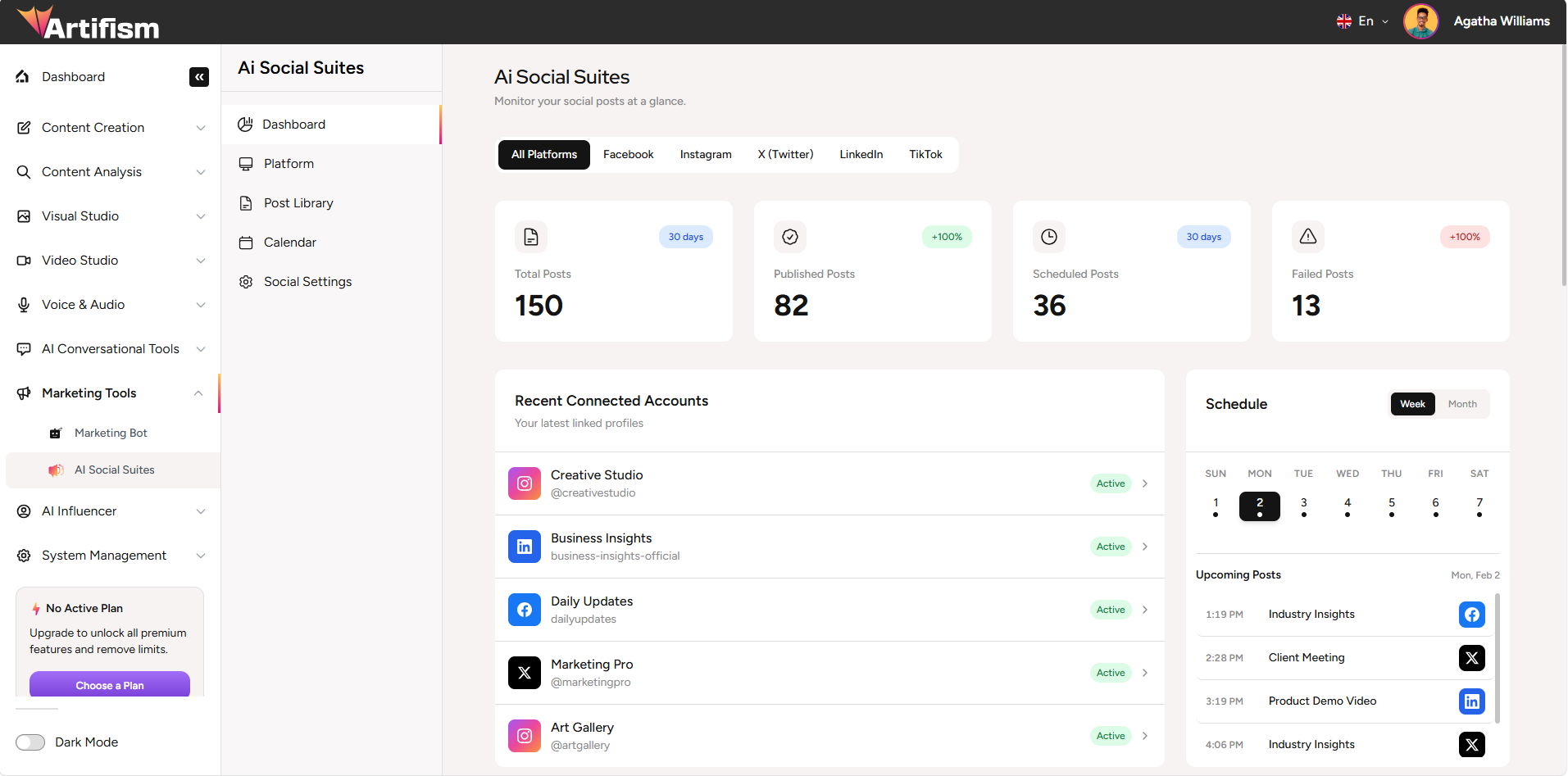
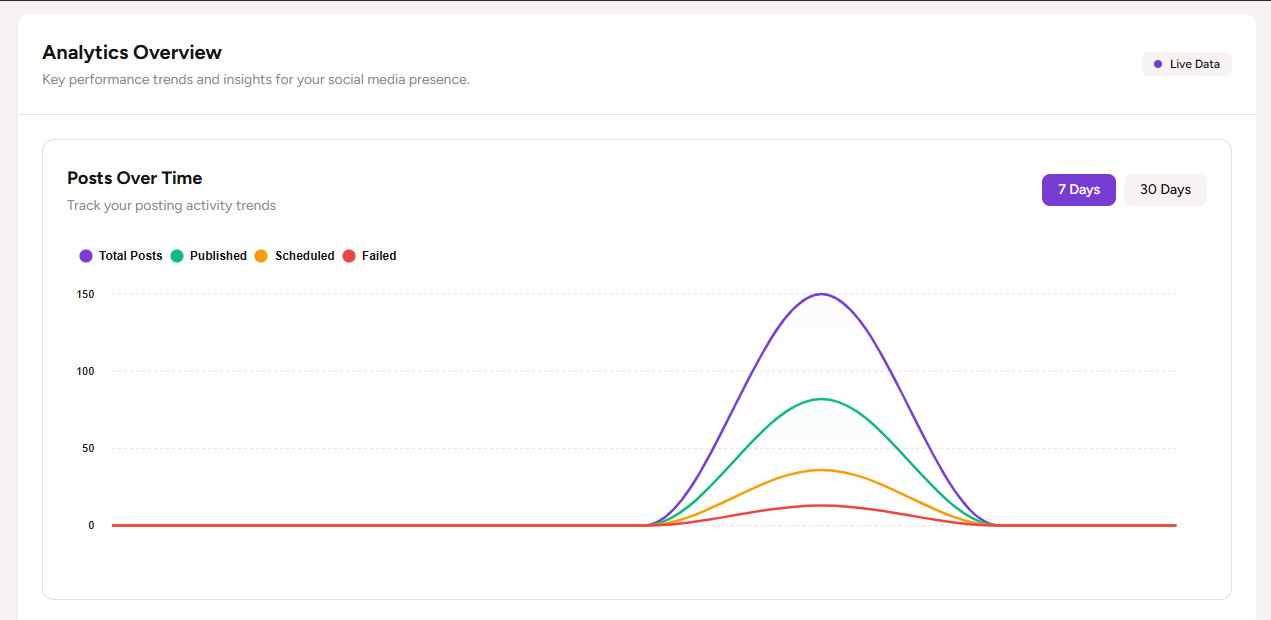
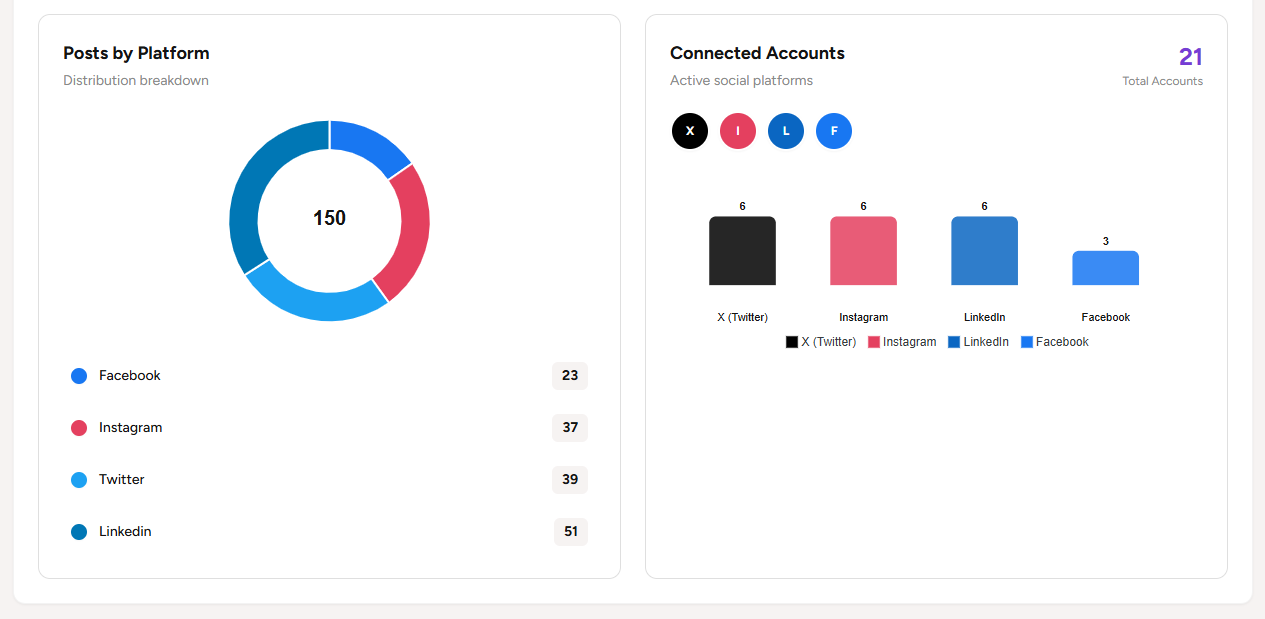
Get a high-level overview of your social media performance. Track metrics that matter:
- Total Posts — All posts (any status) in the last 30 days.
- Published Posts — Successfully posted content; growth % vs. previous 30-day period.
- Scheduled Posts — Queued for future publishing; view and edit in Calendar or All Posts.
- Failed Posts — Posts that did not publish (e.g. validation or API errors); fix and republish or reschedule.
- Platform insights — Filter stats by network to see performance per platform.
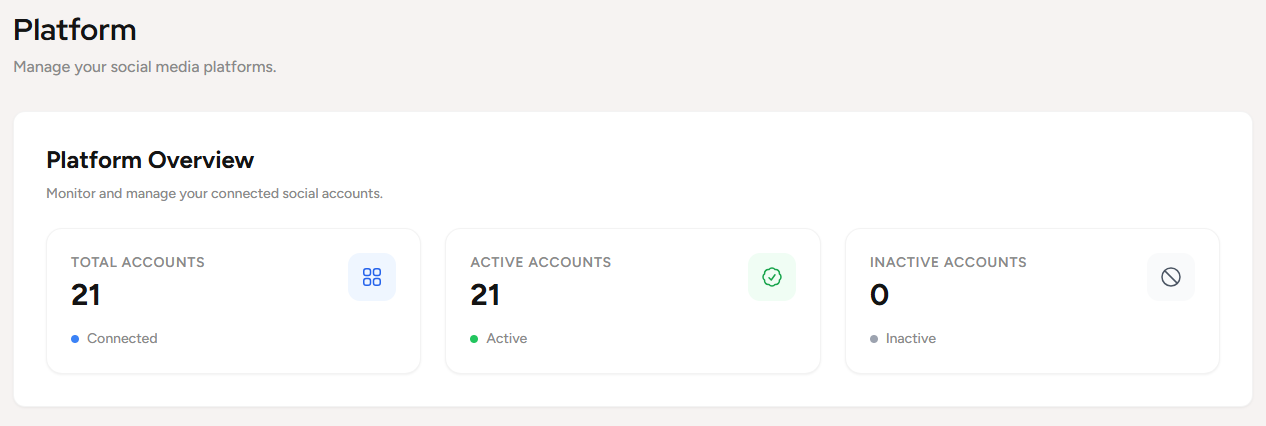
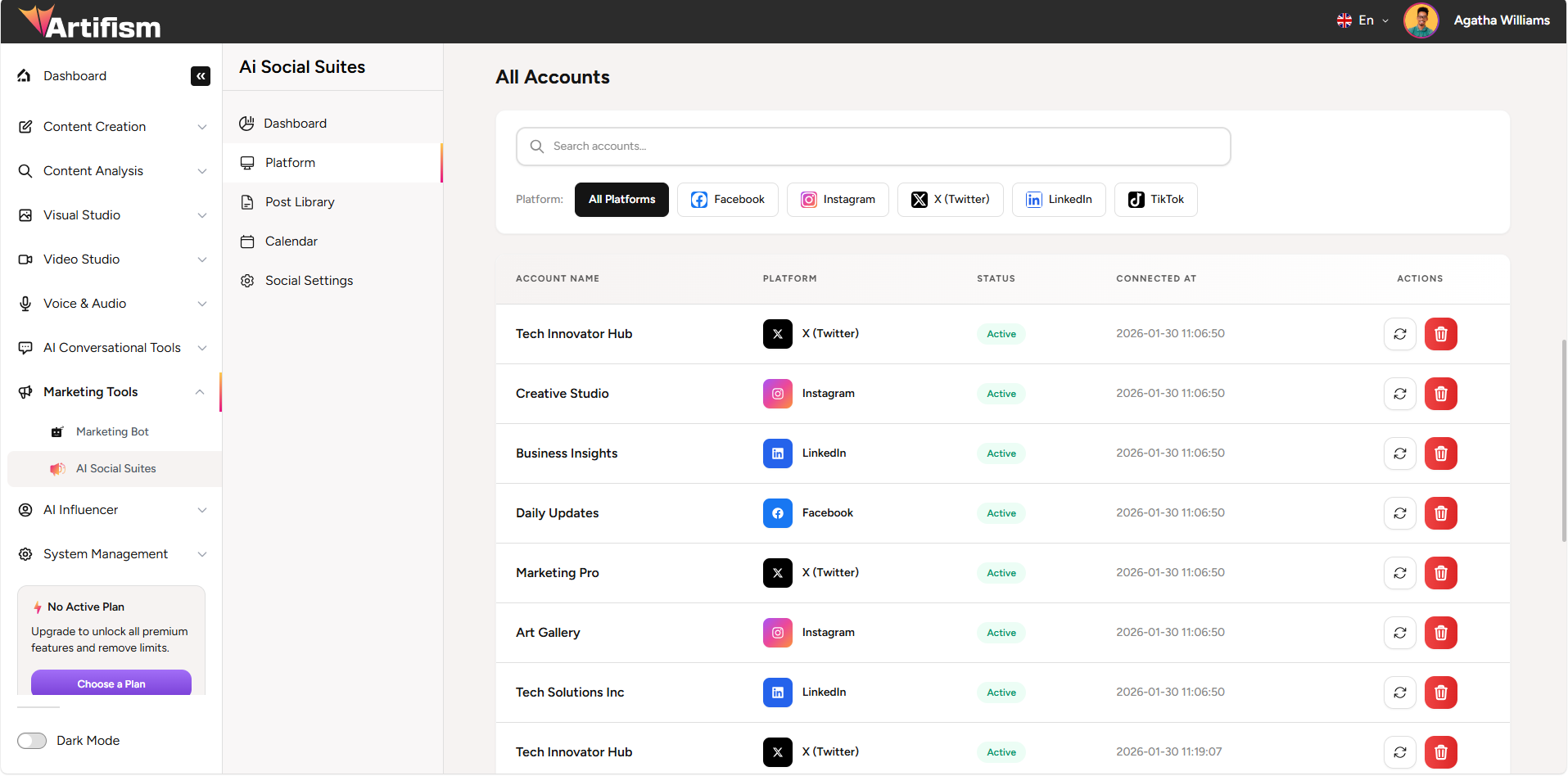
- Connected accounts — See how many accounts are linked and their status.
✍️ Next-Gen Post Creator
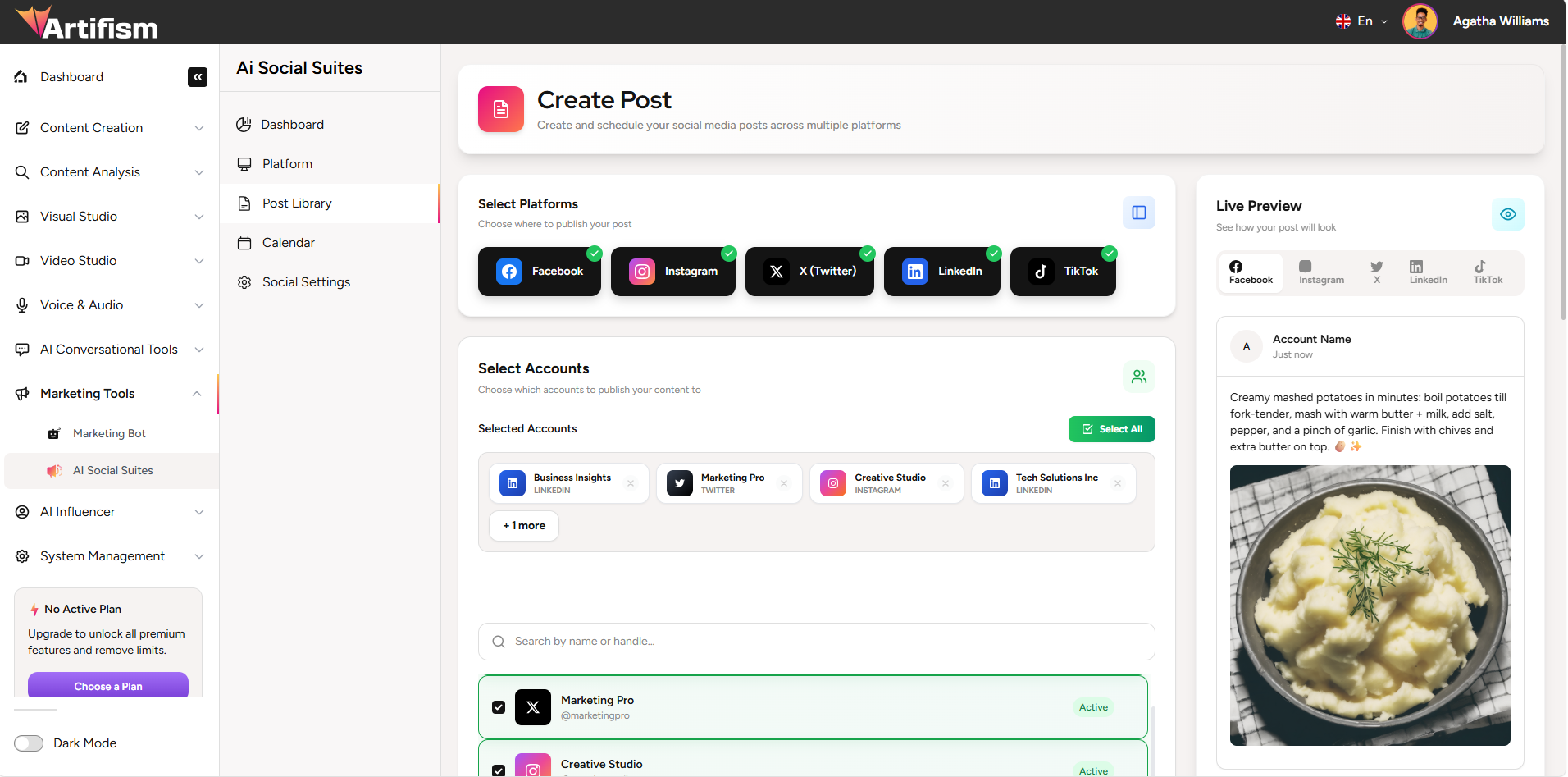
The heart of the suite. Write once, preview everywhere, and publish with precision.
- Select platforms & accounts — Multi-select accounts for cross-platform posting; only connected accounts appear.
- AI Writing Assistant — Generate captions, hooks, hashtags, and full copy in seconds (content type, tone, language configurable by admin).
- Real-time previews — See how your post looks on mobile and desktop before sending.
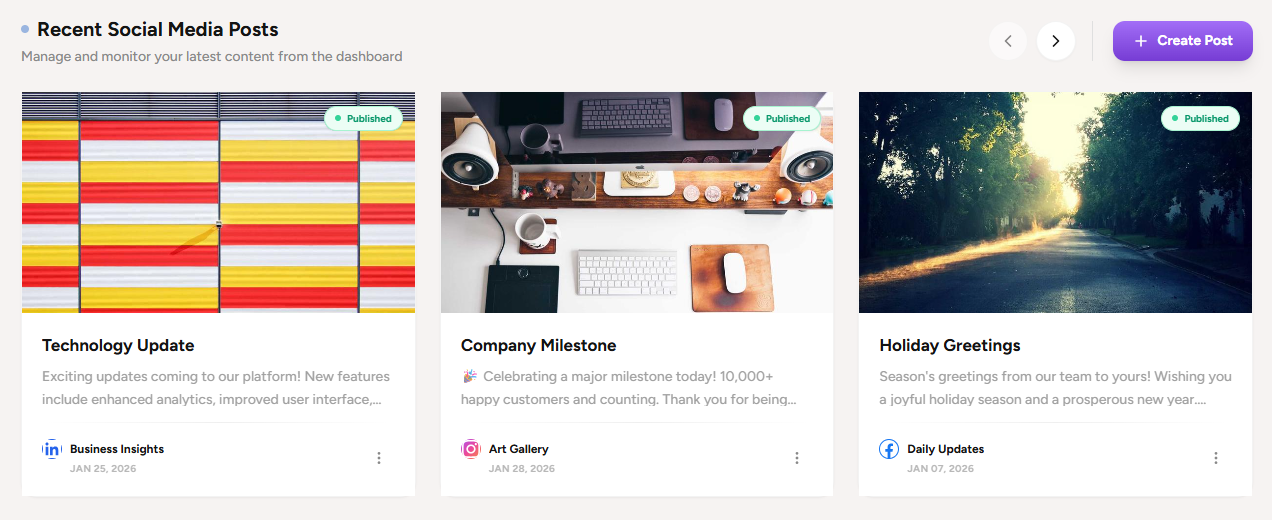
- Media integration — Attach images or video from the Media Library, or generate new assets with AI Image or AI Video.
- Scheduling — Publish now or schedule for a specific date and time; timezone-aware.
🤖 AI Assistant (Your Digital Creative)
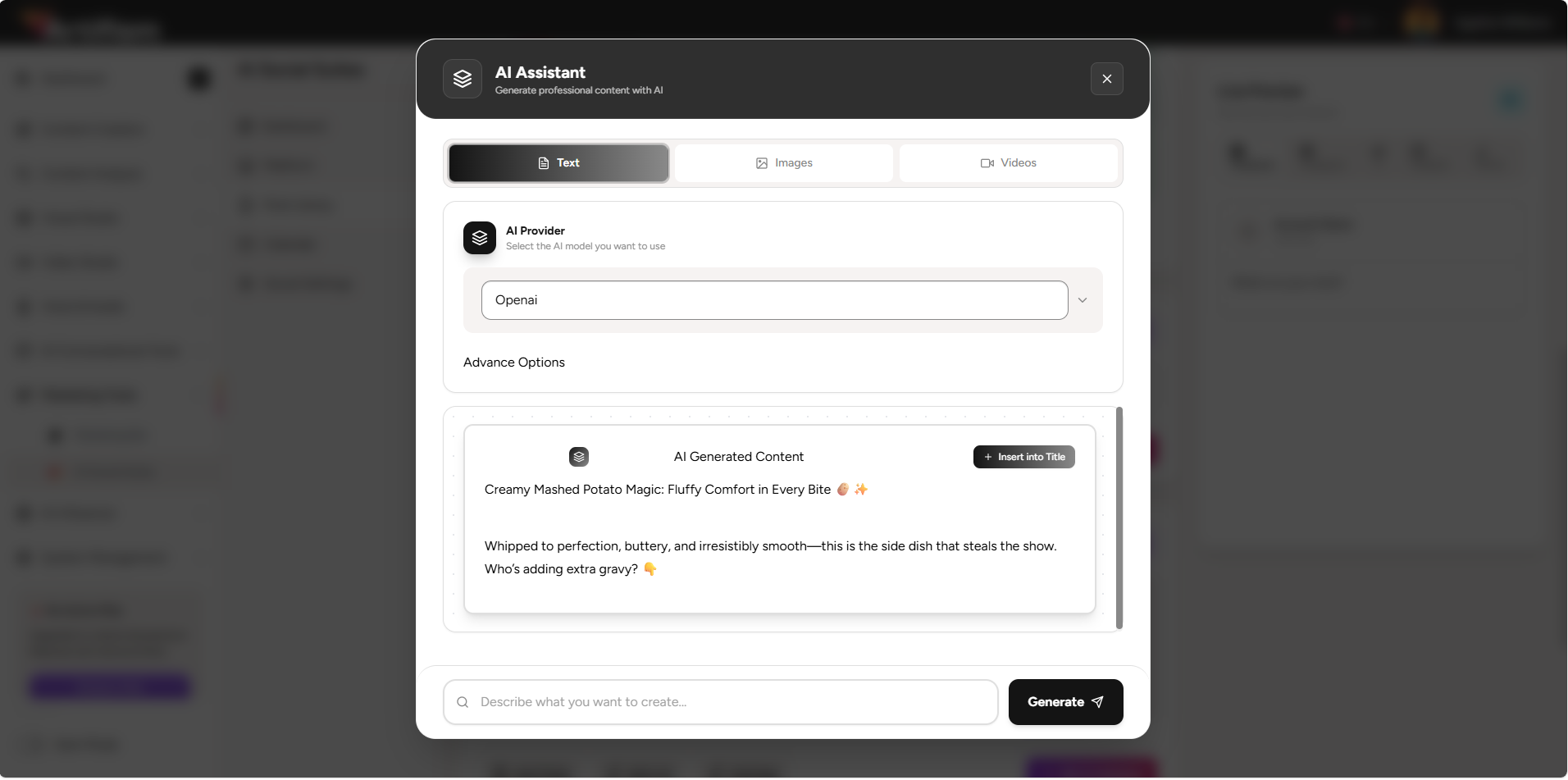
Never face "writer's block" again. The built-in AI supports:
- Text generation — Describe your vibe or topic; get professional captions, tweets, LinkedIn posts, hashtags, bios, and more (models and options set by admin).
- AI imagery — Generate high-quality, unique images directly in the editor; style and size options per provider.
- Smart hashtags — Get relevant, platform-aware hashtag suggestions.
- AI video — Create short-form video clips for TikTok and Reels from prompts or templates.
Admin configures which AI providers (e.g. OpenAI, Anthropic) and models power text, image, and video in Manage Providers*.
 *
*
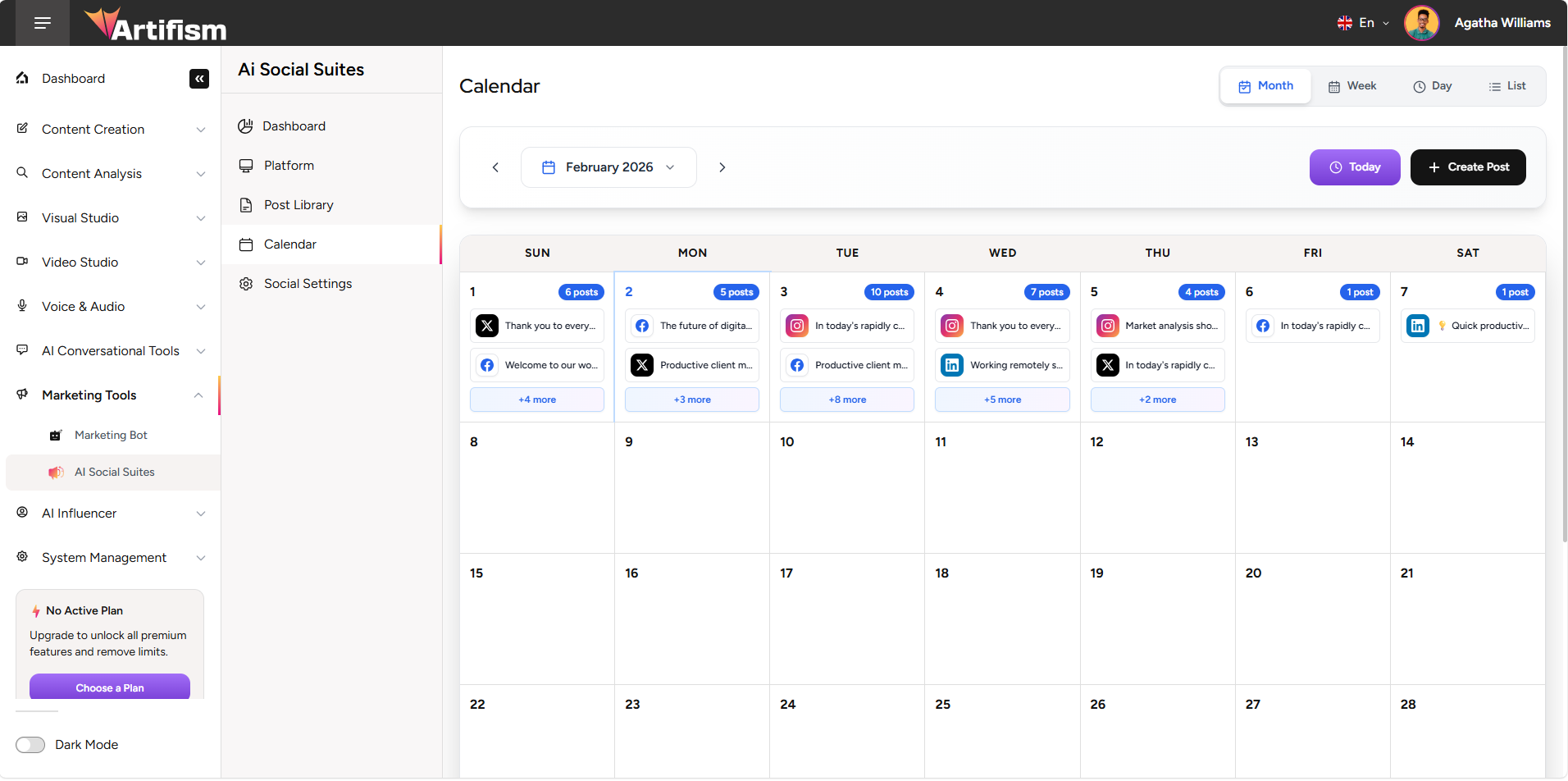
📅 Visual Content Calendar
The visual calendar provides a clear overview of your social media schedule. It allows you to:
- Monitor your schedule — See all scheduled and published posts in a monthly, weekly, or daily view.
- Track publication times — Ensure your content is spread out effectively across the week.
- Identify content gaps — At a glance, spot days without scheduled posts to maintain a consistent presence.
📋 All Posts
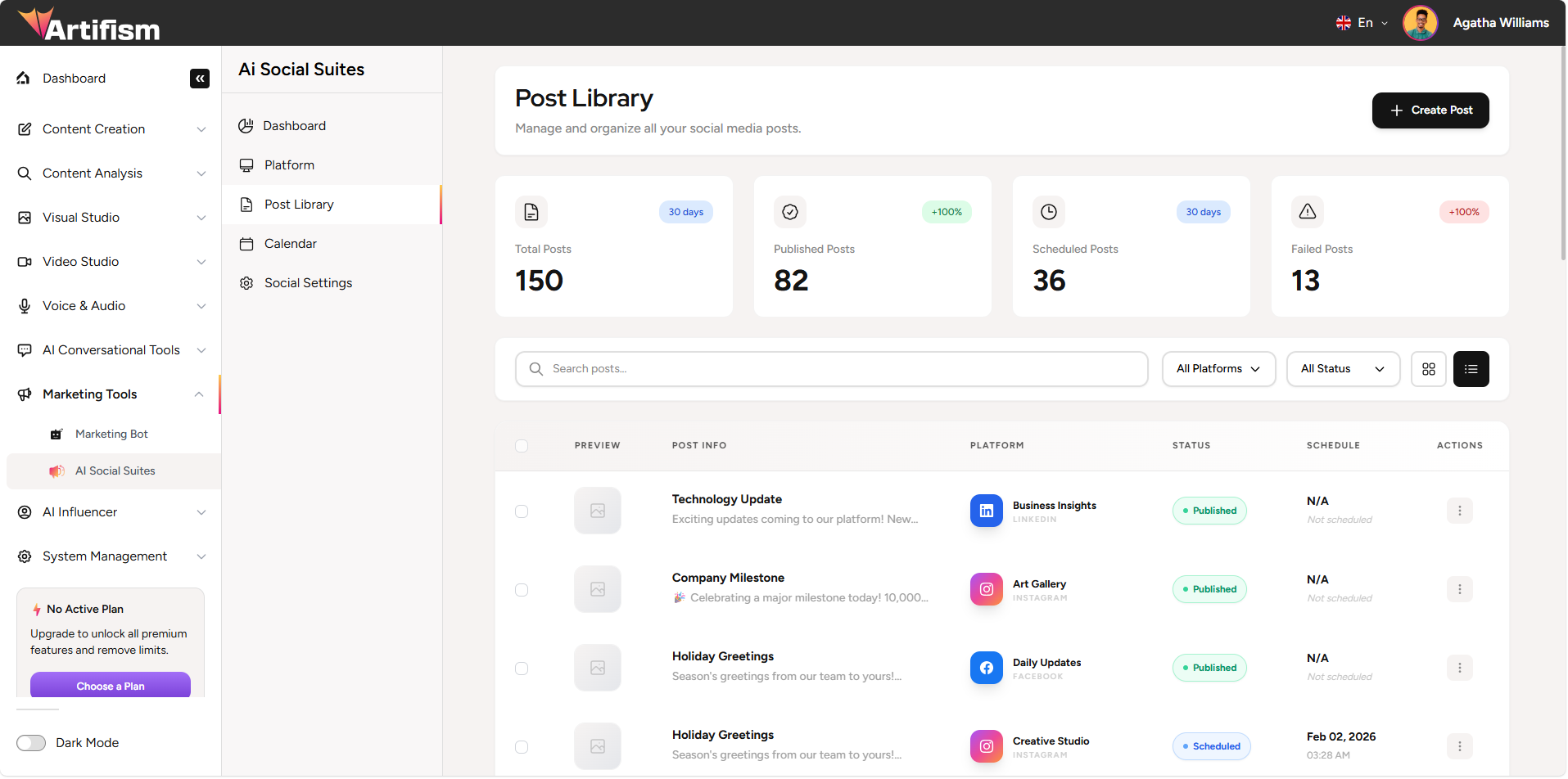
The All Posts section acts as your central repository for social content. You can:
- View your history — See all posts across different grid and table views.
- Filter by status — Quickly find posts that are Published, Scheduled, Failed, or saved as Drafts.
- Platform filtering — Sort your view to see posts only for specific networks like LinkedIn or TikTok.
- Monitor outcomes — Review failure messages for any posts that didn't publish successfully so you can re-create them.
⚙️ Platform Connections
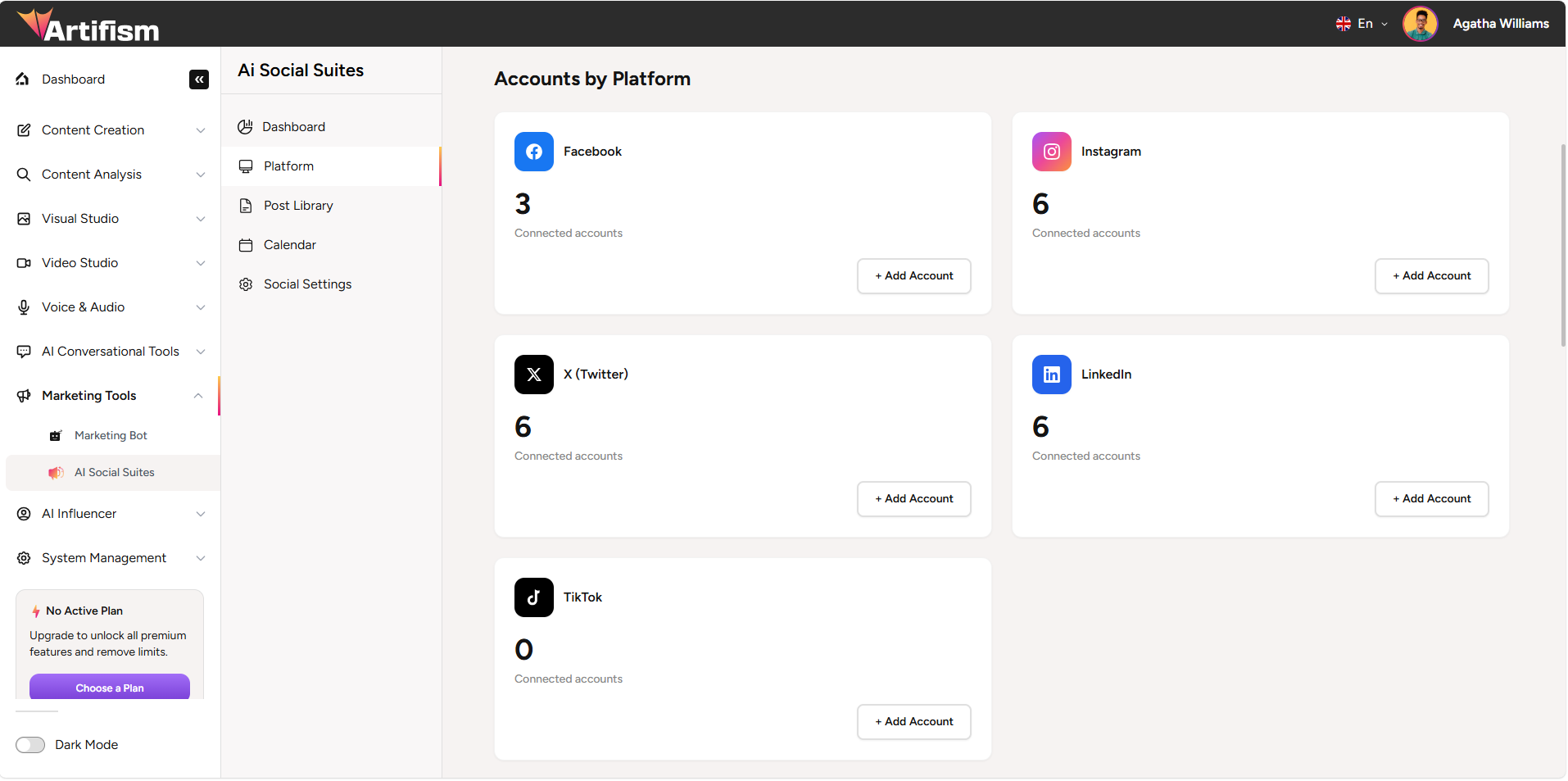
Platform connection is managed in Admin → Features → AI Social Suites → General Options. An administrator enables which social platforms (Facebook, Instagram, X, LinkedIn, TikTok) are available and enters OAuth/API credentials so users can connect accounts.
- Connect accounts — Link each platform via OAuth (or API keys where supported). One connection per account per platform. Go to Admin → Features → AI Social Suites → General Options to configure and connect (see Feature Preference).
- Disconnect / reconnect — Remove or refresh connections from the same Features → AI Social Suites area.
- Security — Tokens are stored securely; reconnect if a platform reports an expired or revoked token.

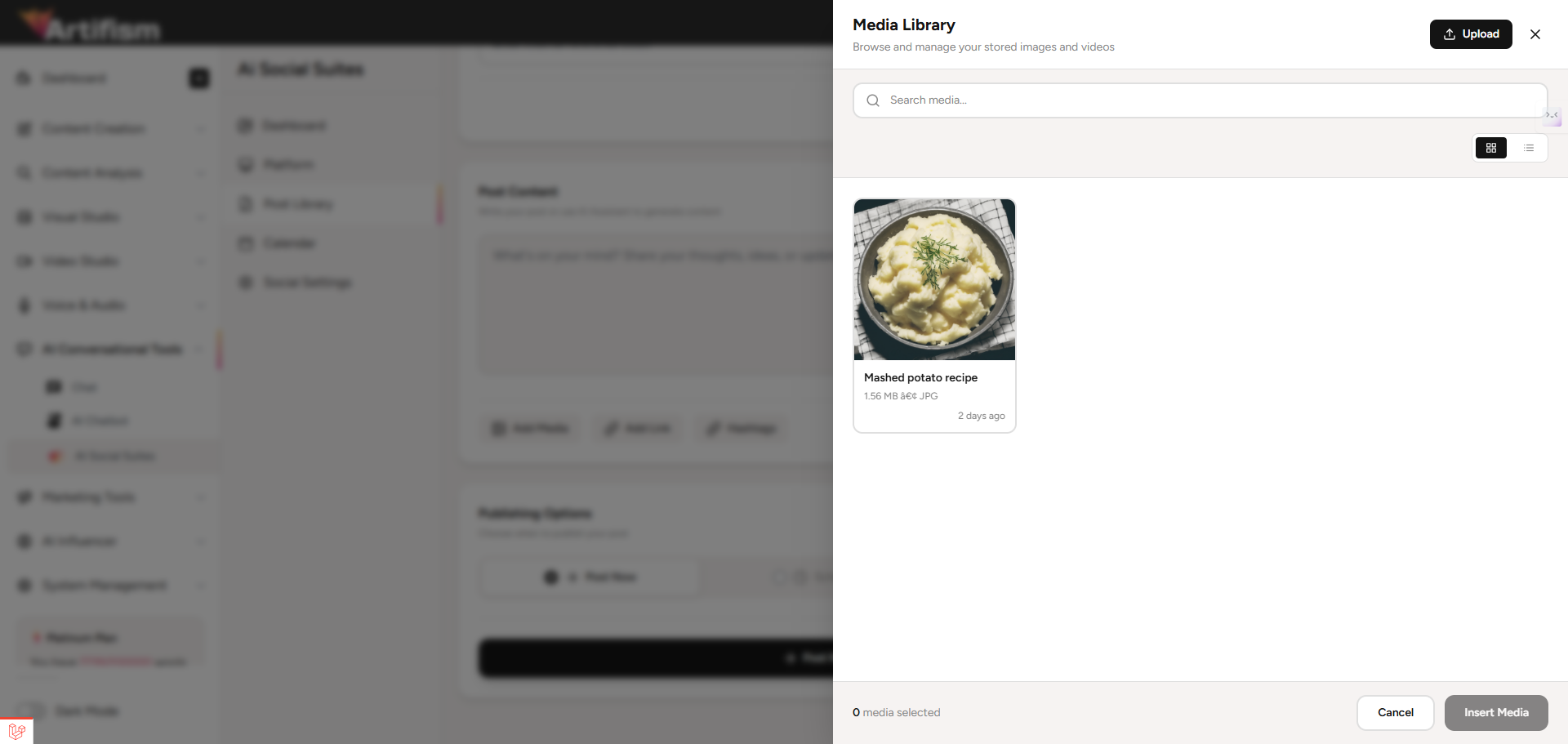
📁 Media Library
- Upload — Add images and videos from your device; used across posts and AI generation.
- Reuse — Attach the same asset to multiple posts or platforms.
- AI-generated assets — Images and videos created in the suite are saved and available for future posts.
📌 Post Statuses
| Status | Description |
|---|---|
| Draft | Saved but not scheduled; not sent to any platform. |
| Scheduled | Queued for a future date/time; will be published automatically (or via queue worker). |
| Published | Successfully posted to the selected platform(s); may include link to the live post. |
| Failed | Publishing attempted but failed (e.g. validation, rate limit, or API error); error_message stored for debugging; can be edited and republished. |
🔗 Platform Connection Guides
To start posting, you need to connect your social media accounts. Some platforms (like X/Twitter) require specific API credentials.
- General Guide: Learn how to Connect your Social Accounts.
- Step-by-Step API Setup:
🛠️ Admin Configuration Guide
If you are an Administrator, you have full control over how AI Social Suites behaves for your users. From enabling platforms to choosing which AI models generate content, these guides help you set up the perfect environment.
Admin Overview
Choose a topic below to dive into the technical setup:
⚙️ Feature Preferences
Control platform availability
Decide which social media networks are available for your users. You can enable or disable them individually based on your site's needs.
👉 Read Feature Preference Guide
🤖 AI Provider Settings
Configure the "brains" of the assistant
Set up which AI services (OpenAI, Anthropic, etc.) power text, image, and video generation. Choose specific models, content types, tones, languages, and limits (e.g. max tokens) for content; and models, sizes, and styles for images.
👉 Read Manage Providers Guide
📊 Management Dashboards
Monitor accounts & posts
Access centralized tables to view all user social accounts and every post created across the platform. Export to PDF or CSV when needed.
👉 Manage Social Accounts | Manage Social Posts
🕒 Queue & Cron Setup
Ensure scheduled posts are published automatically
For scheduled posts to work, you must set up a cron job on your server that runs every minute. This triggers the queue worker to process any pending social media posts.
👉 Read Cron Job Setup Guide
🚀 How to Get Started
- Connect your accounts — An admin configures and connects platforms in Admin → Features → AI Social Suites → General Options (see Feature Preference and Connect Social Accounts Guide).
- Craft a post — Open Create Post, choose platforms and accounts, use the AI Assistant for a caption or hashtags, and attach or generate media.
- Schedule & relax — Set a date and time for peak engagement; the Calendar and All Posts show what’s coming.
- Track results — Use the Dashboard to see totals and growth; review any Failed posts from All Posts to understand why they weren't published.