← Back to Connection Guide | AI Social Suites Overview
🛠️ Facebook & Instagram Developer App Setup
To connect your Facebook Page or Instagram Business Account to AI Social Suites, you need to create a developer application on the Meta for Developers portal.
You will need to generate an App ID and App Secret.
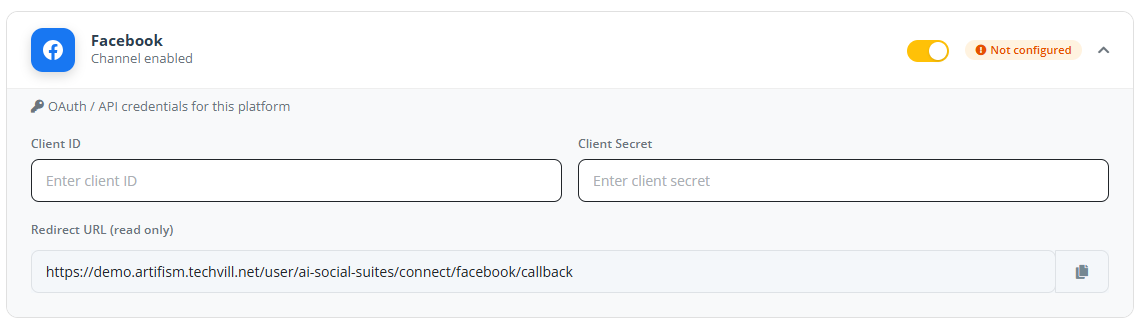
Facebook Settings
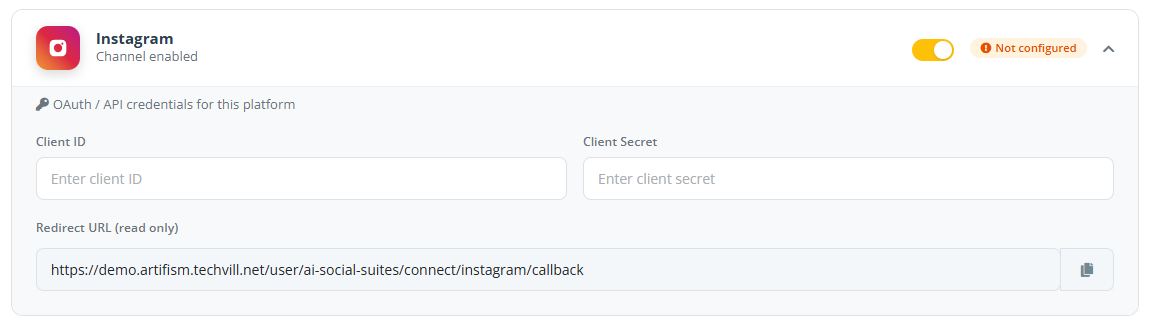
Instagram Settings
Step 1: Create a Meta Developer Account
- Go to Meta for Developers.
- Log in with your Facebook account.
- Click Get Started or My Apps and follow the prompts to register as a developer.
Step 2: Create a New App
- Click the Create App button.
- Use Case: Select Other (then Business on the next screen) or Consumer. Business is recommended for professional social media management.
- App Name: Enter a name (e.g., "Artifism Social Suite").
- Contact Email: Enter your business email.
- Click Create App.
Step 3: Add Facebook Login & Instagram Graph API
To allow Artifism to post, you must add the correct products to your app.
- In your app dashboard, go to the Dashboard or Add Product section.
- Find Facebook Login and click Set Up. Choose Web and enter your site URL.
- Find Instagram Graph API and click Set Up.
Step 4: Configure Redirect URI
- In the sidebar, go to Facebook Login -> Settings.
- Locate the Valid OAuth Redirect URIs field.
- Copy the Redirect URL from Admin → Features → AI Social Suites → General Options and paste it here.
- Click Save Changes.
Step 5: Request Required Scopes (Permissions)
To publish posts and read page data, you need to request specific permissions.
Critical Scopes
Ensure the following permissions are requested under App Review -> Permissions and Features:
instagram_basic(Required to read account info)instagram_content_publish(Required to publish to Instagram)pages_manage_posts(Required to publish to Facebook Pages)pages_show_list(Required to see your list of Pages)pages_read_engagement(Required for analytics)public_profile(Default login permission)
Step 6: Link Instagram to Facebook (Mobile Step)
Business Account Requirement
The Instagram Graph API only works with Instagram Business or Creator accounts that are linked to a Facebook Page.
- Open Instagram on your phone.
- Go to Settings -> Account Type and switch to Professional Account.
- Go to Edit Profile -> Page (or Public Business Information) and link it to your Facebook Page.
Step 7: Get Your Credentials
- Go to App Settings -> Basic in the sidebar.
- Copy your App ID.
- Click Show to reveal and copy your App Secret.
Step 8: Connect to AI Social Suites
- Open your Artifism dashboard and go to Admin -> Features -> AI Social Suites -> General Options.
- Expand the Facebook or Instagram card.
- Paste your App ID and App Secret.
- Click Save Configuration.
- Click Connect New Account to authorize your Pages and Profiles.
🔒 App Live Mode
Action Required: Go Live
New apps are in Development Mode. While in this mode, only people with roles in the app (Admins/Testers) can log in.
To allow your users to connect their accounts, you must: 1. Provide a Privacy Policy URL in App Settings -> Basic. 2. Toggle the switch at the top of the dashboard from Development to Live.
❓ Troubleshooting
Troubleshooting
- Instagram account not showing up? Ensure it is a Business Account and correctly linked to a Facebook Page.
- Permissions error? Make sure you have clicked "Request Access" for all the critical scopes in Step 5. Meta may require a brief App Review for some permissions.
- Redirect URI Error? Double-check the URL in the Facebook Login settings matches Artifism exactly.