← Back to Connection Guide | AI Social Suites Overview
🛠️ LinkedIn Developer App Setup
To connect your LinkedIn account to AI Social Suites, you need to create a developer application on the LinkedIn Developer Portal. This allows Artifism to securely communicate with your LinkedIn profile or Page.
You will need to generate a Client ID and Client Secret.
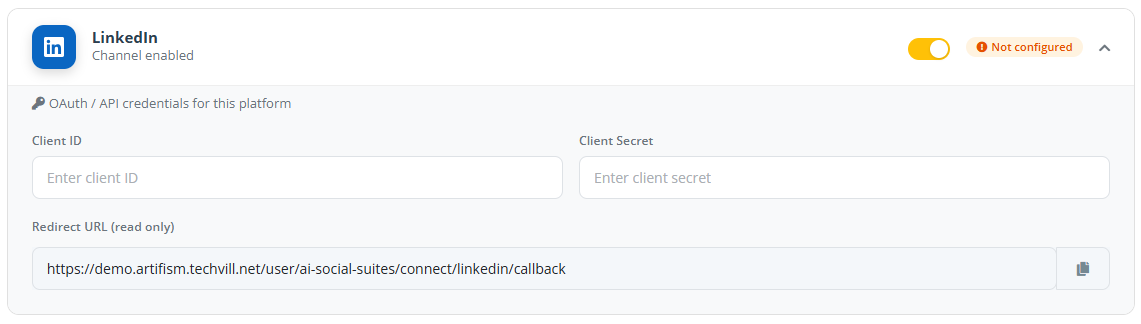
Step 1: Create a LinkedIn App
- Go to the LinkedIn Developer Portal.
- Log in with your LinkedIn account.
- Click the Create App button.
- App Name: Enter a name (e.g., "Artifism Social Suite").
Critical: LinkedIn Page Association
You must associate your app with an active LinkedIn Page. If you do not have one, you must create a placeholder Page first. Without a linked Page, you cannot generate the necessary API keys.
Ownership Verification Required
LinkedIn requires you to verify that you own the Page linked to the app. 1. Go to the Settings tab -> Verify. 2. Click Generate verification URL. 3. Open this URL yourself (or send it to the Page admin) and click Verify.
Your app will not work until its status is "Verified".
Step 3: Request Product Permissions
LinkedIn uses "Products" to group permissions. To post on your behalf, your app needs the following:
- Go to the Products tab of your app.
- Find Share on LinkedIn and click Request access. (This allows posting to personal profiles:
w_member_social). - Find Sign In with LinkedIn using OpenID Connect and click Request access. (This is required for the login flow).
- For Company Pages: If you intend to post to a company page, look for Community Management API or Marketing Developer Platform and request access. (Requires
w_organization_social).
Step 4: Configure Authentication (OAuth 2.0)
- Go to the Auth tab.
- In the OAuth 2.0 settings section, find the Authorized Redirect URLs field.
- Click the edit icon and then + Add redirect URL.
- Copy the Redirect URL from Admin → Features → AI Social Suites → General Options and paste it here.
- Click Update.
Step 5: Get Your Credentials
- Still in the Auth tab, locate the Application credentials section.
- Copy your Client ID.
- Click the eye icon to reveal and copy your Client Secret.
Step 6: Connect to AI Social Suites
- Open your Artifism dashboard and go to Admin -> Features -> AI Social Suites -> General Options.
- Expand the LinkedIn card.
- Paste your Client ID and Client Secret.
- Click Save Configuration.
- Now click Connect New Account to authorize your LinkedIn account.
Account Connection Issues?
- App is not Verified? Check Step 2. You must click the generated verification link.
- Missing Organization Permissions? Ensure you requested the "Community Management API" and that you are an Administrator of the Page.
- Redirect URI Error? Double-check that your Artifism URL matches exactly in the Auth tab.