← Back to Connection Guide | AI Social Suites Overview
🛠️ Twitter (X) Developer App Setup
To connect your X (Twitter) account to AI Social Suites, you need to create a developer application on the X Developer Portal. This allows Artifism to securely communicate with your X account.
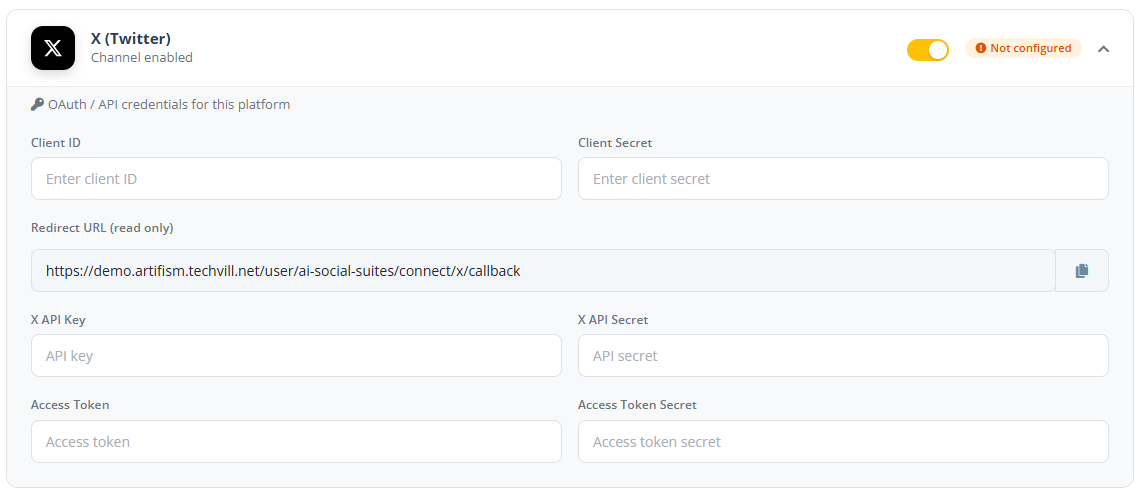
You will need to generate and copy 6 keys from the X Developer Portal to your Artifism configuration.
Step 1: Register for a Developer Account
- Go to the X Developer Portal.
- Log in with the X account you want to use for development.
- If you don't have a developer account, follow the prompts to apply for one.
Step 2: Create a Project and App
- In the Developer Portal dashboard, click on Projects & Apps.
- Click Create App (or use the default app created for your project).
- Give your app a unique name (e.g., "Artifism Social Suite").
Critical: Enable Authentication
This is the most important step. Without configuring the Redirect URL and Read and Write permissions, Artifism cannot post on your behalf.
- Go to Settings -> User authentication settings.
- Set Permissions to Read and Write.
- Set App Type to Web App.
- Paste your Redirect URL from Artifism into the Callback URI field.
Step 4: Generate Your 6 Keys
Navigate to the Keys and Tokens tab of your app to find the following credentials:
A. Consumer Keys (API Key and Secret)
- Locate Consumer Keys.
- Click Regenerate or View.
- Copy the API Key and API Secret.
B. Authentication Tokens (Access Token and Secret)
These allow the app to act on behalf of your specific account. 1. Locate Authentication Tokens. 2. Click Generate or Regenerate for "Access Token and Secret". 3. Ensure the permissions are Read and Write. 4. Copy the Access Token and Access Token Secret.
C. OAuth 2.0 Client ID and Client Secret
- Locate OAuth 2.0 Client ID and Client Secret.
- Click Regenerate or View.
- Copy the Client ID and Client Secret.
Important
X will only show "Secret" keys once. Copy them immediately and store them safely. If you lose them, you will need to regenerate them.
Step 5: Connect to AI Social Suites
- Open your Artifism dashboard and go to Admin -> Features -> AI Social Suites -> General Options.
- Expand the X (Twitter) card.
- Paste all 6 keys into their respective fields:
- X API Key
- X API Secret
- X Access Token
- X Access Token Secret
- Client ID
- Client Secret
- Click Save Configuration.
- Now click Connect New Account to authorize your account.
Troubleshooting
- Unauthorized Error? Double-check the Redirect URL in the X Portal. It must match Artifism exactly (including
httpvshttps). - Free vs Paid? The Free tier allows 1,500 tweets/month. For more, upgrade to the Basic tier in the X Developer Portal.