WhatsApp Channel Administration
Use this guide to let Artifism customers connect their WhatsApp Business App number without losing access to the WhatsApp Business mobile app.
This connection method is called Coexistence. It means the mobile app and Artifism can work with the same business number.
Ask an administrator to help
This setup uses private keys and changes the platform's Meta app. Only a trusted Artifism and Meta administrator should do it. Never send a secret in chat, email, or a screenshot.
First, learn these words
You will see these names during setup:
- Meta app: The project inside Meta for Developers that connects Meta to Artifism.
- App ID: The public number of the Meta app.
- App Secret: The private password of the Meta app. Keep it hidden.
- Config ID: The number of the Meta signup form that customers will open.
- Webhook URL: The Artifism web address where Meta sends WhatsApp updates.
- Verify Token: A private code used to prove that the Webhook URL belongs to Artifism.
- Graph API Version: The Meta API version used by the connection, such as
v25.0.
Are you setting up Cloud API instead?
This page teaches WhatsApp Business App - Coexistence. If a customer has a separate API-only number, enable Cloud API and send them to Cloud API - manual setup.
Before you start
Make sure you have all five items:
- Access to the Artifism Admin Panel.
- Administrator access to the platform's Meta app.
- A public Artifism website that starts with
https://. - A password manager for the App Secret and Verify Token.
- A test Meta account and test WhatsApp Business App number.
Open these two pages in separate browser tabs:
- The Artifism Admin Panel.
- Meta for Developers - My Apps.
Production requirement: configure the channel queue cron
WhatsApp webhooks and replies are processed in the background. The administrator must configure the shared chatbot-channel cron to process both WhatsApp queues:
| Queue | What it processes |
|---|---|
whatsapp-webhooks |
Incoming messages, status updates, message echoes, and other Meta webhook events. |
whatsapp-replies |
AI replies, human replies, response-time escalations, and related outbound work. |
The default queue names come from META_WHATSAPP_WEBHOOK_QUEUE and META_WHATSAPP_REPLY_QUEUE. If those environment values are customized, use the configured names instead.
Follow Chatbot Channels - Cron Job Setup to configure the per-minute worker route. Like AI Social Suites, the shared route processes its named queues and exits after the available jobs are drained. Supervisor is not required for this documented setup.
whatsapp-media is a storage disk name, not a queue. Do not add it to the --queue list.
Confirm the cron before continuing:
- Confirm the cron is active and has completed at least one run without an error.
- Send one message to a verified test number.
- Check that ready jobs in
whatsapp-webhooksandwhatsapp-repliesare consumed within two cron intervals. - Review failed jobs and the private cron log for repeated Meta, authentication, or delivery errors.
Step 1: Open WhatsApp settings in Artifism
- In the Artifism Admin Panel, open Configuration.
- Select Feature Preference.
- Select Chatbot.
- Select Channel Integrations.
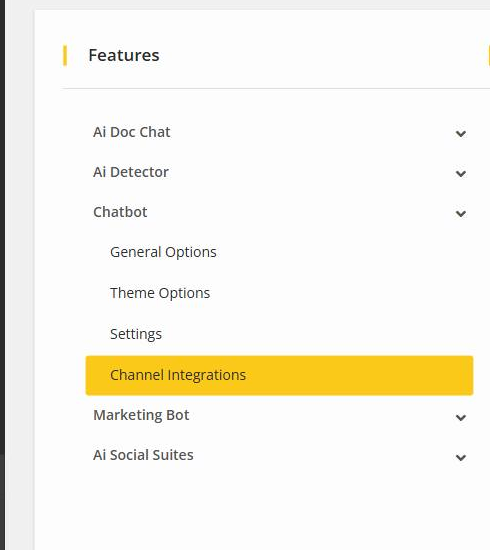
- Find the green WhatsApp box.
- Keep Coexistence turned off for now.

Step 1 is complete when
You can see the WhatsApp settings, and the Coexistence switch is still off.
Step 2: Create or open the platform Meta app
- Go to Meta for Developers - My Apps.
- Look at the top menu. Confirm that My Apps is highlighted.

Now look under Admin Apps:
- If the platform app already exists, skip to Part B — Open an existing app.
- If there is no platform app, follow Part A — Create the app.
Part A — Create the app for the first time
- Select Create App.
- In App name, enter a simple platform name such as
Artifism Channel. - Check the contact email. Use an email that a trusted administrator reads.
- Do not use
WhatsApp,Meta, or another Meta brand name in the App name. - Select Next.
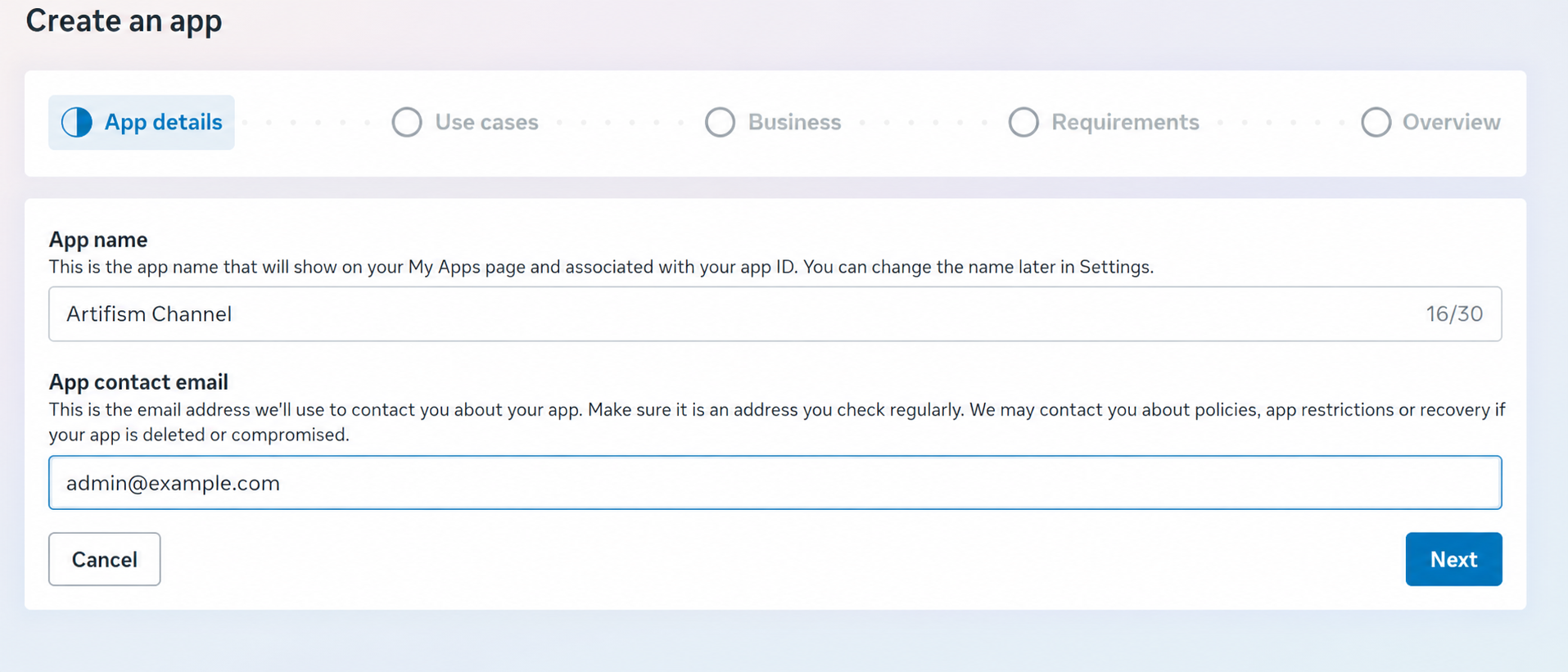
- Under Use cases, select Connect with customers through WhatsApp.
- Confirm that it says 1 use case added.
- Select Next.
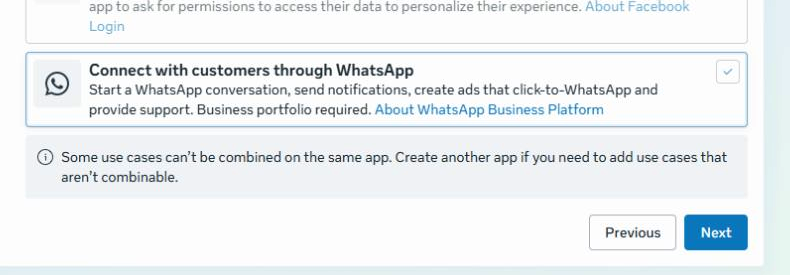
- Select the platform's Business Portfolio.
- If no portfolio is listed, select Create a business portfolio, finish that setup, and then return here.
- Select Next.
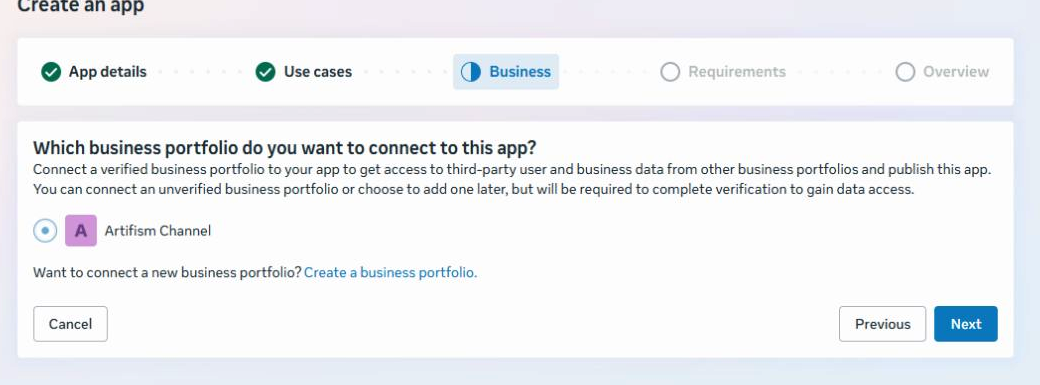
- Read the Publishing requirements shown by Meta.
- Record any requirement that must be completed before the app can go live.
- Select Next.
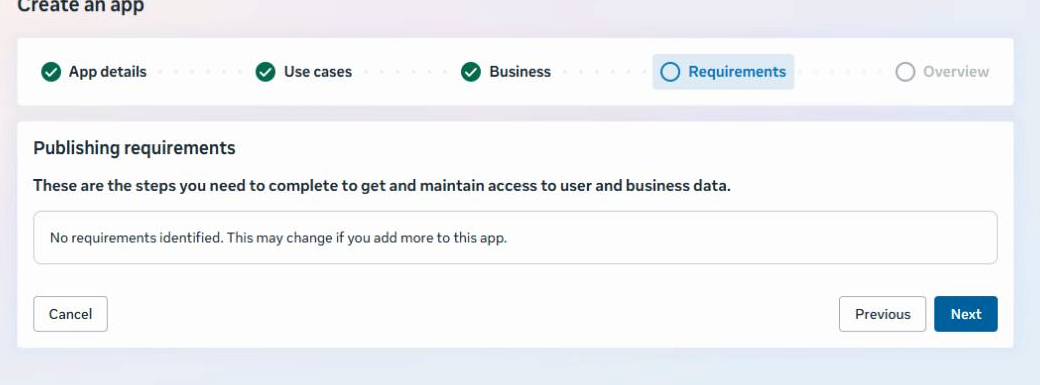
-
On Overview, check all four items:
- The App name is correct.
- The contact email is correct.
- The use case says Connect with customers through WhatsApp.
- The correct Business Portfolio is selected.
-
Select Create app. Meta may ask you to confirm your password.
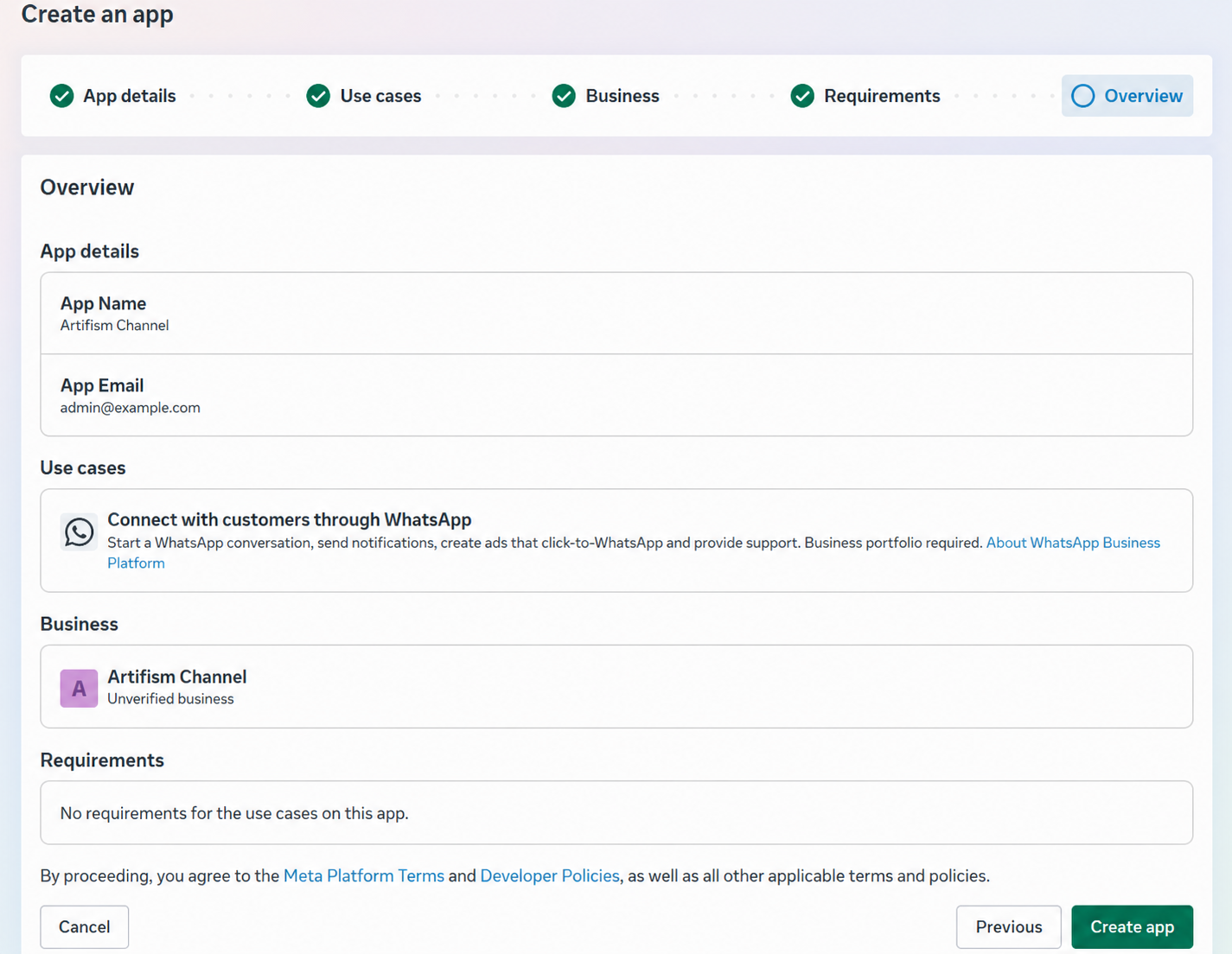
- Wait for Meta to create the app and open its Dashboard.
Part B — Open an existing app
Use this part only when the platform app is already listed under Admin Apps.
- Find the platform app card. The example app is named Artifism Channel.
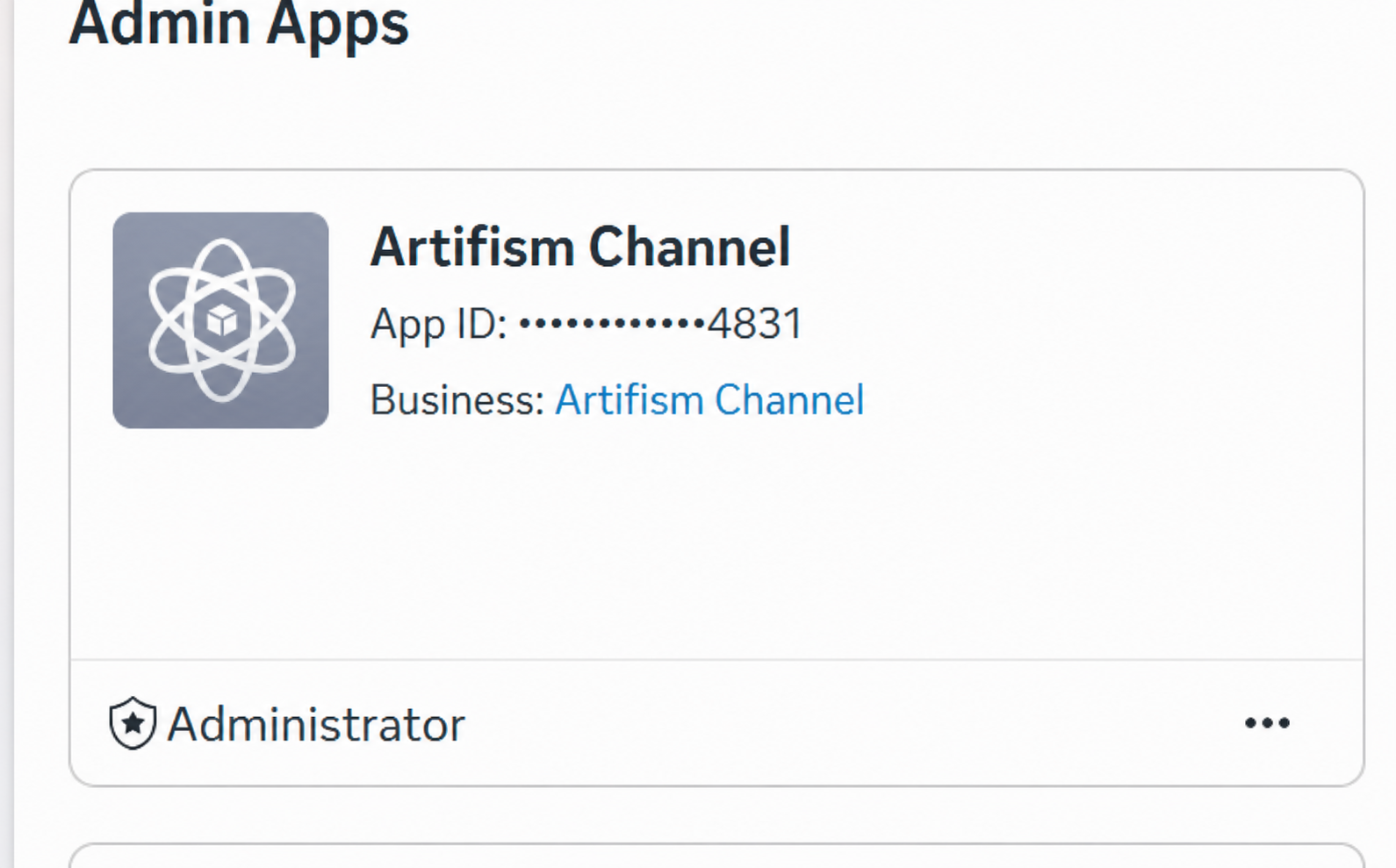
- Select the card.
- Wait for the app Dashboard to open.
Both paths finish on the Dashboard
On the Dashboard, look for Connect with customers through WhatsApp.
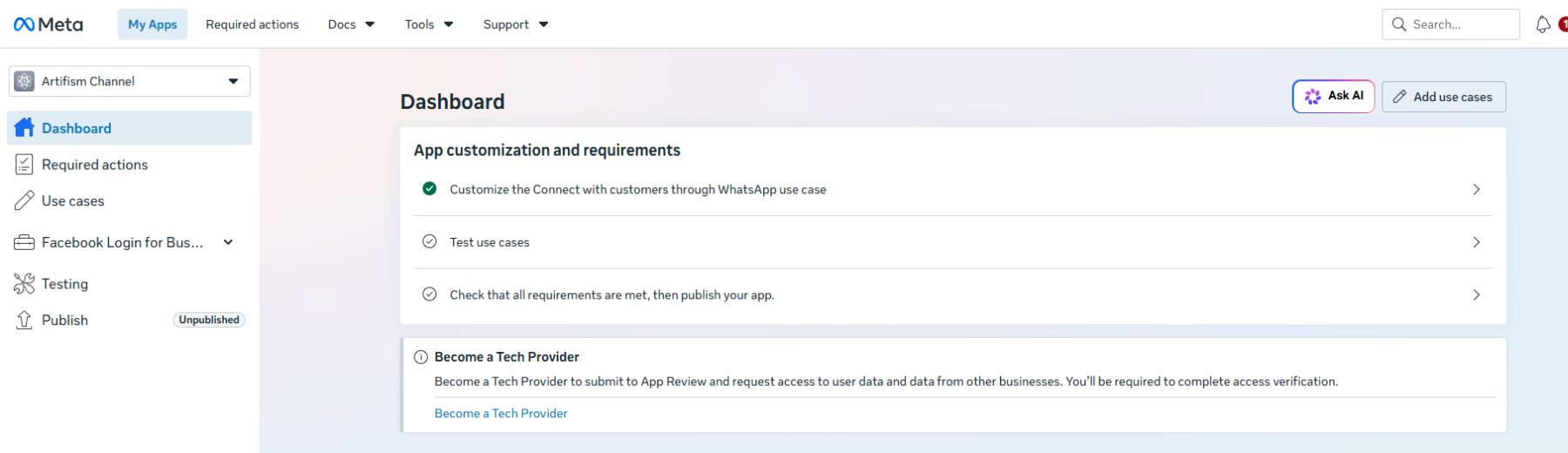
Step 2 is complete when
A platform-owned Meta app is open and its Dashboard shows the WhatsApp use case.
Production permission gate for Coexistence
Coexistence uses the platform-owned Meta app to onboard other businesses' WhatsApp assets through Embedded Signup. Standard Access is suitable only for app administrators, developers, testers, and Meta-approved test assets. It is not sufficient evidence that ordinary Artifism customers can onboard in production.
Before enabling Coexistence, open Meta App Dashboard -> App Review -> Permissions and Features and review this matrix:
| Permission | Why Artifism needs it | Required production access |
|---|---|---|
business_management |
Allows the Embedded Signup/provider flow to work with the customer's Business Portfolio and shared business assets. | Advanced Access required. Meta's current Embedded Signup release instructions explicitly name this permission. |
whatsapp_business_management |
Allows Artifism to resolve/manage the customer's WABA, phone number, registration/profile information, and WABA subscription. | Advanced Access required. Meta's current Embedded Signup release instructions explicitly name this permission. |
whatsapp_business_messaging |
Allows Artifism to send/receive WhatsApp messages and work with message media for the onboarded WABA. | Required for runtime. Request Advanced Access when Meta exposes it for review, and do not release the customer flow while it is limited to app-role/test assets. |
Do not request unrelated permissions such as catalog_management, email, or additional Facebook permissions unless a separate implemented feature has a documented need for them. Unnecessary permissions increase review scope and rejection risk.
Three approvals must all be true
Advanced Access, a token containing the scope, and access to the customer's WABA are separate requirements. An Advanced permission does not add the scope to an existing token, and a token scope does not prove that the app passed App Review for public customers.
Complete the release gates
- Complete Meta Business Verification and the current Tech Provider/solution-provider enrollment required for the platform app.
- In App Review -> Permissions and Features, request Advanced Access for
business_managementandwhatsapp_business_management. - Request/confirm production access for
whatsapp_business_messagingas shown by the current Meta dashboard. - For each reviewed permission, explain the exact Artifism feature and the minimum Graph API calls/data it needs.
- Provide a reviewer-accessible test account and a recording that shows: starting Coexistence, Meta authorization, selecting a customer business/WABA/number, returning to Artifism, and completing an inbound and outbound message test.
- Complete Meta's data-handling questions, Privacy Policy, Data Deletion URL, and any requested verification.
- Put the app in Live mode only after the required permissions show approved/usable for public customers.
- Run onboarding with a real non-role test customer. An app-admin-only test is not a production proof.
Why the messaging row is worded differently
Meta's current official Embedded Signup release note explicitly names Advanced Access for business_management and whatsapp_business_management. Artifism also needs whatsapp_business_messaging to operate the channel. Because Meta can change which permissions are separately reviewable for a program/app, the app's current Permissions and Features screen is the final authority for that third access level.
Step 3: Copy the App ID and App Secret
- In the same Meta app, open App Settings -> Basic.
- Under App Domains, add the production Artifism hostname, such as
support.example.com. Enter only the hostname—nohttps://, path, port, or localhost address. - Save the public HTTPS Privacy Policy and Data Deletion URLs required by Meta.
- Save the Basic settings.
- Copy App ID.
- Save the App ID in your setup notes. The App ID is not a password.
- Next to App Secret, select Show.
- Copy the App Secret directly into your password manager.
- Hide the App Secret again. Do not take a screenshot while it is visible.

Step 3 is complete when
The production hostname and policy URLs are saved, and you have the App ID and hidden App Secret from the same Meta app.
Step 4: Get the Config ID
The Config ID tells Meta which signup form to show to an Artifism customer.
- In the same Meta app, open Facebook Login for Business.
- Select Configurations.
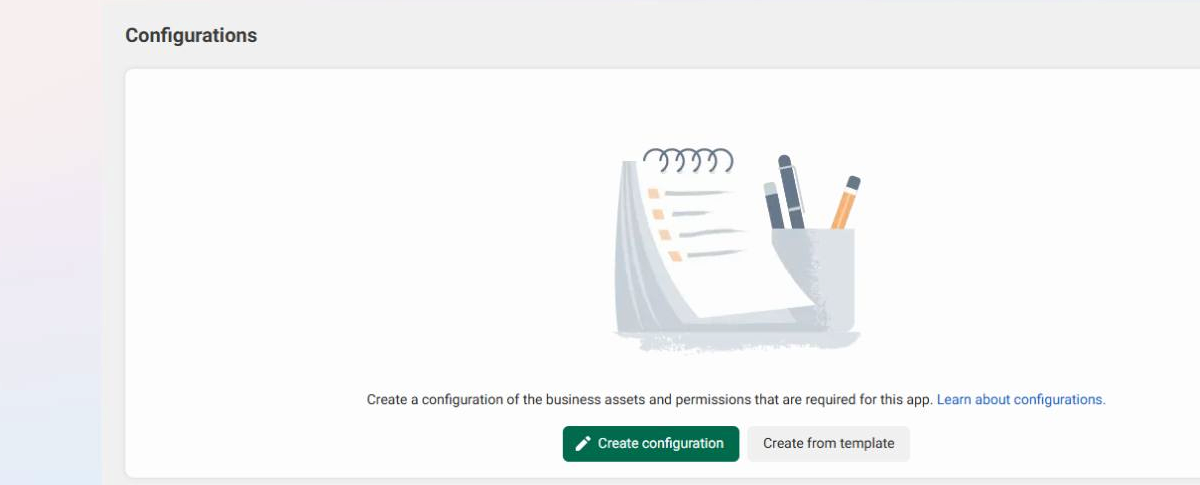
- If an approved WhatsApp configuration already exists, open it.
- If none exists, select Create configuration.
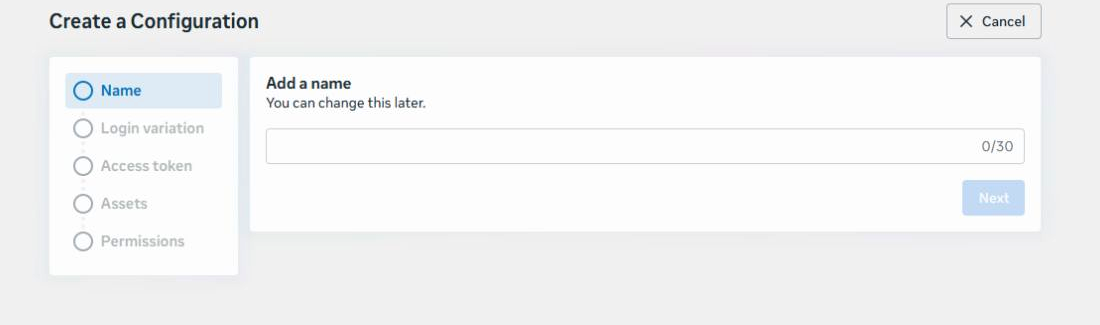
- Enter a clear name, such as
Artifism WhatsApp Signup. - Continue only if Meta offers WhatsApp Embedded Signup or WhatsApp Business App onboarding.
- Choose the WhatsApp assets and permissions approved for your Meta program.
- Finish the form.
- Copy the new numeric Configuration ID.
Stop if Meta only shows General Facebook Login
A general Facebook Login configuration is not the WhatsApp signup configuration. Stop and ask the Meta app administrator to check the app's WhatsApp product and program access.
Step 4 is complete when
You have the numeric Configuration ID for the approved WhatsApp signup form.
Step 5: Fill in the Artifism form
Return to Artifism -> Channel Integrations -> WhatsApp.
Part A — Add the Meta app numbers
- Paste App ID into Meta App ID.
- Paste the Configuration ID into Embedded Signup Config ID.

Part B — Add the App Secret
- Paste the App Secret into Meta App Secret.
- If the field says Saved securely, leave it blank unless you are replacing the secret.

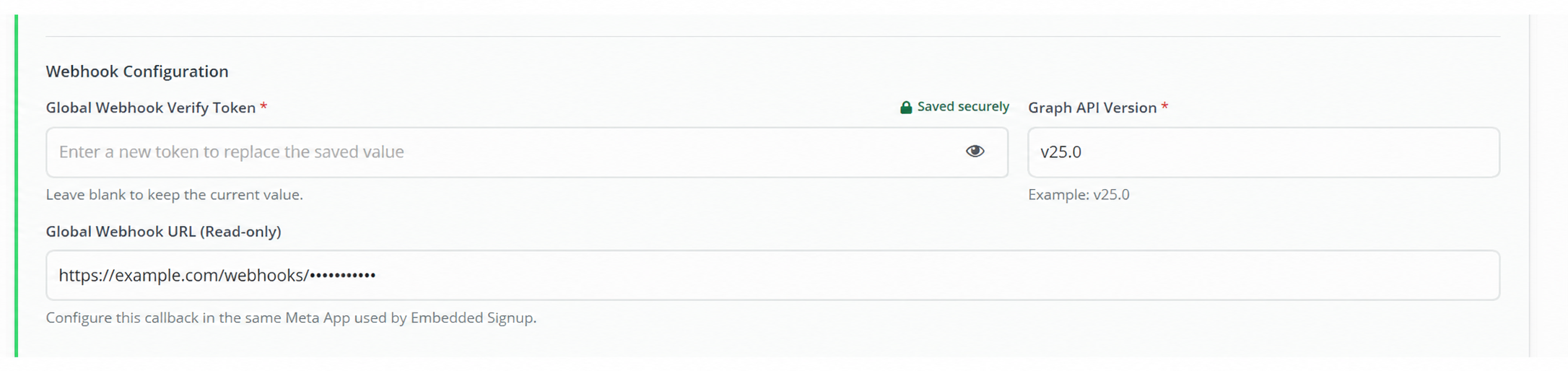
Part C — Configure the webhook handshake and API version
This part has three different values. Do not interchange them:
| Value | What it does | Where it comes from |
|---|---|---|
| Global Webhook Verify Token | Proves to Meta that the Coexistence callback belongs to this Artifism installation. Artifism and Meta compare the two copies during webhook verification. | You create it. |
| Graph API Version | Tells Artifism which Meta Graph API version to call. | The version selected and tested by the platform developer. |
| Global Coexistence Webhook URL | Tells Meta where to send platform-level Coexistence webhook events. | Artifism creates it automatically from the production site URL. |
The Verify Token is not a Meta credential
Do not paste the Meta Access Token, App Secret, Configuration ID, or a customer's manual-channel Verify Token here. The Global Webhook Verify Token is a separate random value used only for the platform Coexistence webhook handshake.
1. Create and store the Verify Token
- Open the password generator in your approved password manager.
- Generate a new value with at least 32 characters. Use uppercase letters, lowercase letters, numbers, dots (
.), underscores (_), and hyphens (-) only. - Do not use spaces, slashes, quotes, an email address, a business name, or a value already used by another secret.
- Save it in the password manager as
Artifism Global Webhook Verify Tokenand record which Meta app and Artifism environment it belongs to. - Copy the value directly from the password manager. Do not place it in notes, tickets, chat, or screenshots.
Why 32 characters?
Artifism accepts a minimum of 16 characters, but this guide recommends 32 or more so the value is difficult to guess. The comparison is exact and case-sensitive.
2. Enter the Verify Token in Artifism
- Paste the newly generated value into Global Webhook Verify Token.
- Make sure there is no space before or after it and do not change the letter case.
- If the field already says Saved securely, leave it blank unless you intentionally want to rotate the existing token. Entering a new value replaces the saved one and requires Meta webhook verification again.
3. Enter the Graph API Version
- Ask the platform developer which Meta Graph API version this Artifism release was tested with.
- Enter it in the exact
v<number>.<number>format, including the lowercasev; for example,v25.0. - Treat
v25.0as a format example only. Do not copy it unless it is the version approved for this deployment. - Do not paste a URL, app version, Configuration ID, or text such as
Graph API v25.0into this field.
4. Check and copy the Webhook URL
- Confirm that Global Coexistence Webhook URL starts with the production
https://domain for this Artifism installation. - It must not contain
localhost, a private IP address, a staging hostname, or an expired test domain. - Use the copy control to copy the complete URL. Do not type it manually and do not edit its path or query string.
- Keep the copied URL ready for Step 6. If the hostname is wrong, correct the production
APP_URLor domain configuration before continuing; editing the displayed URL is not the fix.
Before leaving Part C, confirm that the token is stored in the password manager, the Graph API version has the correct format, and the generated URL points to the public production site.
Part D — Save the form
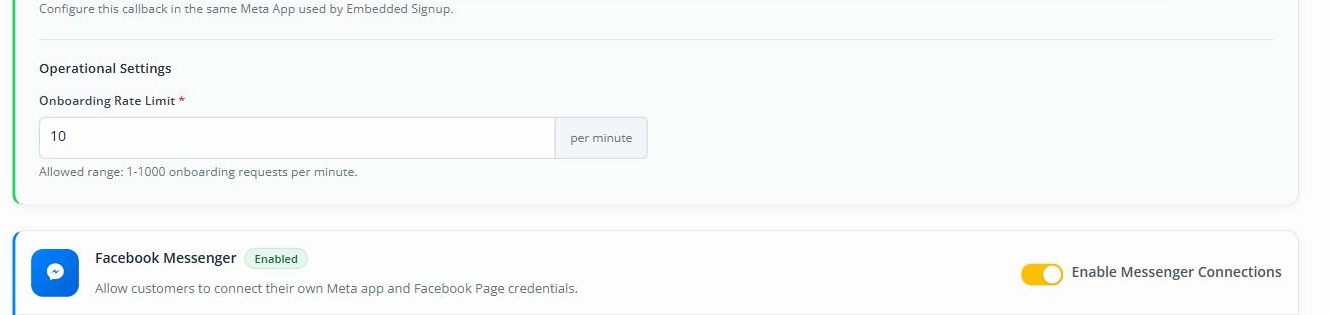
- Set Onboarding Rate Limit. Use
10unless your platform administrator chose another value. - Select Save.
Saving is required before Meta can verify the callback. It stores the new Verify Token and makes Artifism ready to compare it with the exact value that Meta sends in Step 6.
Step 5 is complete when
The green WhatsApp box shows Configured. Keep Coexistence off until the webhook is verified.
Step 6: Connect the Webhook URL in Meta
A webhook lets Meta send WhatsApp events to Artifism.
Before continuing, confirm that you completed Step 5, Part D and saved the Artifism form. Keep the same password-manager entry open so you can copy the exact Verify Token again.
- Return to the same Meta app.
- Open Use cases -> Connect on WhatsApp -> Basic setup.
- Open Production setup -> Configure Webhooks.
- Paste the Artifism Global Coexistence Webhook URL into Callback URL.
- Paste the same Global Webhook Verify Token into Verify token.
- Select Verify and save.
- Subscribe to
messagesso Artifism receives customer messages. - Subscribe to
smb_message_echoesso replies sent from the WhatsApp Business mobile app appear in Artifism and pause AI for that conversation.
Do not mix the two Verify Tokens
The platform's Global Webhook Verify Token is for Coexistence. A customer's manual Cloud API channel has its own per-channel Verify Token and Webhook URL. Never substitute one for the other.
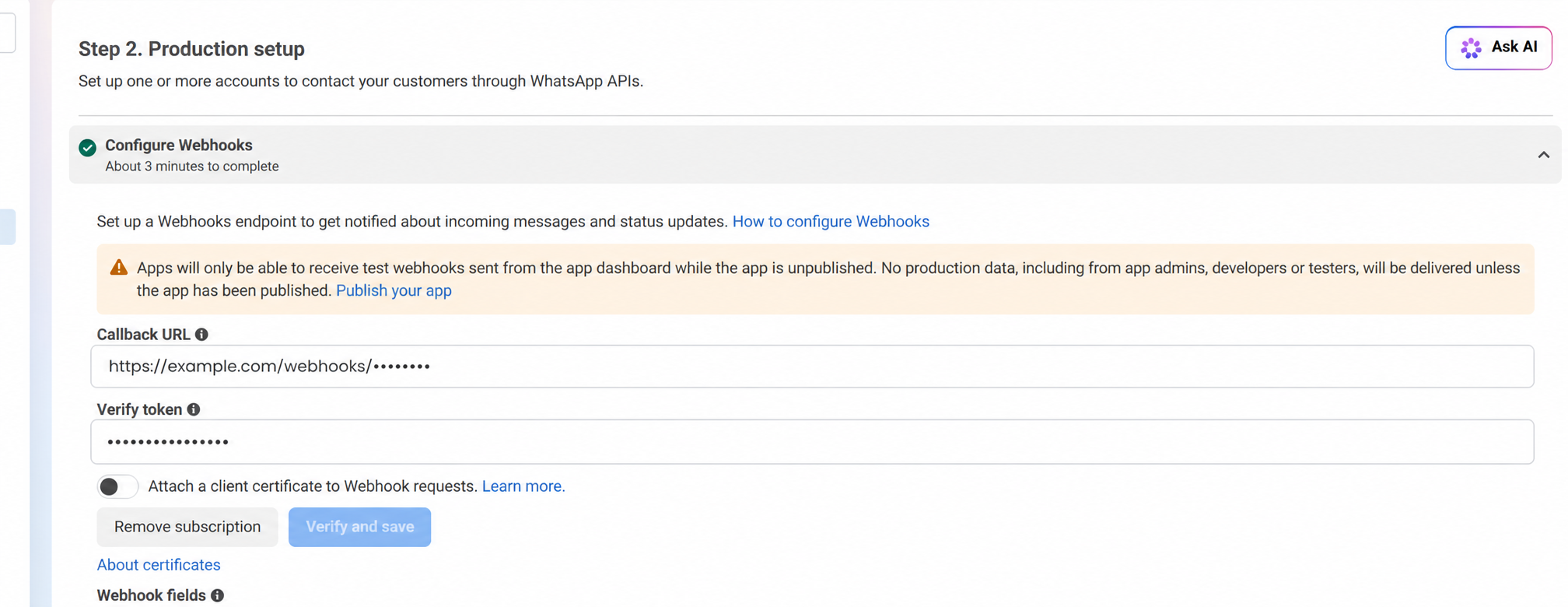
If verification fails, do not continue
Check that the Artifism URL starts with https://. Then copy the URL and Verify Token again without changing any character.
Step 6 is complete when
Meta says the callback was verified and saved.
Step 7: Turn on Coexistence and test it
Part A — Turn it on
- Return to Artifism -> Channel Integrations -> WhatsApp.
- Confirm that the WhatsApp box says Configured.
- Turn on Coexistence.
- Select Save.
Part B — Start a test connection
- Sign in with a test Artifism customer account.
- Open Chatbot -> your test chatbot -> Channel.
- Select Add Channel -> WhatsApp.
- Select WhatsApp Business App - Coexistence.
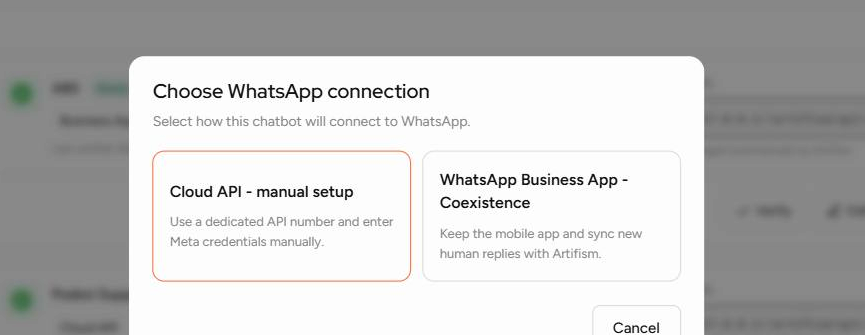
- Select Continue with Meta.
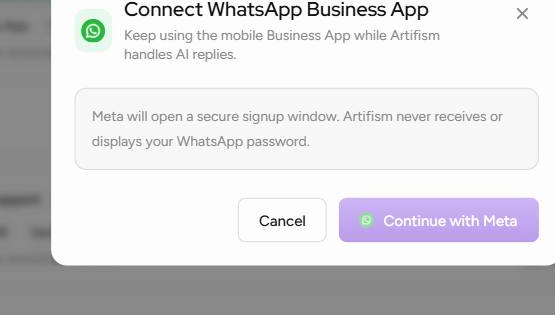
- Sign in inside the Meta window.
- Choose the test business and test WhatsApp number.
- Approve the requested connection.
- Return to Artifism.
Part C — Check and activate the channel
- Confirm that the channel says Business App, Connected, and Verified.
- Check that it is the correct test number.
- Activate the channel.

- Send
Hellofrom a different WhatsApp number. - Confirm that Artifism receives the message.
- Confirm that the AI sends a reply.
- Test one human handoff.
- After the human reply is finished, test Resume AI.
- Send one reply from the WhatsApp Business mobile app in the same test conversation.
- Confirm that the mobile-app reply appears in Artifism and AI pauses for that conversation.
- Confirm that the WhatsApp Business mobile app still works.
Setup is complete when
The test channel is verified and active. Messages work in both directions. Human handoff works. The business can still use its WhatsApp Business mobile app.
Quick checklist
- The per-minute cron processes
whatsapp-webhooksandwhatsapp-replies. - Cron failures, failed jobs, and queue age are monitored.
-
business_managementandwhatsapp_business_managementshow Advanced Access for the production Embedded Signup app. -
whatsapp_business_messagingis approved/usable for customer-owned WABAs, not only app-role test assets. - Business Verification, current provider-program requirements, App Review, and Live mode are complete.
- The WhatsApp box says Configured.
- Meta verified the Global Webhook URL.
- Coexistence is turned on.
- The test customer can select the Coexistence option.
- The test channel says Connected and Verified.
- Incoming message, AI reply, human handoff, and Resume AI all work.
- A mobile Business App reply appears in Artifism through
smb_message_echoesand pauses AI. - The WhatsApp Business mobile app still works.
If something does not work
| What you see | What to do |
|---|---|
| Coexistence is missing | Go back to Step 5. Make sure all fields are saved, then turn on Coexistence in Step 7. |
| Artifism says the Meta setup is incomplete | Check App ID, App Secret, Config ID, Verify Token, and Graph API Version. |
| Meta cannot verify the Webhook URL | Check HTTPS. Copy the Callback URL and Verify Token again. They must match exactly. |
| Meta only shows General Facebook Login | Stop. The Meta app does not yet show the approved WhatsApp signup option. |
| Meta signup says Can't load URL or the domain is not included | Add the production Artifism hostname under App Settings -> Basic -> App Domains. Do not use localhost in production. |
| The number is already connected | Do not add it again. Find the old channel or connection first. |
| The channel is verified but messages do not arrive | Activate the channel, then check the webhook, Meta app status, cron history, and the whatsapp-webhooks queue. |
| Incoming messages appear but Artifism does not reply | Check cron history, the whatsapp-replies queue, failed jobs, token validity, and the current reply window. |
Keep the connection safe
- Keep the App Secret and Verify Token in a password manager.
- Give Meta app and Artifism Admin access only to trusted administrators.
- When you change a secret, repeat the webhook and test steps.
- Ask a developer to review the Graph API Version before Meta stops supporting it.
More help
- Customer connection guide: WhatsApp Business App - Coexistence
- Team member guide: WhatsApp team operations
- Meta Embedded Signup documentation
- Meta's official Embedded Signup collection and release permission note