WhatsApp Team Member Operations
Use this guide after the chatbot owner has connected an active WhatsApp channel, given you Chatbot access, and selected you as a human agent. A team member handles assigned conversations; they do not configure channels or Meta credentials.
Know what you can access
| Owner | Team member |
|---|---|
| Sees the full managed-channel inbox and can assign or unassign agents. | Sees WhatsApp/Messenger conversations assigned to them. |
| Selects eligible human agents and the response-time limit in Channel settings. | Sets personal availability and handles assigned work. |
| Manages channel connection, verification, activation, and credentials. | Never needs an Access Token, App Secret, Verify Token, PIN, or Meta login. |
You do not see the owner's full queue
A team member sees managed-channel conversations only while they are assigned to that team member. The owner sees unassigned Needs human reply conversations and can assign them.
Start your shift
- Sign in and open Chatbots → Conversations.
- If you are a team member, use the availability button beside Conversations to change Unavailable to Available. The owner does not see this personal toggle.
- Use WhatsApp to narrow your assigned inbox. The Needs human filter is most useful to the owner because unassigned managed-channel conversations are not visible to team members.
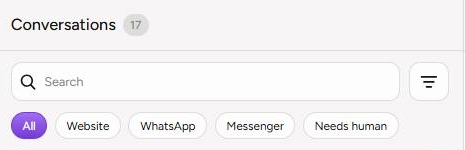
Use WhatsApp to narrow the inbox. In this owner-side example, Needs human finds work that still needs assignment.
- Open your assigned conversation. Do not work from a customer's WhatsApp mobile notification outside the approved support process.
What availability changes
Only active team members with Chatbot access, selected in the channel's Human agents list, and marked Available can receive automatic assignments. When you switch to Unavailable, unanswered active assignments can be redistributed to another available agent.
Read the status before replying
| Status | Meaning | What you should do |
|---|---|---|
| Needs human reply | AI is paused, but no eligible agent owns the conversation yet. This is normally visible to the owner. | The owner assigns it or selects Take over. |
| Human active | A human agent owns the next reply. | Confirm the displayed assignee is you before typing. |
| Reply by [time] | Your response deadline is running. | Send a useful first reply before the deadline. |
| Response overdue | The deadline passed without a successful human reply. | Reply immediately or follow the escalation process. |
| Owner notified | The response-time escalation has already notified the owner. | Continue the customer response and inform the owner if help is needed. |
| Responded | A human reply was successfully sent after this assignment began. | Continue until the issue is resolved. |
| AI active | AI owns future customer messages. | Do not expect a human composer until a handoff or takeover occurs. |
Claim a conversation correctly
- Open the conversation and read the existing messages and handoff reason.
- Most automatically assigned team-member conversations already show Human active and your name; in that normal case, you do not need Take over.
- If Take over does appear for a conversation you are allowed to handle, select it once. Wait for Conversation assigned to you and confirm your name is shown.
- If the conversation is assigned to someone else, do not work around the lock. Ask the owner to reassign it.
The owner can use Assign to to choose an eligible agent or return the conversation to Unassigned. That selector is owner-only; a normal team member does not use it.
Send a human reply
- Confirm the top status is Human active and the assignee is you.
- Read the full context. Do not ask the customer to repeat information already in the thread.
- Write a clear reply in Write a WhatsApp reply....
- Press Enter or select Send. Use Shift+Enter for a new line.
- Wait for WhatsApp reply queued. Queued means Artifism accepted the job; it is not yet proof that Meta delivered the message.
- Watch the message delivery state. If the send succeeds, the response status becomes Responded. If it fails, read the error and notify the owner when the channel or Meta connection needs attention.

Sample Customer is a fictional documentation name. This captured owner view includes the owner-only assignee and delete controls. An assigned team member sees the human/response status and Resume AI, but not those owner-only controls.
Message limit
The WhatsApp reply box allows up to 4,096 characters. The counter changes colour near the limit. Prefer short, readable messages instead of using the full limit.
Return a completed conversation to AI
Select Resume AI only when the human issue is resolved and AI can safely handle the next customer message.
- Confirm that the customer is not waiting for another human answer.
- Complete any internal escalation or record-keeping required by your organization.
- Select Resume AI once.
- Wait for AI auto-reply resumed and confirm the header no longer shows Human active.
Resuming AI clears the human assignment. It does not rewrite or resend earlier messages.
Do not resume too early
Keep the conversation in human mode whenever you or another agent still owns the next response.
WhatsApp's 24-hour customer-service window
Free-form WhatsApp replies are allowed only while the service window is open. Artifism measures the window from the customer's most recent message.
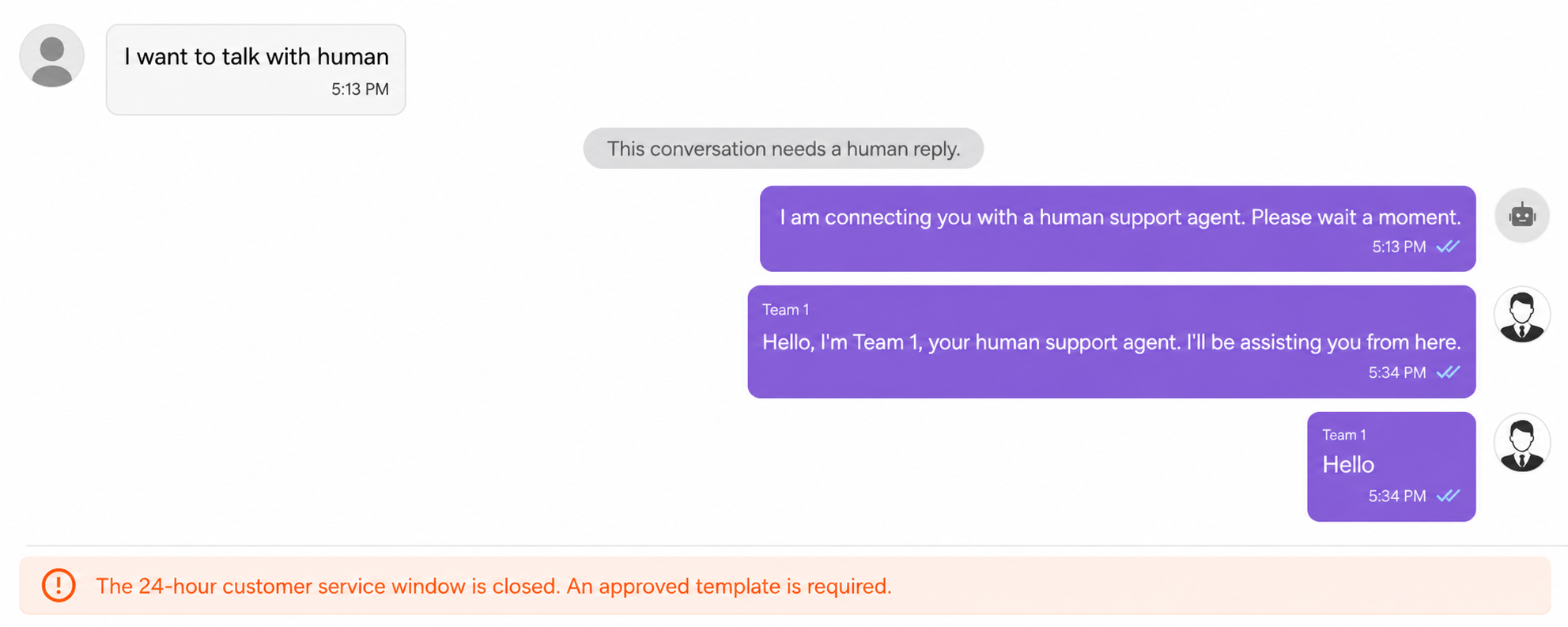
If Artifism shows The 24-hour customer service window is closed:
- Do not repeatedly press Send; the composer is intentionally blocked.
- Use an approved WhatsApp template through your organization's approved process, or wait for the customer to send a new message.
- Template sending is not available from this Artifism reply box in the current release.
- Escalate to the owner if a time-sensitive business response is required.
Fix common problems
| What you see | Likely reason | Safe action |
|---|---|---|
| Availability button is missing | You are signed in as the owner, or your team-member setup/access is incomplete. | Confirm the signed-in account and ask the owner to check active team status and Chatbot access. |
| No assigned conversations | You may be unavailable, not selected as a human agent, or there may be no handoff work. | Turn Available on and ask the owner to confirm channel-agent selection. |
| Take over is missing | You are not eligible, the conversation belongs to another agent, or the channel is unavailable. | Do not bypass the assignment; ask the owner to review it. |
| Assigned to another agent | The assignment lock belongs to someone else. | Ask the owner to reassign it. |
| WhatsApp channel is inactive or not fully connected | The owner must repair, reconnect, verify, or activate the channel. | Preserve the customer's context and notify the owner. |
| WhatsApp reply queued but no delivery follows | The background send may still be running or may have failed at Meta. | Check the delivery/error state before retrying. Never send the same reply repeatedly. |
| 24-hour window is closed | No recent customer message reopened the free-form service window. | Use the approved template process or wait for a new customer message. |
End your shift
- Finish or clearly escalate conversations you already accepted.
- Use Resume AI only for resolved conversations.
- Change Available to Unavailable before a break or at shift end.
- Tell the owner about failed replies, overdue work, channel-unavailable warnings, or a customer who still needs a human response.
Never do these things
- Never request or share an Access Token, App Secret, Verify Token, two-step PIN, or Meta password.
- Never deactivate, disconnect, or delete a channel to solve one conversation.
- Never promise a free-form reply outside the 24-hour window.
- Never select Resume AI while the customer is waiting for human follow-up.