Facebook Messenger Channel — Owner Setup
Use this guide to connect the first Facebook Page for a customer-owned Meta app to an Artifism chatbot. Complete the steps in order; a Page channel card does not exist until Artifism validates and saves the first connection.
Screenshot rule
Artifism and Meta screenshots in this guide were captured from the live systems. Only private identifiers, email addresses, business names, callback URLs, and account data are masked or blurred. Meta changes labels and layout periodically, so follow the meaning of the step when a label moves.
Before you begin
Confirm that an administrator has enabled Messenger using Messenger channel administration. Keep the App Secret, Verify Token, and Page Access Token in a secrets vault while you work.
What you are going to build
- Create or open the customer's Meta app and add Messenger.
- Obtain the App ID, App Secret, and a Page Access Token.
- Create a unique Verify Token.
- In Artifism, choose Add Channel -> Facebook Messenger and connect the first Page.
- Copy the newly created app callback to Meta and subscribe the required fields.
- Verify the connection, pass the inbound and outbound tests, and activate the channel.
1. Create or open the Meta app
Open Meta for Developers — My Apps.
If no suitable app exists
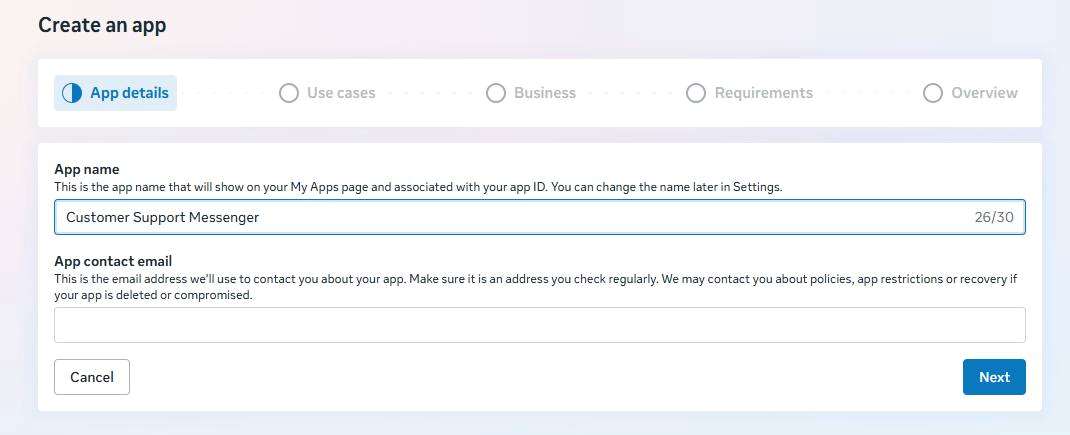
A. Enter the app details
- From My Apps, select Create App.
- Under App details, enter a name that identifies the customer's Messenger integration.
- Confirm the monitored App contact email.
- Select Next.
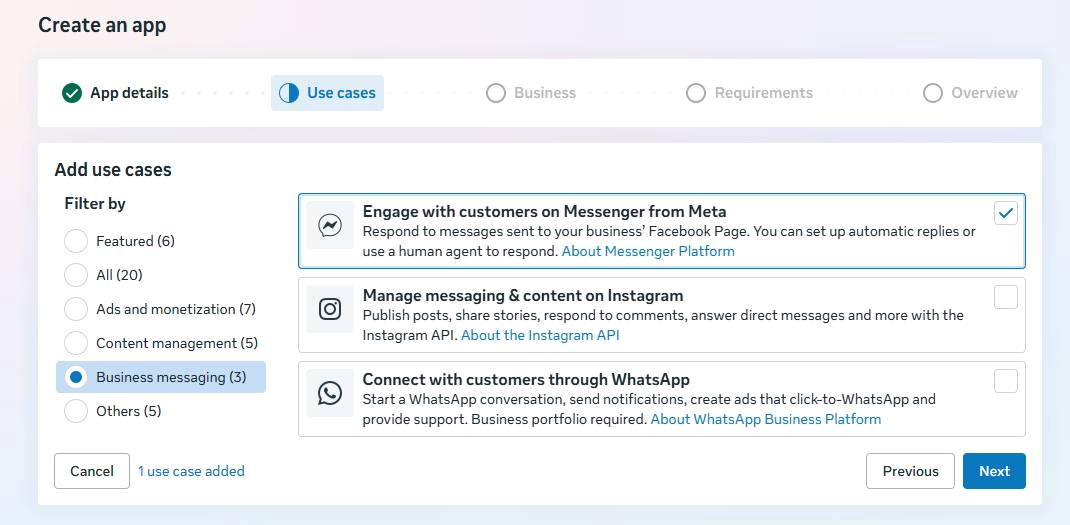
B. Choose the Messenger use case
- Under Use cases, select Business messaging.
- Choose Engage with customers on Messenger from Meta.
- Select Next.
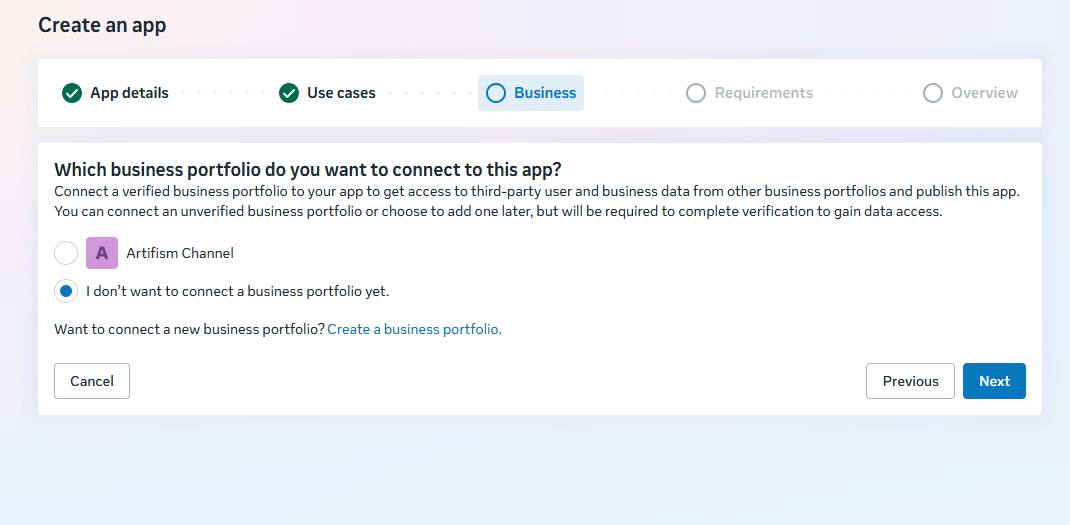
C. Choose the Business Portfolio
Select the verified Business Portfolio that owns the app and Facebook Page. The option to continue without a portfolio can be useful for a temporary development test, but connect the correct business before production access and App Review.
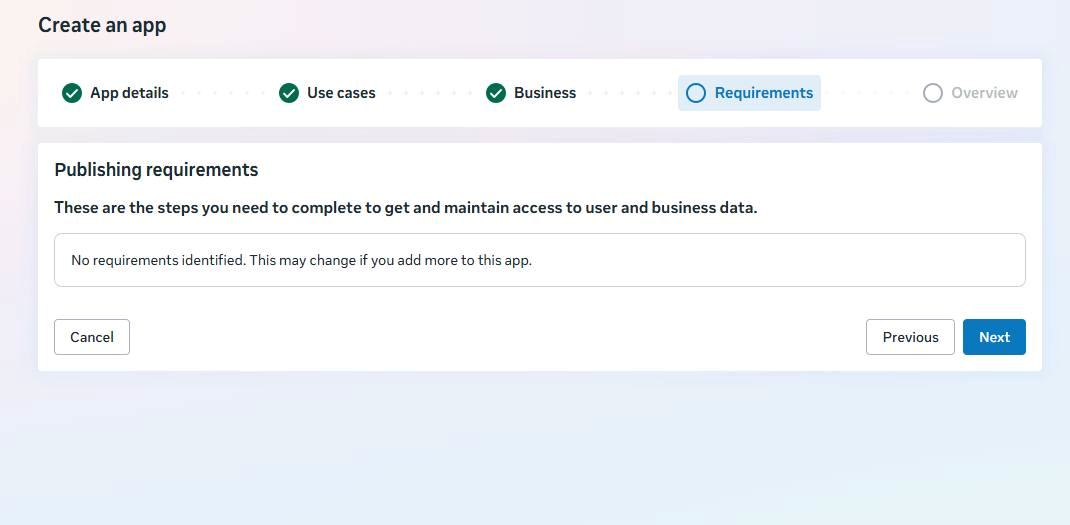
D. Review requirements and create the app
- Read Publishing requirements. Meta can add requirements later when permissions or products change.
- Select Next and review the app name, use case, Business Portfolio, and requirements on Overview.
- Read the Meta terms shown on the page.
- Select Create app only when every item belongs to the intended customer.
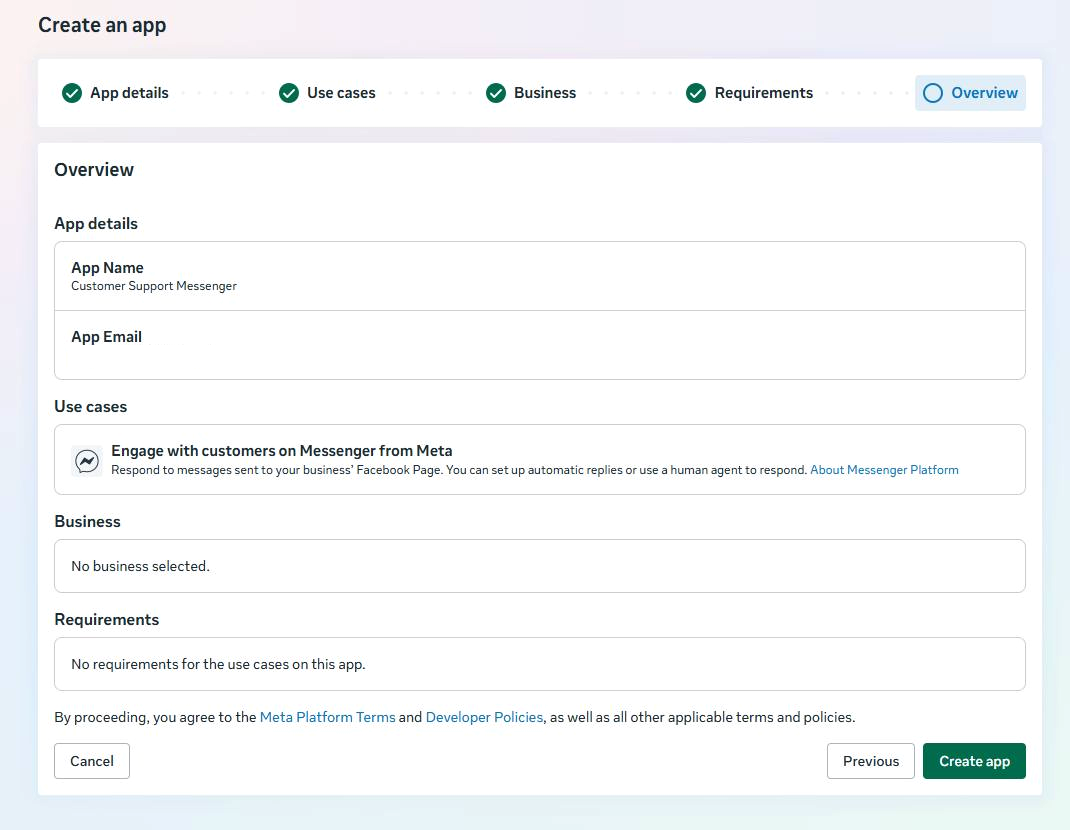
Do not look for an Artifism example app card. A first-time customer sees a card only after creating their own Meta app, and Meta changes setup labels periodically.
If an app already exists
Confirm that the app belongs to the intended business, has access to the intended Facebook Page, and is not an unrelated development app. Reuse the correct app instead of creating a duplicate.
2. Confirm Page and app access
The Meta account performing setup must be able to manage the Page and the app. It must have a Page task that permits messaging and Page subscription management. The Page token must support:
pages_messagingfor Messenger messages;pages_manage_metadatafor Page webhook subscription management.
Open App Review -> Permissions and Features and search for both permissions. The screenshot below shows the current Meta list with Standard access for a development app.
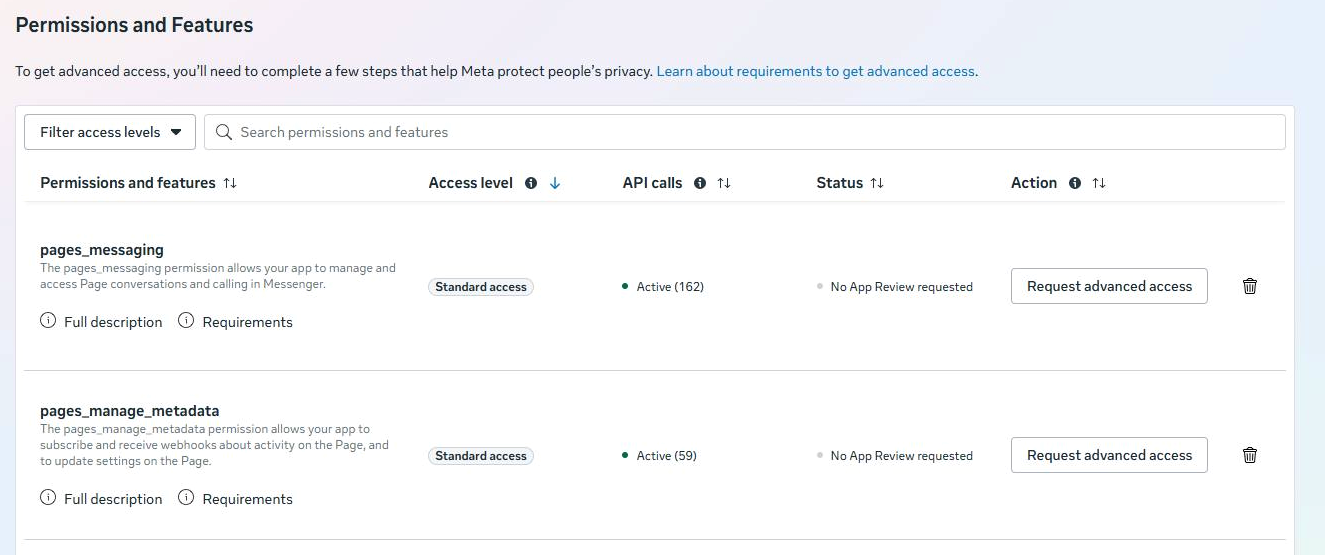
| Permission | What Artifism uses it for | Development with Standard Access | Public production |
|---|---|---|---|
pages_messaging |
Receive Page messages and send Messenger replies. | Use only with eligible app-role/test users and Pages available to those users. | Request Advanced Access and complete the App Review/business requirements shown by Meta before serving people outside app roles. |
pages_manage_metadata |
Subscribe or unsubscribe the Facebook Page at the /{PAGE-ID}/subscribed_apps edge. |
Use only with eligible app-role/test users and a Page the setup user can manage. | Request Advanced Access and complete the App Review/business requirements shown by Meta before managing production Page subscriptions outside app roles. |
Standard Access is not a public-production approval. For production users who do not have an app role, both permissions must show the access level required by the current Meta dashboard, the app must satisfy the displayed business-verification/App Review requirements, and the app must be in the mode Meta requires for public use. Do not request unrelated permissions simply because another Meta integration uses them.
Meta's official Messenger API guidance also requires the Page Access Token to come from a person who can perform the Page's messaging task for sends and the appropriate Page moderation/management task for webhook subscription. Meta changes Page-role labels, so verify the effective Page access in Business Settings rather than relying only on an old role name.
3. Collect App ID and App Secret
- In the Meta app, open App Settings -> Basic.
- Copy App ID.
- Select Show beside App Secret, authenticate if asked, and copy it directly to the secrets vault.

The App ID must be digits. The App Secret is confidential and must never be placed in a screenshot or shared message.
4. Generate the Page Access Token
- In the Meta app, open Messenger -> Messenger API Settings.
- Confirm that Meta displays the three setup areas: Configure webhooks, Generate access tokens, and Complete App Review.
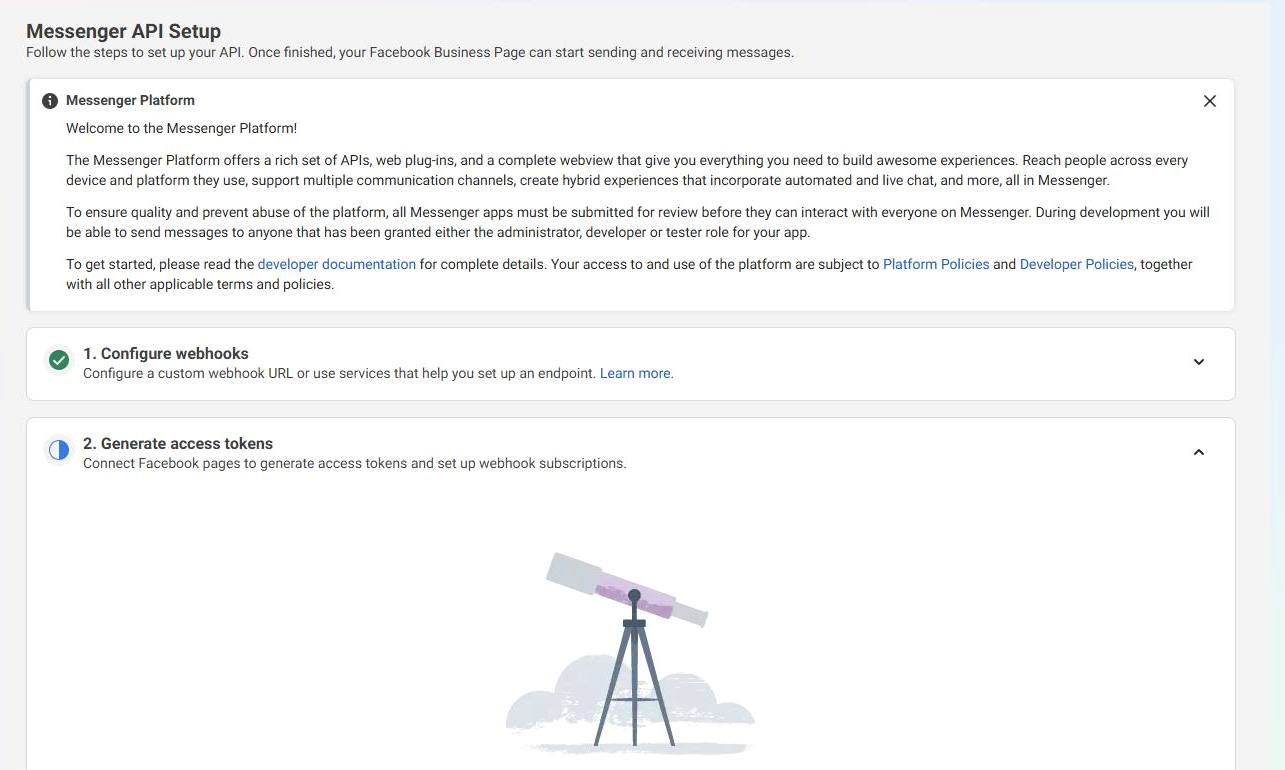
- Under Generate access tokens, select Connect.
- Sign in or re-authenticate when Meta asks.
- Choose the exact Facebook Page and approve the requested Page access.
- Return to this section and generate/copy the Page's Page Access Token.
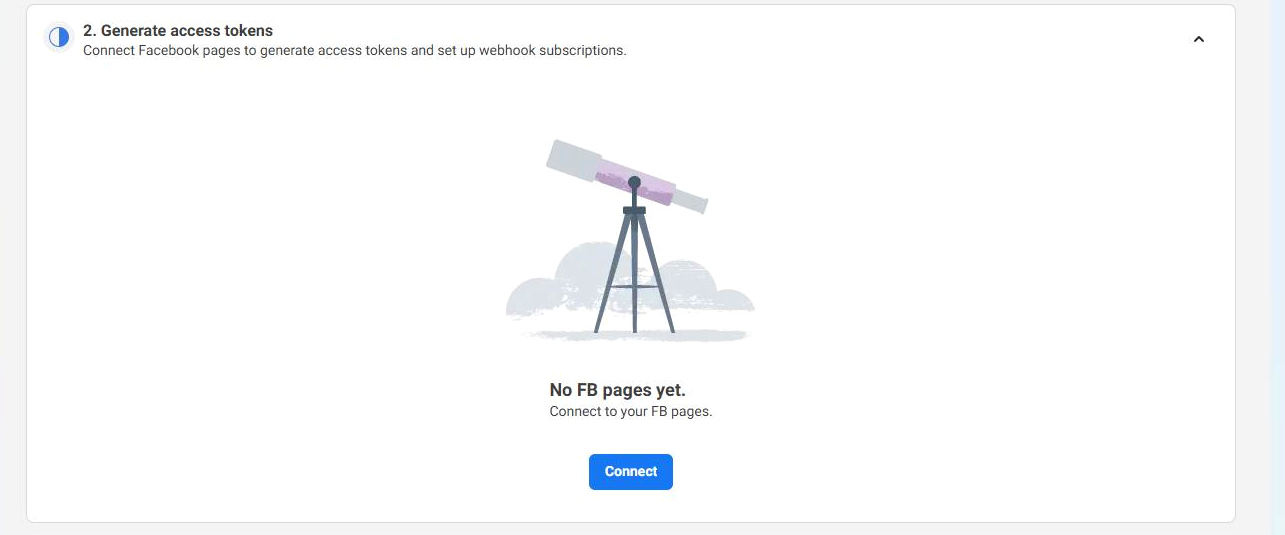
No FB pages yet
This message is normal before the first Page is connected. Select Connect and complete Meta's Page authorization; do not paste an access token from a different Page.
Before continuing, confirm all of the following:
- the token belongs to the exact Page being connected;
- the user granting it still has the required Page task/access;
pages_messagingandpages_manage_metadatawere granted;- the token is stored in the secrets vault with an owner and rotation note.
Page access can stop working when the granting person's Page task is removed, the business authorization is revoked, the password/security state changes, a permission is withdrawn, or the token expires. Treat the token as a renewable credential: record who granted it, test it after Page-role changes, and use Reconnect with a newly generated token when Artifism reports it invalid.
5. Create the shared Verify Token
Generate a random code with at least 32 characters. Use letters, numbers, dots, underscores, and hyphens only, for example a password-manager-generated value matching:
[A-Za-z0-9._-]{32,}
Save it with a label such as Artifism Messenger Verify Token — Customer Support. The value is case-sensitive. This is a customer-owned app credential, not a global administrator token.
6. Connect the first Page in Artifism
- Sign in as the chatbot owner.
- Open Chatbots -> [target chatbot] -> Channels.
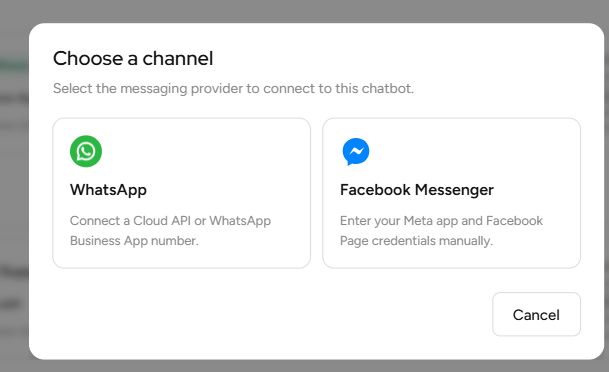
- Select Add Channel, then choose Facebook Messenger.
- Complete Connect New Meta App:
| Artifism field | Enter |
|---|---|
| App ID | Numeric Meta App ID from App Settings -> Basic. |
| App Secret | App Secret for the same Meta app. |
| Shared Verify Token | The unique 32+ character value created in step 5. |
| Page Access Token | Token generated for the exact Facebook Page. |
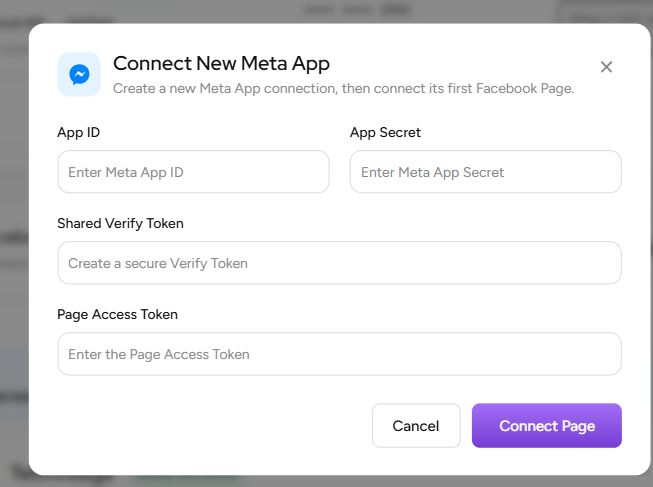
- Select Connect Page.
Artifism validates the app and Page credentials, resolves the Page identity, saves an inactive Page channel, and displays the app's shared callback. If a duplicate Page or app conflict is reported, resolve the existing connection instead of creating another.
7. Configure the callback in Meta
The Page card now exists. Copy its complete Callback URL and keep the same Verify Token from step 5.
- In the Meta app, open Messenger -> Messenger API Settings.
- Expand 1. Configure webhooks and add or edit the callback.
- Paste the Artifism Callback URL and the exact, case-sensitive Verify Token.
- Select Verify and save.
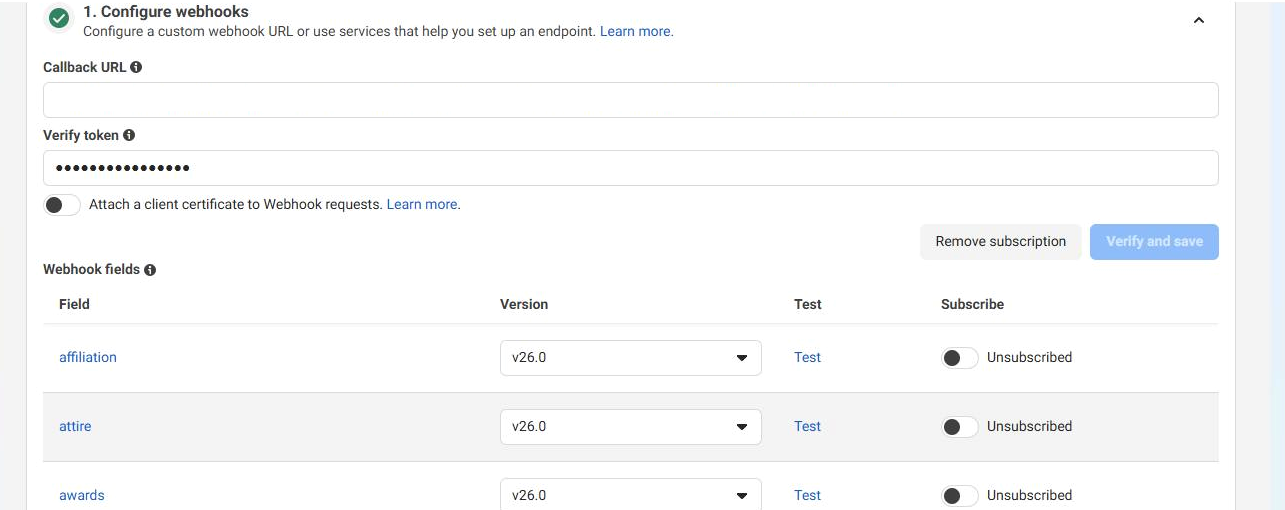
- Subscribe these five fields:
messages
messaging_postbacks
message_deliveries
message_reads
message_echoes
Meta lists the fields alphabetically and may show nearby optional fields. Locate each exact name, choose the Graph API version approved for the app, and confirm its status becomes Subscribed.



- Subscribe the intended Facebook Page to this Meta app. Artifism needs
pages_manage_metadatato manage or verify that Page subscription.
During the callback handshake, Meta sends a GET request containing the challenge and Verify Token. After setup, Meta signs each POST payload with the Meta App Secret in X-Hub-Signature-256. Artifism validates that signature against the unmodified request body before accepting the event. The Verify Token and App Secret therefore protect different parts of the webhook and must not be substituted for one another.
Use the generated callback exactly
Do not replace its host, path, app identifier, or trailing characters. A localhost callback cannot receive Meta production webhooks.
8. Verify and complete the five setup checks
Return to the Messenger Page card in Artifism.
- Select Verify. Artifism checks the app callback, Page credentials, and Page subscription.
- When prompted, copy the exact inbound test code.
- From a personal Facebook account, open the connected Page in Messenger and send that code to the Page.
- Return to Artifism and select Check Test Status.
- Select Send Test Reply while the 24-hour window is open.
- Wait for Artifism to receive Meta's delivery confirmation.
- Select Activate.
The inbound test is valid only for the current subscription/setup cycle. If Artifism regenerates the code, an older code cannot complete the new test. The outbound test is considered passed only after Artifism receives Meta's delivery confirmation; a successful button click by itself is not enough.
When setup is complete, the real Page card looks like this:
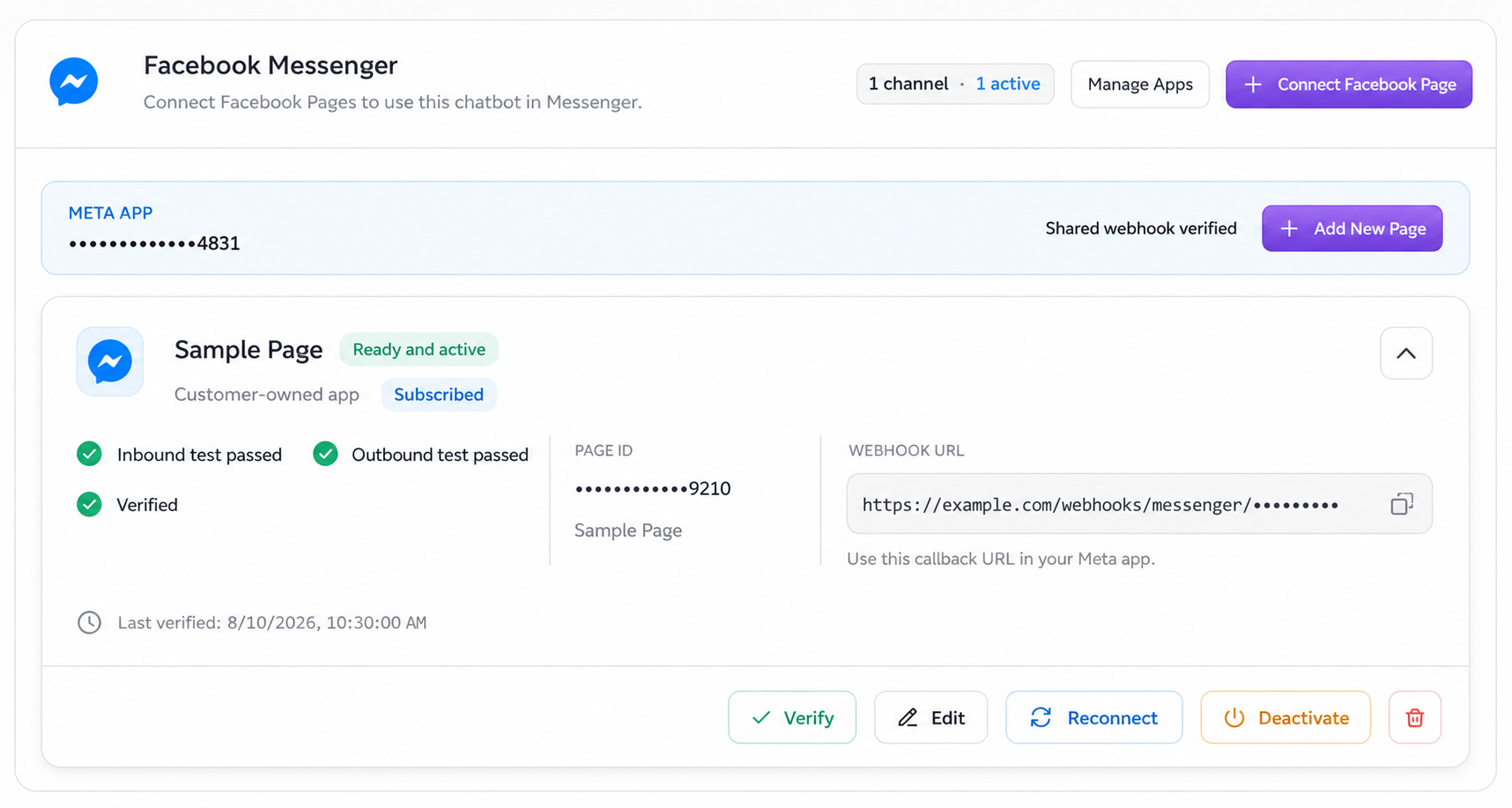
The five completed checks are:
- Credentials saved.
- Webhook connected.
- Incoming message tested.
- Outgoing reply tested.
- Channel activated.
Refresh the test window when asked
If Artifism says the inbound test must be refreshed, send the displayed code again from the personal Facebook account, then select Check Test Status. This opens a current 24-hour reply window for the delivery test.
Do not duplicate a pending test
A delivery confirmation can arrive after the send request. While Artifism shows the previous test as pending, wait and refresh the status instead of sending it repeatedly. The default pending-test safety period is five minutes; after Artifism marks the attempt timed out or failed, send a fresh test.
9. Run a real conversation test
From a Facebook account that is allowed to message the Page:
- Send a normal message, such as
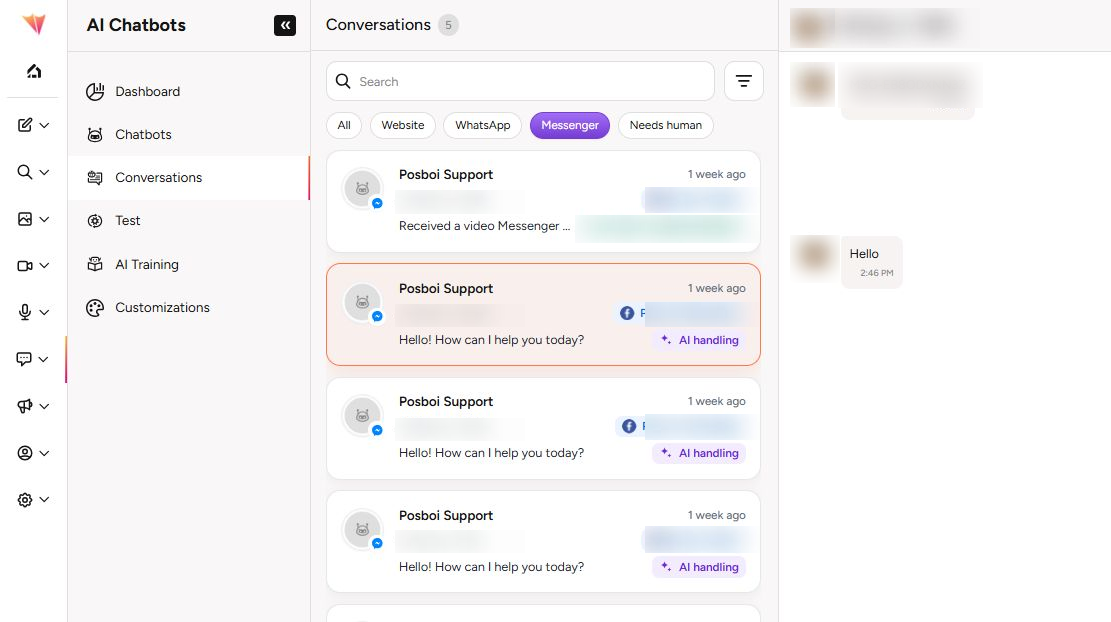
Hello. - In Artifism -> Conversations, select the Messenger filter.
- Confirm the inbound message and AI reply.
- Trigger or manually start human handoff.
- Confirm the selected agent can take over, send a text reply, and use Resume AI.
- Confirm delivery/read updates when Meta sends them.
The Messenger filter and AI handling labels appear in the real Conversations screen as shown below.
Verified credentials alone do not prove the complete webhook, queue, reply, and handoff path. The real conversation test is required before launch.
10. Add another Page under the same Meta app
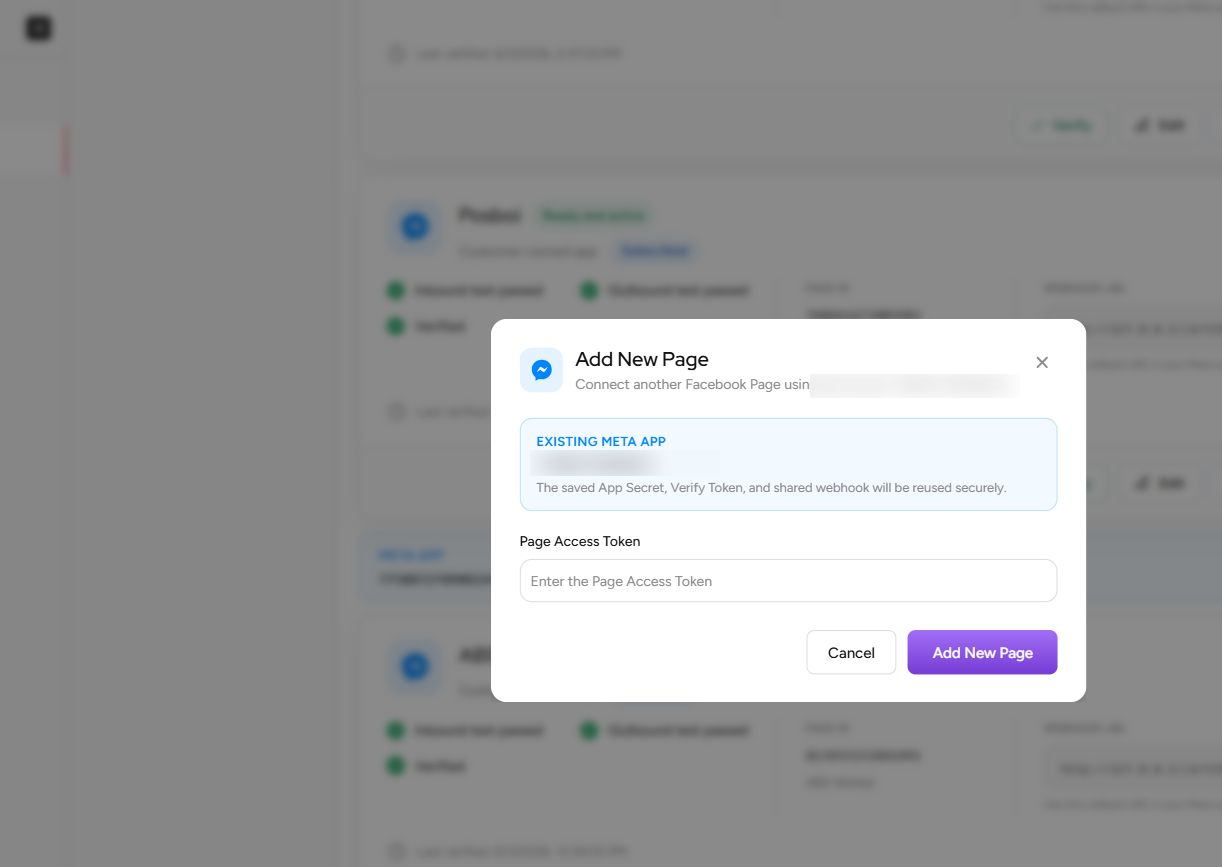
- On the Messenger section, select Connect Facebook Page or Add New Page for the existing app.
- Confirm the correct saved Meta app.
- Enter only the new Page's Page Access Token.
- Select Add New Page.
- In Meta, subscribe that Page to the already verified app callback.
- Complete Verify, inbound test, outbound test, and Activate for the new Page.
The saved App Secret, Verify Token, and callback are reused securely. Each Page still has a separate channel, status, test sequence, and activation state.
Go-live checklist
- The Meta app and Facebook Page belong to the intended customer.
- Public Artifism URL uses valid HTTPS.
- App ID, App Secret, Verify Token, and Page token are stored securely.
- Page token includes the required messaging and metadata permissions.
- Both permissions have the Meta access level required for the intended users; Standard Access is used only for eligible development roles.
- The granting person still has the Page tasks required for messaging and subscription management.
- Meta accepted the exact shared callback and Verify Token.
- All five webhook fields are subscribed.
- The intended Page is subscribed to the app.
- Artifism shows inbound and outbound tests passed.
- The channel is active.
- A real AI-to-human-to-AI conversation test passed.
Troubleshooting
| Problem | What to check |
|---|---|
| Facebook Messenger is missing | Ask the administrator to enable Messenger and confirm your account has Chatbot access. |
| App ID is rejected | Copy the numeric App ID, not the app name or Business Portfolio ID. |
| App Secret is rejected | Use the secret for the same App ID; remove accidental spaces and rotate it if exposure is suspected. |
| Page token is rejected | Confirm it belongs to the intended Page, the granting user still has Page access, and required permissions were approved. |
| Meta cannot verify callback | Use public HTTPS, the exact callback, and the exact case-sensitive Verify Token. The verification GET must reach Artifism; a queue worker is not required for the handshake itself. |
| Page subscription fails | Confirm pages_manage_metadata, Page admin/task access, and that the Page is not connected elsewhere. |
| Inbound test does not pass | Send the exact current code from a personal Facebook account, then check required webhook fields and the webhook worker. |
| Outbound test stays pending | Do not resend immediately. Check the reply and webhook workers plus message_deliveries; retry only after the prior attempt times out or fails. |
| Outbound test fails | Refresh the inbound test, confirm the 24-hour window, token validity, pages_messaging, reply worker, and Meta delivery event. |
| Activation is unavailable | Finish all prior checks; Artifism activates only after credentials, webhook, inbound, and outbound checks pass. |
For credential rotation and ongoing ownership, continue to Messenger owner operations.