WhatsApp in Artifism — Start Here
Use this page before opening any setup guide. It explains who does each job, which connection method to choose, and what a first-time customer will actually see.
A new customer does not start from a card
A Meta app card appears only after someone creates a Meta app. An Artifism WhatsApp channel card appears only after the customer saves or connects a channel. If neither exists yet, that is normal—start with Add Channel.
Choose your role
| Your role | Your job | Continue with |
|---|---|---|
| Platform administrator | Enable WhatsApp methods, keep public HTTPS and workers healthy, and configure the platform-owned Meta app only when Coexistence is offered. | WhatsApp channel administration |
| Chatbot owner — dedicated API number | Create and own the Meta app, WABA, production token, manual webhook, channel settings, activation, and support-agent selection. | Manual Cloud API setup |
| Chatbot owner — existing mobile Business App | Connect the existing number through Meta's secure signup, review the new inactive channel, configure handoff, and activate it. | Business App Coexistence setup |
| Team member / support agent | Set availability, work only assigned conversations, send human replies, and return completed conversations to AI. | WhatsApp team operations |
First-time customer path
- Ask the administrator to confirm that the required WhatsApp method is enabled.
- Open Artifism → Chatbot → target chatbot → Channel.
- Select Add Channel, then choose WhatsApp.
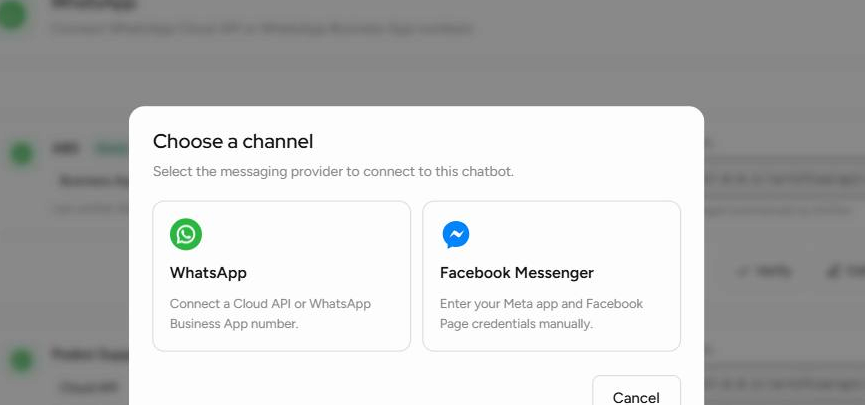
- Choose one connection method.
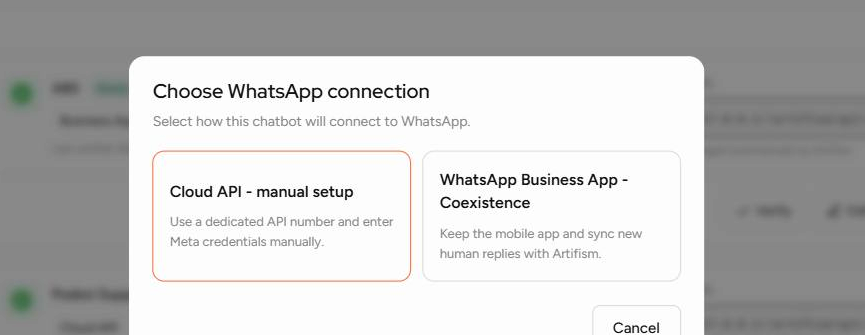
- Complete the method-specific setup. Artifism creates the channel card only after the connection is saved or completed.
Choose the correct connection method
| Question | Cloud API — manual setup | WhatsApp Business App — Coexistence |
|---|---|---|
| Which number is it for? | A new or dedicated API number. | An existing number that must stay in the WhatsApp Business mobile app. |
| Who owns the Meta app and token? | The customer/owner. | The platform administrator owns the onboarding app; the customer approves access in Meta. |
| Can the same number remain in the mobile app? | No. Complete Meta's official migration/removal process first if the number is already in an app. | Yes; that is the purpose of Coexistence. |
| Does the owner enter Meta secrets into Artifism? | Yes: production access token, App Secret, and a self-created Verify Token. | No Meta password. The connection result returns from Meta's secure popup. |
| What happens after connection? | Artifism saves an inactive, unverified card. Configure Meta's webhook, select Verify, then Activate. | Artifism creates a connected, verified, inactive card. Review it, configure handoff, then Activate. |
One phone, one Artifism connection
Do not connect the same Phone Number ID to another chatbot or connection mode. To change modes, plan the old connection's deactivation and disconnection first; a connection mode is not edited in place.
Understand Standard Access and Advanced Access
Meta applies an access level to the app permission, but the access token must still contain that permission and the token owner must still have access to the WABA/phone asset. These are three separate checks:
- App permission access level — Standard Access or Advanced Access in App Review -> Permissions and Features.
- Token scope — the generated user/system-user token actually contains the permission.
- Asset access — the user or system user is assigned to the intended Meta app, Business Portfolio, WABA, and phone number with the required task.
| Connection model | Standard Access is for | Advanced Access is required for |
|---|---|---|
| Manual Cloud API with a customer-owned Meta app | The app owner/admin operating that same business's own WABA, including development and direct-business testing. | When the app is changed into a provider model and accesses WABAs or business assets owned by other businesses. That is no longer the customer-owned manual pattern documented here. |
| Coexistence through Artifism's platform Meta app | App administrators, developers, testers, and Meta-approved test assets only. | Public release in which unrelated Artifism customers onboard and authorize their own business assets through Embedded Signup. |
Permission summary
| Permission | Manual Cloud API | Platform Coexistence |
|---|---|---|
whatsapp_business_messaging |
Required in the production token to send/receive messages and work with message media. Standard Access is normally sufficient only for the same app/business-owned assets covered by the manual guide. | Required for Artifism to message through an onboarded customer WABA. The production app must have the access level Meta requires for customer-owned WABAs; request Advanced Access when it is presented for review. |
whatsapp_business_management |
Required to inspect/manage the WABA, phone numbers, profile, templates, and WABA subscription operations used by setup. | Advanced Access is a Meta release requirement for public Embedded Signup. |
business_management |
Optional. Add it only when the implementation queries Business Portfolio-level assets. Most direct Cloud API setups do not need it. | Advanced Access is a Meta release requirement for public Embedded Signup and customer business-asset onboarding. |
Standard Access is not a production approval for Coexistence
A successful test by an app administrator does not prove that ordinary Artifism customers can connect. Before enabling Coexistence, the platform administrator must complete the current Meta Business Verification, Tech Provider/solution-provider requirements, App Review, Advanced Access, and Live-mode gates shown for that app.
Meta can change permission labels and program gates. Treat App Review -> Permissions and Features in the actual platform app as the final status, and recheck it before every production release.
Words you will see
| Term | Simple meaning |
|---|---|
| Meta app | The application created in Meta for Developers. It is not the Artifism chatbot. |
| WABA | WhatsApp Business Account—the Meta container that owns business phone numbers. |
| Phone Number ID | Meta's numeric identifier for the number. It is not the visible phone number. |
| Access Token | Secret that lets Artifism call Meta's API. Team members never need it. |
| Verify Token | A case-sensitive secret used when Meta checks the manual webhook URL. It is different from the Access Token. |
| Webhook | The public HTTPS address Meta calls when a WhatsApp event happens. |
| Human handoff | AI pauses and an eligible support agent owns the next reply. |
Safe rollout order
- The administrator enables the method and confirms platform readiness.
- The owner creates or selects the target chatbot.
- The owner completes the chosen Meta connection and reviews the newly created channel card.
- For manual setup, the owner configures the Meta webhook and verifies the WABA, phone ID, token, and permissions.
- The owner configures human agents and the response-time target, then activates the channel.
- From a different customer number, test inbound messaging, AI reply, delivery state, human handoff, agent reply, and Resume AI.
- Record the business owner, technical owner, backup contact, Meta app, WABA, phone-number owner, secret-vault location, and token-rotation date.
Prepare the support team
The owner completes this once for either WhatsApp connection method:
- Open Account -> Team Members. This menu is available only when the account plan includes team access.
- Select Member Registration, enter the agent's email address, and select Invite Member.
- After the person joins, open their Edit page.
- Set Status to Active and turn on Chatbot under Feature Access, then save.
- Open Chatbot -> target chatbot -> Channel -> Edit.
- Turn on Human handoff, select the agent under Human agents, set the response-time limit, and save.
- Ask the agent to sign in, open Chatbots -> Conversations, and change Unavailable to Available.
Artifism automatically chooses among selected, active, available agents. If no eligible agent is available, the conversation remains unassigned for the owner to handle.
Owner and team member inboxes are different
The owner sees the complete managed-channel inbox and can use Assign to. A team member sees only WhatsApp/Messenger conversations currently assigned to them.
Understand the channel card
The card is a result screen, not a starting screen.
| Card label | Meaning | Next action |
|---|---|---|
| Setup incomplete | Required credentials or connection verification is missing. | Read the error, correct the setup, and select Verify again. |
| Ready to activate | Required connection checks passed, but the channel is still inactive. | Review settings, then select Activate. |
| Ready and active | Artifism can process this verified channel. | Run the complete message test before go-live. |
| Cloud API | Manually configured dedicated API number. | Maintain the customer-owned Meta assets and credentials. |
| Business App · Connected | Coexistence connection is currently authorized. | Keep the mobile Business App connection healthy. |

The phone identifier and webhook URL use privacy-safe masked examples, not production values. A green card does not replace an end-to-end message test.
Owner daily controls
| Action | Use it for | Important result |
|---|---|---|
| Assign to in Conversations | Give a conversation to an eligible agent or return it to Unassigned. | Only the owner sees this selector. |
| Edit | Change the display name or human-handoff settings. | In manual mode, leaving an already configured secret blank keeps its saved value. |
| Verify | Recheck that Meta credentials can access the saved WABA and Phone Number ID. | It does not replace the real message test. |
| Deactivate | Temporarily stop Artifism processing while keeping the channel configuration. | Reactivate after the reason for the pause is resolved. |
| Reconnect | Renew a Coexistence authorization. | The channel returns inactive; review and activate it again. |
| Disconnect | Permanently remove a connection. | Manual channels are deleted. Coexistence must first be disconnected in the mobile Business App's Business Platform settings. |
Changing a manual channel's Phone Number ID, WABA ID, or Access Token resets verification. Changing the Verify Token or App Secret also deactivates the channel. Run Verify, activate, and repeat the end-to-end test after a credential change.
Keep secrets out of documentation
Access tokens, App Secrets, Verify Tokens, Meta passwords, and two-step verification PINs belong only in an approved secrets vault. Do not place them in screenshots, tickets, source code, email, or chat.
A manual Cloud API channel's per-channel Verify Token is different from the administrator's Global Coexistence Verify Token. Never copy one into the other's webhook configuration.