Chatbot Channels - Cron Job Setup
This guide explains how to configure a cron job for the WhatsApp and Facebook Messenger chatbot channel queues. The cron job calls Artifism once per minute and processes pending channel jobs until the queues are empty.
This follows the same setup used by the AI Social Suites queue worker and does not require Supervisor.
What the cron job processes
| Queue | Purpose |
|---|---|
whatsapp-webhooks |
Incoming WhatsApp messages, status updates, and message echoes. |
whatsapp-replies |
WhatsApp AI replies, human replies, and handoff work. |
messenger-webhooks |
Incoming Messenger messages, postbacks, delivery receipts, and read receipts. |
messenger-replies |
Messenger AI replies, test messages, human replies, and handoff work. |
messenger-profiles |
Messenger customer name and profile-picture refreshes. |
whatsapp-media is a storage disk, not a queue. Do not add it to the queue list.
What you need before starting
- Access to the server's cPanel or cron management tool.
- The domain where Artifism is installed.
QUEUE_CONNECTION=databasein the effective production configuration.- Laravel's
jobsandfailed_jobsdatabase tables. curlavailable on the server.
Do not use the Video, Marketing Bot, or AI Social Suites worker URLs for chatbot channels. Those routes process different queues.
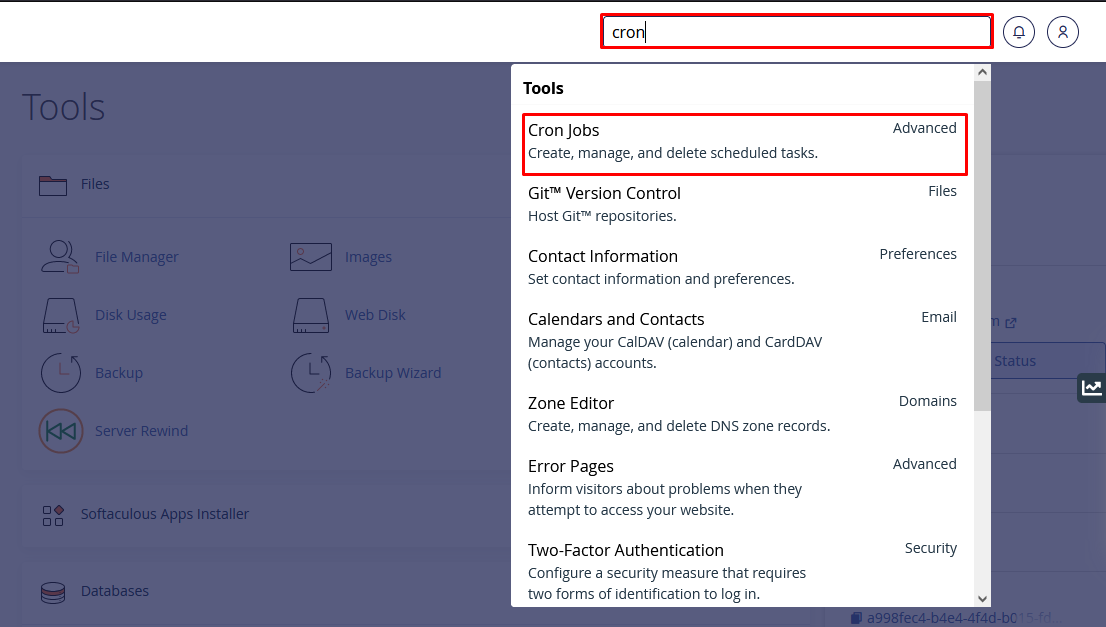
Step 1: Open Cron Jobs in cPanel
- Log in to cPanel.
- Open Cron Jobs, normally under Advanced.
Step 2: Create a per-minute cron job
Set the schedule to Once Per Minute and use this command:
* * * * * curl https://yourdomainname.com/user/chatbot-channels/queue/worker
Replace yourdomainname.com with the real Artifism domain. For example:
* * * * * curl https://demo.artifism.techvill.net/user/chatbot-channels/queue/worker
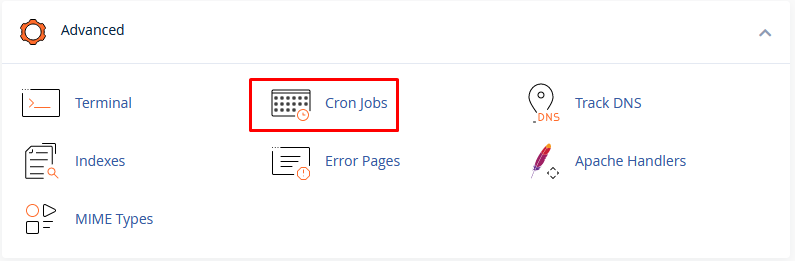
The * * * * * schedule calls the worker every minute. Each request processes available WhatsApp and Messenger channel jobs and exits when the queues are empty.
Step 3: Save and verify
- Save the cron job.
- Confirm it appears in the Current Cron Jobs list and is active.
- Run the URL once or wait for the next minute.
- Send a test message to each enabled channel.
- Confirm the incoming message appears in Chatbot -> Conversations and that the reply is delivered.
- For Messenger, confirm the customer name or profile picture is eventually refreshed.
- Review Laravel's
failed_jobstable and application log for errors.
The route can return an empty successful response. This is normal and matches the AI Social Suites worker behavior.
Monitoring
- Check the cron execution history and failed jobs after every deployment.
- Monitor queue age so channel replies do not remain pending for multiple cron intervals.
- Keep server time accurate because human-handoff response deadlines use delayed jobs.
- Repeat the end-to-end message test after changing the domain, queue connection, or deployment path.
A per-minute route may add up to approximately one minute of delay before a queued job starts. For sustained high message volume, monitor whether one invocation can drain the pending channel work quickly enough.
Troubleshooting
| Symptom | Check |
|---|---|
| Cron does not run | Domain, HTTPS availability, curl, cron schedule, and cPanel execution logs. |
Route returns 404 |
Confirm the URL is /user/chatbot-channels/queue/worker and that the OpenAI module is enabled. |
Route returns 500 |
Review the Laravel log, database connection, queue configuration, and failed jobs. |
| Incoming messages do not appear | The relevant webhook queue, webhook verification, active channel state, and failed jobs. |
| Incoming messages appear but replies are delayed | The relevant reply queue, AI/provider errors, credit availability, and failed jobs. |
| Messenger names do not refresh | The messenger-profiles queue and Page-token permissions. |
| Handoff notification is late | Cron history, server time, delayed jobs, and the relevant reply queue. |
Continue with WhatsApp Channel Administration or Facebook Messenger Channel Administration.