Facebook Messenger — Owner Operations
Use this guide after the first Facebook Page has been connected. It covers Page status, shared Meta app credentials, additional Pages, human handoff, rotation, deactivation, and removal.
About the screenshots
These are captures of the live Artifism UI. Private identifiers, callback URLs, Page names, and account data are blurred; no Artifism screen has been invented for this guide.
Read the active Page card
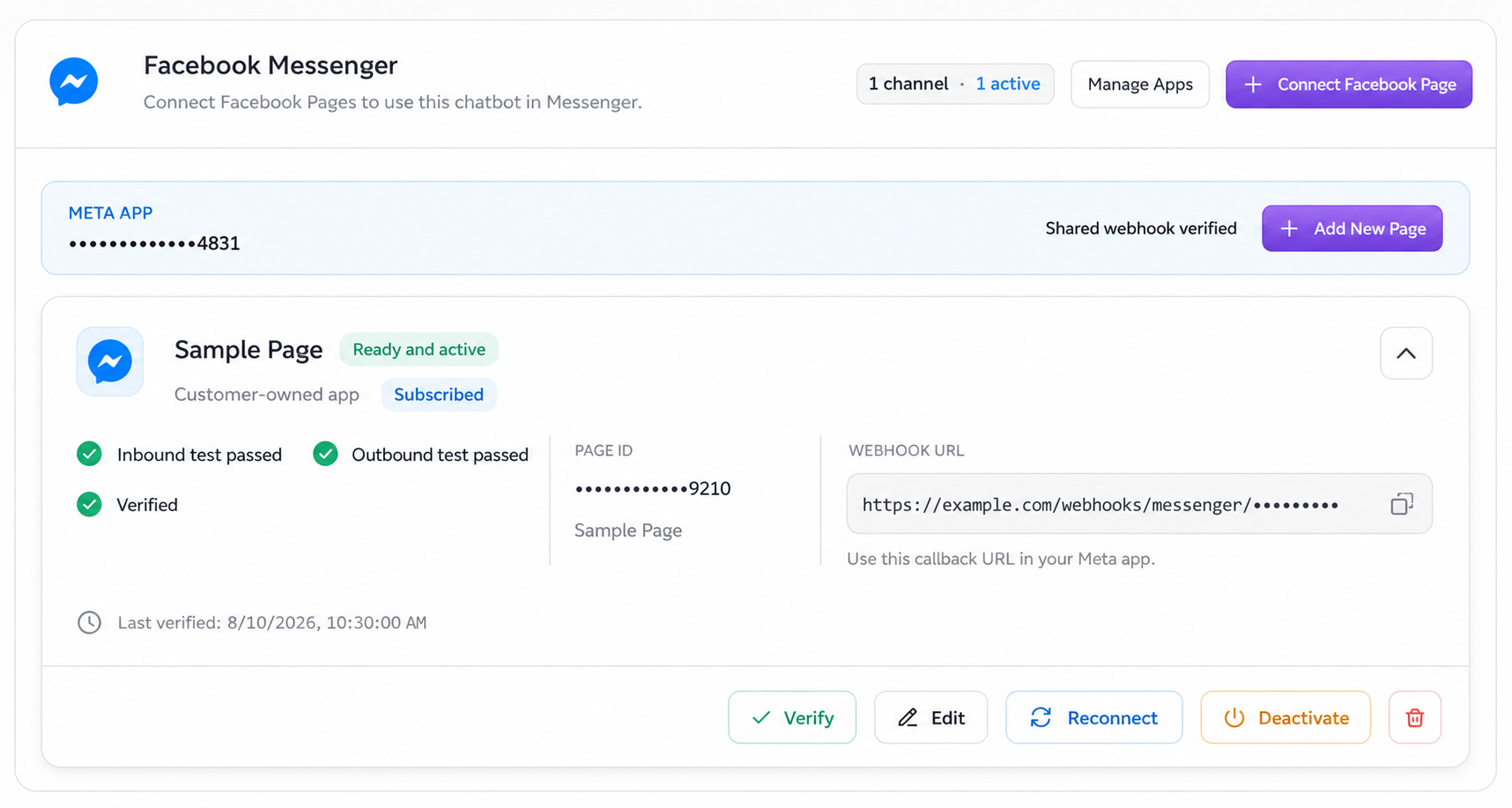
Before considering a Page production-ready, confirm:
- Ready and active;
- Shared webhook verified;
- Subscribed;
- Inbound test passed;
- Outbound test passed;
- Verified.
Use Verify after a Meta-side change, Edit for handoff settings or a Verify Token rotation, Reconnect for Page token/permission repair, and Deactivate to stop AI channel processing without deleting the connection.
Manage the shared Meta app
Select Manage Apps in the Messenger section.
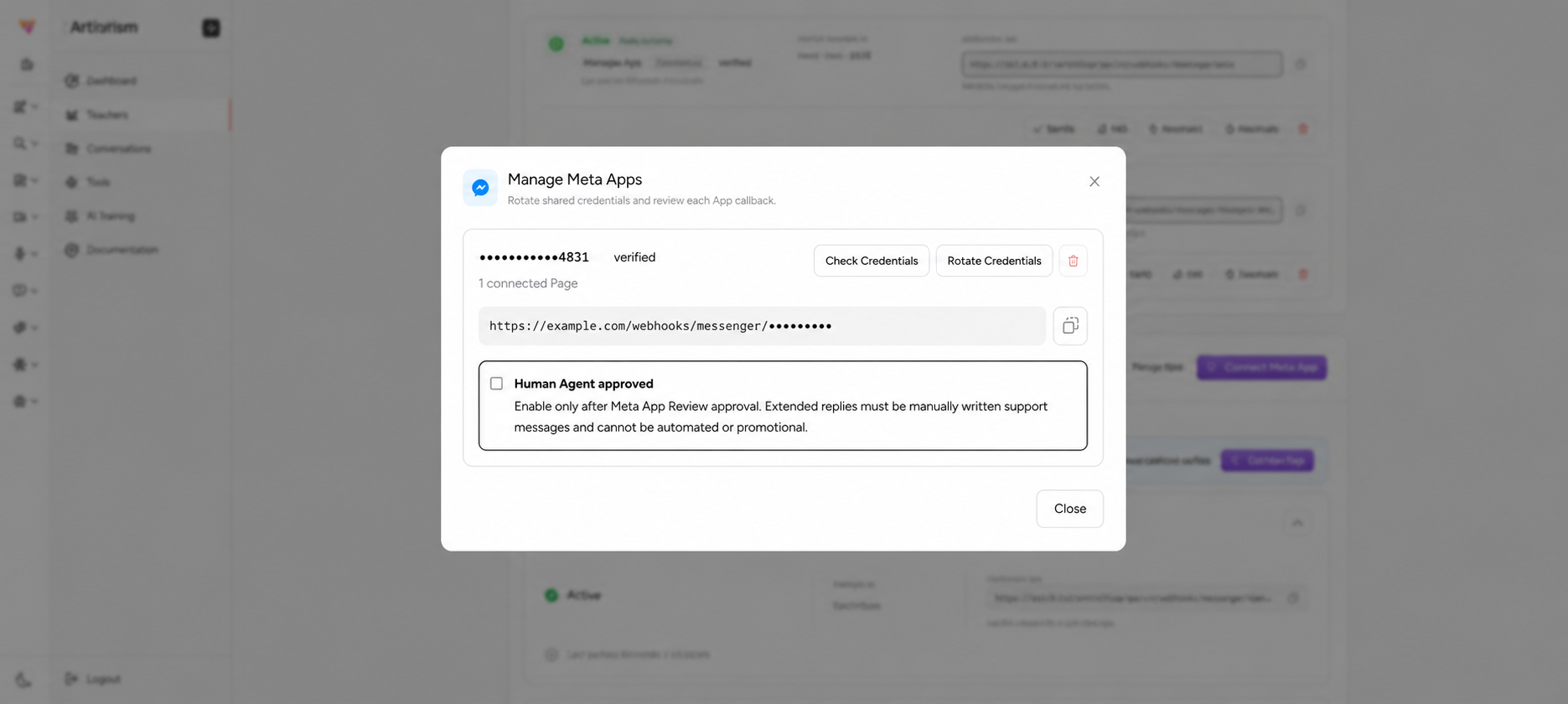
From this dialog an owner can:
- copy the app-level callback;
- run Check Credentials;
- select Rotate Credentials for the App Secret and shared Verify Token;
- review the number of connected Pages;
- confirm Human Agent approved after the business has the required Meta approval;
- delete the app connection only after every Page has been disconnected.
App-level rotation impact
Rotating the App Secret or shared Verify Token sets the Meta app connection back to unverified and deactivates every Page connected through it. It also resets Page readiness tests. After rotation:
- Save the new App Secret and/or Verify Token in Artifism.
- If the Verify Token changed, update it for the same callback in Meta and complete callback verification.
- Verify the app and every Page.
- Repeat each Page's inbound and outbound tests.
- Activate each Page again.
Plan a maintenance window when multiple Pages share the app.
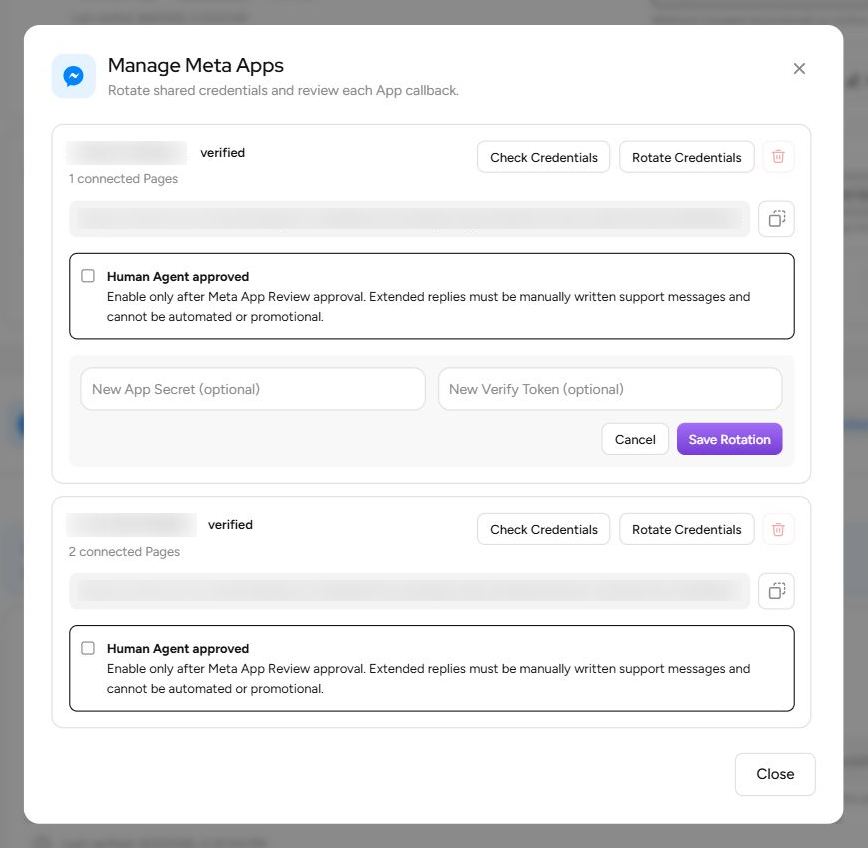
After selecting Rotate Credentials, the same real dialog expands to show New App Secret (optional) and New Verify Token (optional). Leaving one field empty keeps that credential unchanged.
Reconnect one Page
Use Reconnect when the Page Access Token is expired, revoked, belongs to the wrong Page, or no longer has the required permissions. In the current UI, Reconnect opens Rotate Page Access Token; it does not show a separate setup-progress screen.
- Generate a fresh token for the same Page.
- Confirm
pages_messagingandpages_manage_metadata. - Save it through Reconnect.
- Verify the Page subscription.
- Repeat inbound and outbound tests, then activate.
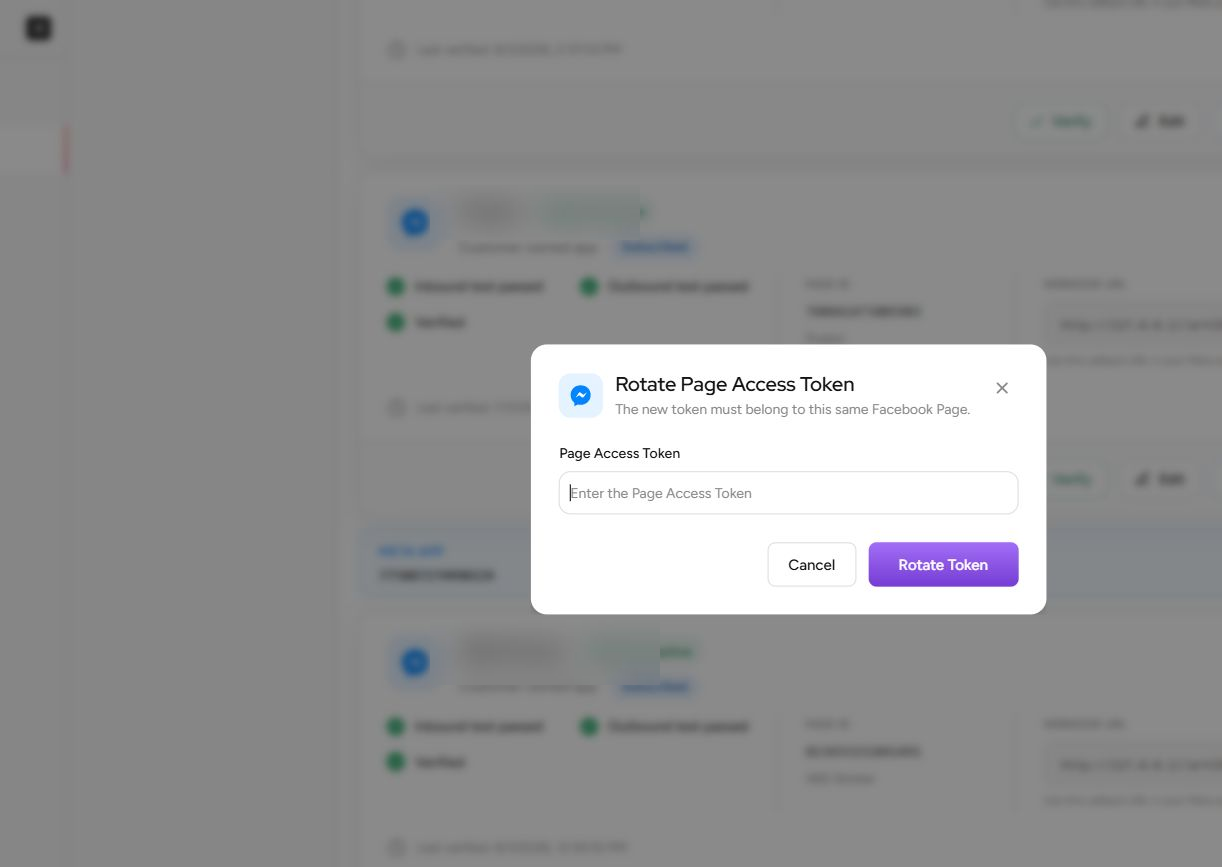
Changing only one Page token does not rotate the app-level credentials, but that Page must still be revalidated before it can return to service.
Recover from a Meta access change
Use this order when messages stop after a Page-role, business, password, permission, or app-mode change:
- Contain — deactivate the affected Page if sends are failing repeatedly; do not rotate every credential at once.
- Identify scope — check whether one Page is failing or every Page under the shared Meta app is affected.
- Check app-level state — use Manage Apps -> Check Credentials and confirm the shared webhook is still verified.
- Check Page-level state — confirm the Page still belongs to the business, the granting person still has the required Page tasks, and the token contains
pages_messagingandpages_manage_metadataat the access level required for the app's intended users. - Repair the smallest scope — use Reconnect for one Page token; use Rotate Credentials only when the shared App Secret or Verify Token actually changed.
- Prove recovery — verify, repeat inbound and outbound tests, activate, then complete a real AI-to-human-to-AI conversation.
An invalid/expired Page token or a missing required permission can cause Artifism to mark that Page connection unusable so queued sends do not continue blindly. Rate limits and temporary Meta server failures are retried separately; do not rotate credentials just because Meta returned a temporary error.
Configure human handoff
Select Edit on the Page card.
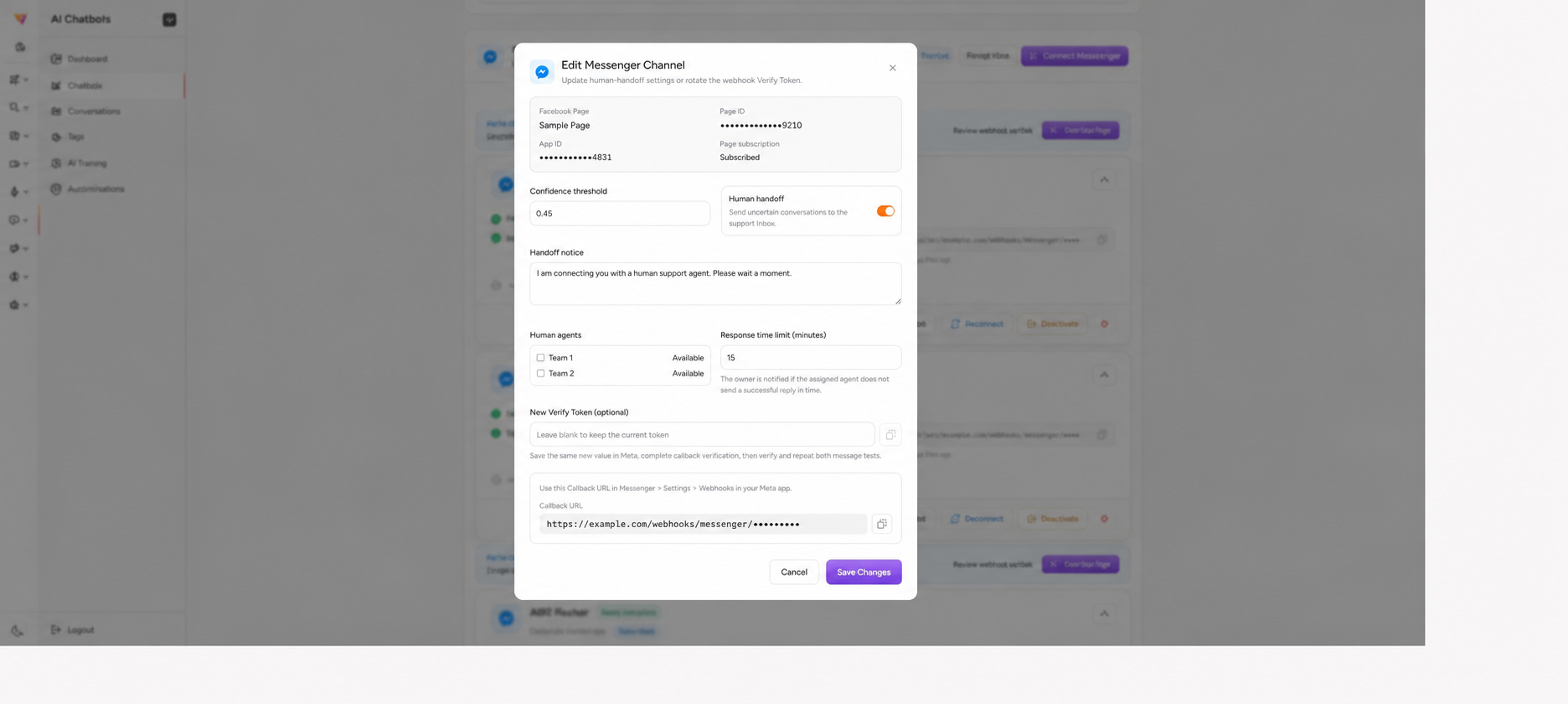
Configure:
- Confidence threshold —
0.45is the product default and a reasonable starting point. Review real conversations before changing it. - Human handoff — sends uncertain conversations to the support inbox.
- Handoff notice — tell the customer that a person will reply.
- Human agents — select only trained, active members who have Chatbot access.
- Response time limit — from 1 to 1,440 minutes. Artifism notifies the owner if an assigned non-owner agent does not send a successful reply in time.
Changing the optional New Verify Token is an app-level change even though the field appears in the Page editor. Save the same value in Meta, verify the callback, and repeat the Page tests.
Enable the optional Human Agent window
Only enable Human Agent approved when:
- Meta has approved the business's app for the required Human Agent use;
- the platform administrator has enabled the global safety switch;
- the owner accepts that extended messages are manual support only;
- agents understand that automated and promotional messages are prohibited.
Inside the standard 24-hour window, normal AI and human replies can operate. After 24 hours, Artifism permits only an assigned, manually written human reply when every Human Agent gate is satisfied. Artifism closes that extended window slightly before seven days as a safety margin. When closed, wait for a new customer message.
Add and operate multiple Pages
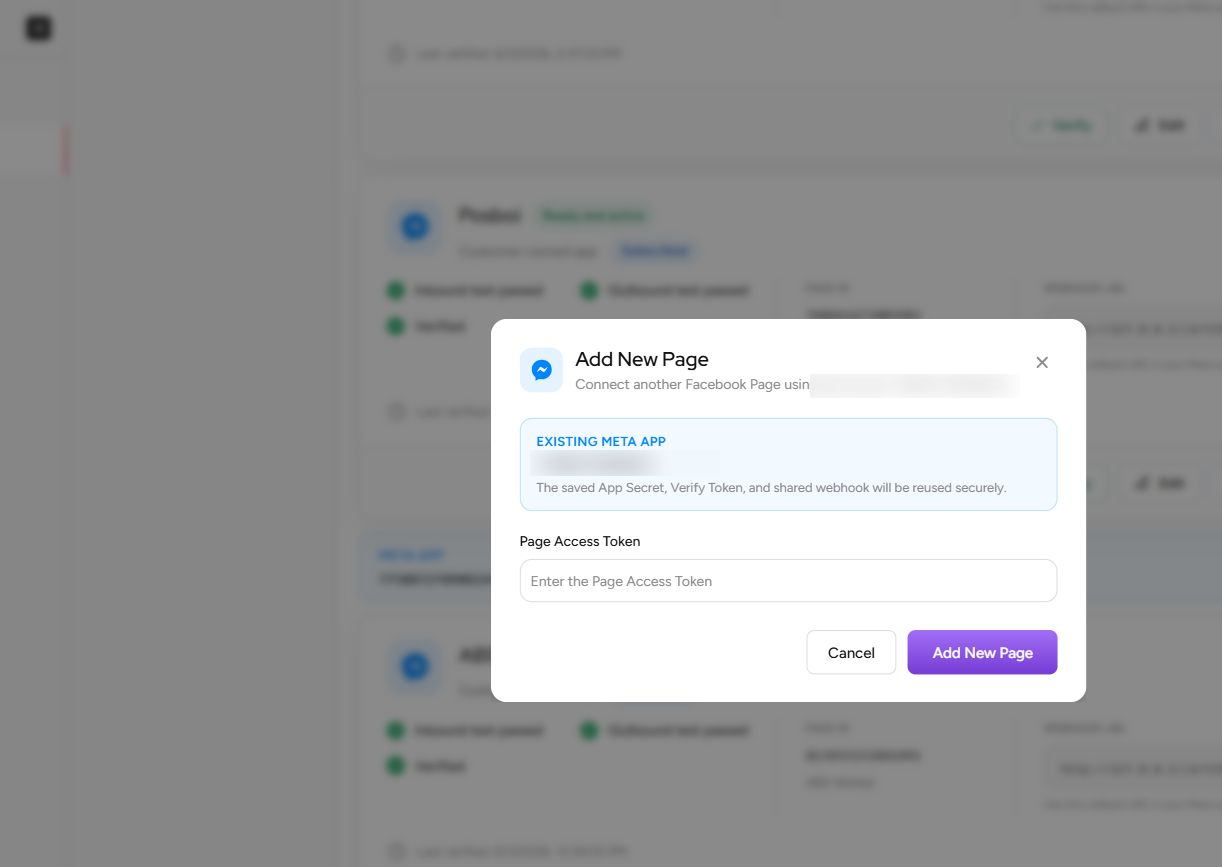
- Use Add New Page on the intended Meta app.
- Enter only that Page's token; the shared app credentials and callback are reused.
- Subscribe the new Page in Meta and complete its own five setup checks.
- Use Page names and internal ownership records that prevent staff from operating the wrong Page.
- Test Pages independently after a Meta permission, token, or Page-role change.
Deactivate, disconnect, or delete
| Action | Use it when | Result |
|---|---|---|
| Deactivate | Temporary pause or incident containment | Stops active channel handling but keeps the saved connection. |
| Reconnect | Repair Page token or subscription | Revalidates that Page; tests may need to run again. |
| Disconnect/delete Page | Permanently remove the Page from Artifism | Artifism attempts to remove the Meta Page subscription and deletes the channel. |
| Delete Meta app connection | No Page should use the app | Allowed only after all connected Pages are removed. |
If Meta cleanup cannot finish, Artifism can report Cleanup pending. Reconnect with a token that has pages_manage_metadata and retry, or remove the Page subscription in the Meta App Dashboard before completing the record cleanup.
Disconnecting one Page does not remove sibling Pages that share the Meta app. Deleting the app connection remains blocked until all of its Pages are disconnected. If automatic unsubscribe fails, the local channel can be removed with a cleanup warning, but the owner must remove the stale Page subscription manually in Meta App Dashboard -> Messenger -> API Settings.
Daily owner checklist
- Review channels that are inactive, unverified, or waiting for a test.
- Check failed replies, webhook errors, and Pages with permission changes.
- Keep only required support agents assigned and remove departed staff promptly.
- Review response-time alerts and conversations left in human mode.
- Confirm token owners and planned rotation dates.
- Re-run an end-to-end test after app review, Graph API version, credential, webhook, or Page-role changes.
Security and handover record
Record, without copying secret values:
- business owner, technical owner, and backup contact;
- Meta app name/ID and connected Page names/IDs;
- vault entry names for App Secret, Verify Token, and each Page token;
- callback ownership and production Artifism host;
- approved permissions, app-review status, and Human Agent decision;
- assigned teams, response-time target, last successful test, and next rotation date.
Never include credentials, full callback identifiers, or customer messages in documentation screenshots.
For agent work, use Messenger team member operations.