WhatsApp Business App - Coexistence Setup
Use Coexistence when the business must keep using its WhatsApp Business mobile app while Artifism handles AI replies. This setup is an owner workflow, but it depends on a platform administrator's Meta configuration.
Do not use this guide for a dedicated API-only number
Choose Manual Cloud API setup for a new or dedicated API number. Use Coexistence only when the business needs the WhatsApp Business mobile app to stay connected.
What will happen
- You start from Add Channel; there is no channel card yet.
- Artifism opens Meta's secure Embedded Signup flow.
- You select the correct Business Portfolio, WABA, and existing WhatsApp Business App number in Meta.
- When Meta returns a successful connection, Artifism creates a Verified, Connected, but inactive channel card.
- You review settings, activate the channel, and test new messages in both directions.
Before you begin
- Ask the platform administrator to enable Coexistence in Admin Panel -> Configuration -> Feature Preference -> Chatbot -> Channel Integrations.
- Confirm that the administrator has configured the platform-owned Meta App ID, App Secret, Embedded Signup Config ID, Verify Token, and pinned Graph API version.
- Ask the administrator to confirm that the platform app has completed Business Verification, current provider-program requirements, App Review, and the required Advanced Access checks. A customer should not be asked to solve the platform app's permission review.
- Confirm that the administrator added the production Artifism hostname to the Meta app's App Domains and that Artifism is running on public HTTPS.
- Sign in to the Meta account that owns or administers the business's WhatsApp Business Account.
- Keep the target phone with you and confirm the WhatsApp Business mobile app is working before starting.
- Choose the target chatbot before starting. A phone number cannot be connected to another chatbot or connection mode at the same time.
- Decide which support teams will operate human handoff after activation.
Who handles the Meta permissions?
The platform administrator, not the connecting customer, owns the Coexistence app's permission review.
| Permission | Platform requirement | Customer action in the Meta popup |
|---|---|---|
business_management |
Advanced Access is required for public Embedded Signup. | Review the requested business access and continue only with the intended Business Portfolio. |
whatsapp_business_management |
Advanced Access is required for public Embedded Signup and WABA management. | Approve access only for the intended WABA and number. |
whatsapp_business_messaging |
Must be approved/usable for customer-owned WABAs so Artifism can send and receive messages. | Approve the messaging connection shown by Meta. |
Standard Access can allow an app administrator or developer to complete a test, but it does not prove that an ordinary customer can connect. If Meta reports missing permission, unavailable app, or an onboarding restriction, stop and ask the platform administrator to check App Review -> Permissions and Features. Do not create a separate Meta app or grant unrelated permissions as a workaround.
1. Start the connection in Artifism
- In Artifism, open Chatbot -> [target chatbot] -> Channel.
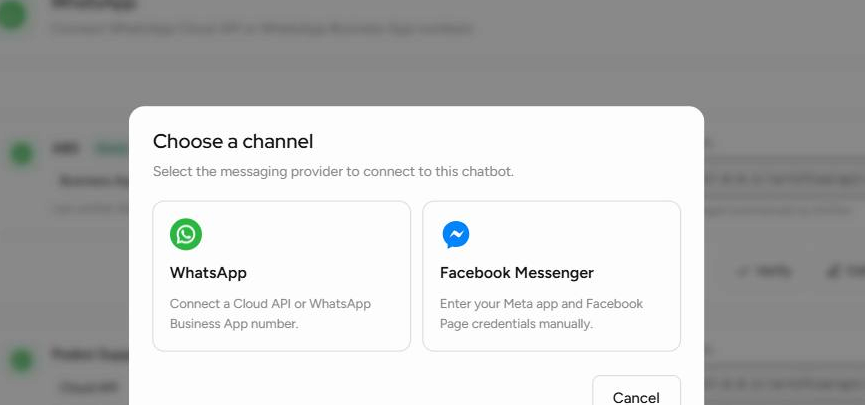
- A first-time customer will not have a WhatsApp channel card. Select Add Channel, then choose WhatsApp.
- In Choose WhatsApp connection, select WhatsApp Business App - Coexistence.
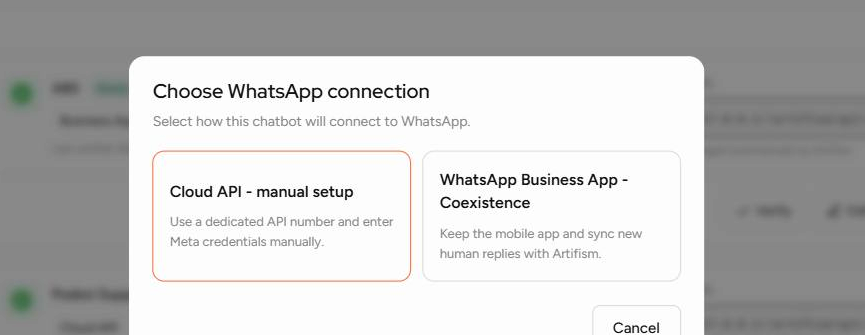
The right-hand option keeps the mobile Business App and syncs new human replies with Artifism.
2. Continue securely with Meta
- Read the Artifism connection dialog and select Continue with Meta.
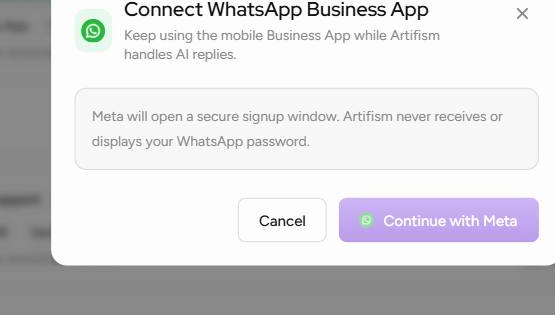
- Complete the Meta signup window using the account that manages the correct WhatsApp Business Account.
- Select the correct Business Portfolio, WABA, and exact existing WhatsApp Business App number. If the WABA contains several numbers, check carefully before continuing.
- Complete any verification Meta requests. Confirm that the permission request belongs to the expected platform app and covers the intended business/WABA; approve only the requested connection permissions.
- Finish the Meta window and return to Artifism. Do not enter a Meta password into Artifism; the password is handled only in Meta's secure window.
Why this flow is different
Artifism receives the authorized connection result from Meta; it does not display or store the WhatsApp Business mobile-app password. The exact Meta screen sequence can vary by account status, verification, and country.
3. Review and activate the channel
After Meta finishes, Artifism creates the channel card as Verified but leaves it inactive for review. This is the first point at which a new customer sees the card shown below.
- Confirm that the channel card is labelled Business App and Connected.
- Confirm that the expected phone identifier is displayed in masked form.
- Open Edit, set a clear Display Name, configure human handoff, select eligible agents, choose the response-time limit, and save.
- Coexistence identifiers and credentials cannot be typed or replaced in Edit. Use Reconnect when Meta authorization needs renewal.
- Select Activate after this review. The channel must be active before the end-to-end message test can prove inbound and reply processing.

This example uses privacy-safe masked identifiers. It shows the Business App, Connected, and Verified channel state with its management actions.
4. Test the operating workflow
- Send a test message from a separate WhatsApp customer account.
- Confirm that Artifism displays the inbound message in Chatbots -> Conversations.
- Confirm an AI reply is delivered.
- Trigger one test human handoff. Have the assigned team reply from Artifism, then use Resume AI only after the human issue is complete.
- From the WhatsApp Business mobile app, send one reply in the same test conversation. Confirm that the new reply appears in Artifism and AI pauses for that conversation.
- A mobile-app reply pauses AI and leaves the Artifism conversation unassigned. When it is ready for automation again, the owner can select Resume AI directly or use Assign to; an assigned agent can select Resume AI after handling it.
Coexistence starts from new activity
Artifism processes messages and mobile-app echoes received after the connection. It does not import the business's historical chats or contacts.
Use WhatsApp team operations for the agent workflow.
Before involving an agent, the owner must invite them under Account -> Team Members, set them Active, enable Chatbot feature access, select them in the channel's Human agents list, and ask them to turn Available on. The owner sees the full inbox; team members see only conversations assigned to them.
Reconnect, deactivate, and disconnect
| Action | Use it when | Result |
|---|---|---|
| Reconnect | Meta access or the connection token must be renewed. | Reopens the Meta authorization flow and leaves the channel inactive for review. |
| Deactivate | You need to pause Artifism responses temporarily. | Stops the active channel without deleting its configuration. |
| Disconnect | The business has first disconnected Artifism inside WhatsApp Business App Settings under Account -> Business Platform. | Removes the local connection token and marks the channel disconnected. |
Disconnect in the correct order
Do not use Artifism's Disconnect until the business has disconnected Artifism from the WhatsApp Business app's Business Platform settings. Confirming the action locally removes the stored token and cannot be undone through the channel card.
Troubleshooting
| Problem | What to check |
|---|---|
| Coexistence option is missing or unavailable | The administrator must enable Coexistence and complete the platform Meta configuration. |
| Meta signup cannot open | Confirm the browser allows the Meta signup window and that you are signed into the correct Meta account. |
| Meta says Can't load URL or the domain is not included | Ask the administrator to add the production Artifism hostname to Meta App -> App Settings -> Basic -> App Domains. Do not add a localhost address for production. |
| Meta reports the number is already connected | Do not create another channel. Identify and plan the existing connection's migration or disconnection. |
| Connection finished but messages do not arrive | Confirm the channel is activated, send a new message from a separate customer number, and ask the administrator to check the global webhook, messages subscription, WABA subscription, and worker health. |
| Mobile Business App replies do not appear in Artifism | Ask the administrator to confirm the smb_message_echoes subscription and platform webhook health, then use Reconnect if the authorization is stale. |
| Reconnect fails | Re-run the secure Meta authorization flow with an account that administers the same WABA and number. |