WhatsApp Cloud API - Owner Setup (Manual)
Use this guide to connect a new or dedicated WhatsApp API number to an Artifism chatbot. In manual mode, the chatbot owner manages the Meta app, business assets, production access token, and webhook.
Use the right guide
An administrator must first enable Cloud API in WhatsApp channel administration. After the channel is live, support staff should follow WhatsApp team operations.
Choose the correct connection mode
A number connected through manual Cloud API setup cannot remain active in the WhatsApp or WhatsApp Business mobile app. If the business must retain the mobile app, use WhatsApp Business App - Coexistence instead.
One active channel per Phone Number ID
Never use the same active Phone Number ID in more than one Artifism channel. To change connection mode, first plan and complete the existing channel's disconnection.
What you are going to build
The order matters:
- Create the Meta app if you do not already have the correct one.
- Register the business phone number and collect its Meta IDs.
- Create a production System User token.
- Save an inactive manual channel in Artifism. This is when the Artifism channel card first appears.
- Copy the new card's Webhook URL into Meta and subscribe to
messages. - Verify the Meta account/phone connection, activate the channel, and run a real message test.
Do not skip forward to a screenshot of an existing app or channel card. Those screens are results of earlier steps.
Before you begin
Make sure you have:
- Administrator access to the correct Meta Business Portfolio and Meta Developer app.
- A WhatsApp Business Account (WABA) and a business phone number that can receive an SMS or voice code.
- A secure secrets vault for the token, app secret, verify token, and two-step verification PIN.
- A production Artifism site on public HTTPS.
- A support-team decision: whether to enable human handoff, which teams can receive it, and the response-time target.
For production traffic, complete Meta's business verification, display-name approval, phone registration, two-step verification, and billing requirements.
Permission and access-level requirements
This manual guide assumes that the chatbot owner creates a customer-owned Meta app and uses it only with that same customer's business assets. It is not the shared platform/Tech Provider model used by Coexistence.
| Permission | Required here? | What it allows | Access level for this guide |
|---|---|---|---|
whatsapp_business_messaging |
Yes | Send WhatsApp messages and use message/media endpoints. | Standard Access normally covers the app owner/admin using the same business's own WABA. The generated production token must still include this scope. |
whatsapp_business_management |
Yes | Read/manage the WABA, phone numbers, profiles/templates, and WABA subscription operations needed during setup. | Standard Access normally covers the same app/business-owned assets. The generated production token must still include this scope. |
business_management |
Usually no | Query Business Portfolio-level assets. | Add it only when the implementation actually performs those business-level queries. Do not request it merely because another guide includes it. |
When Advanced Access becomes necessary
If this Meta app will onboard or manage WABAs owned by other businesses, stop using the direct manual assumption. The app has become a provider/Embedded Signup integration and must complete the applicable Business Verification, App Review, Advanced Access, and Live-mode requirements. Use the administrator's Coexistence permission section as the production checklist.
Access level alone is not enough. Before go-live, verify all three:
- App Review -> Permissions and Features shows the intended access level.
- The System User token contains
whatsapp_business_managementandwhatsapp_business_messaging. - The System User is assigned to the correct Meta app and WABA/phone assets with the required tasks.
Use Meta's Access Token Debugger to inspect token scopes without copying the token into documentation or a ticket.
1. Create or open the Meta app
Go to Meta for Developers and sign in. Then follow the branch that matches what you see.
If you do not have a Meta app yet
Do not look for an existing Meta app card. A first-time owner starts with Create App; Meta shows an app card only after that app has been created.
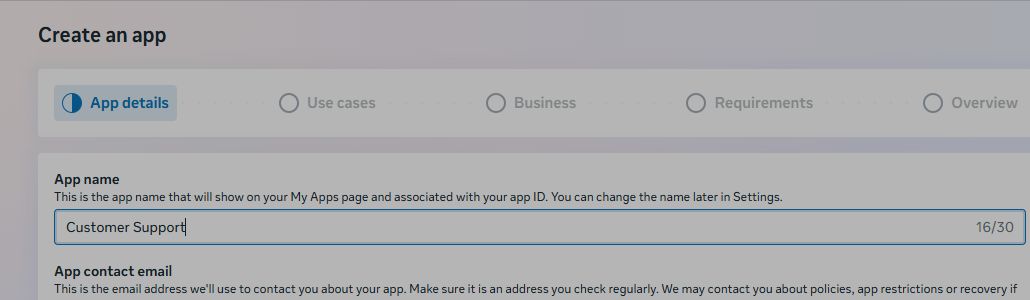
- Open My Apps and select Create App.

- Enter an app name and contact email. Use a name that identifies your own business or integration, such as
Customer Support. Do not copy the platform administrator's example app name.
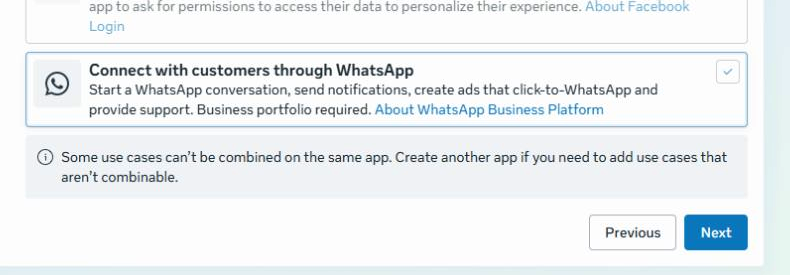
- Choose Connect with customers through WhatsApp as the use case.
-
Select the Business Portfolio that owns the WhatsApp business assets.
-
Review Meta's requirements and continue to the final review.
-
Confirm the app name, use case, and Business Portfolio, then select Create app.
Use your own business assets
The customer flow must show the customer's own app name and Business Portfolio. Artifism Channel in the administrator guide is only a platform-admin example; a new customer will not have that app or portfolio.
If the correct Meta app already exists
Open My Apps and select that app. Do not create a duplicate app merely because an example uses a different app name. Confirm that the app belongs to the intended Business Portfolio and includes the WhatsApp use case.
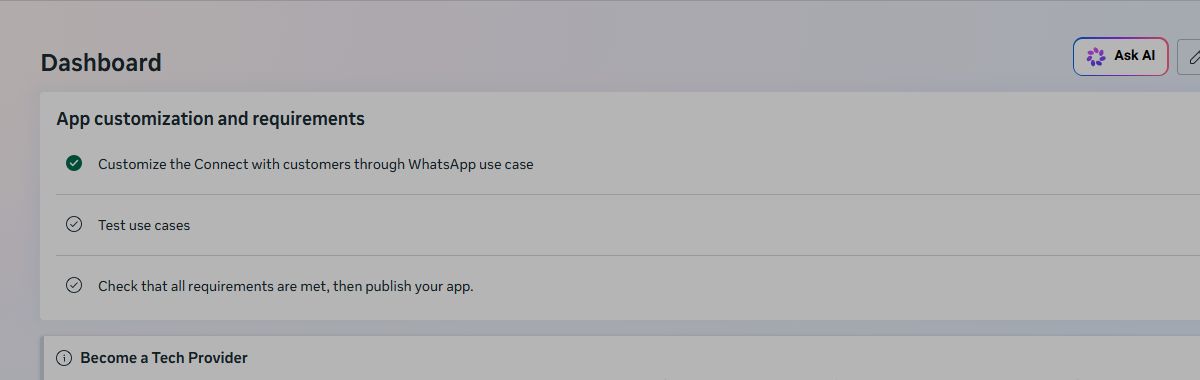
Confirm the result
After creation or selection, open the app Dashboard and confirm that Customize the Connect with customers through WhatsApp use case appears under App customization and requirements.
2. Register and verify the business number
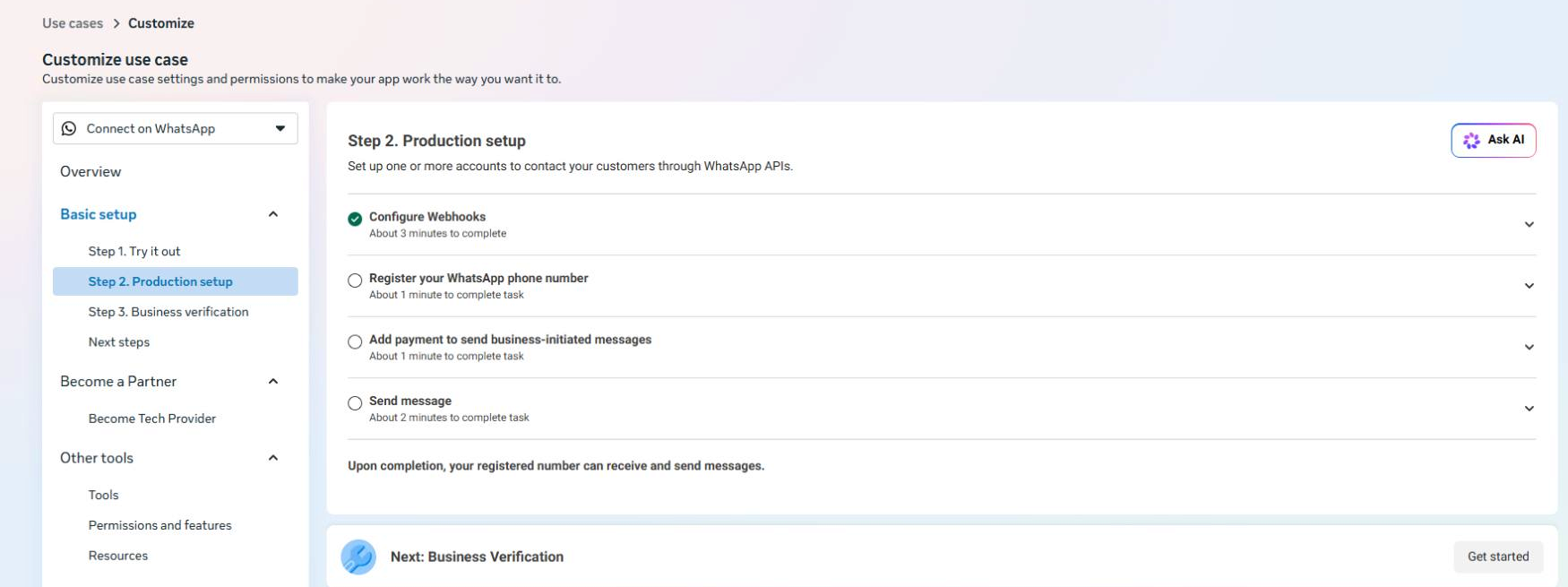
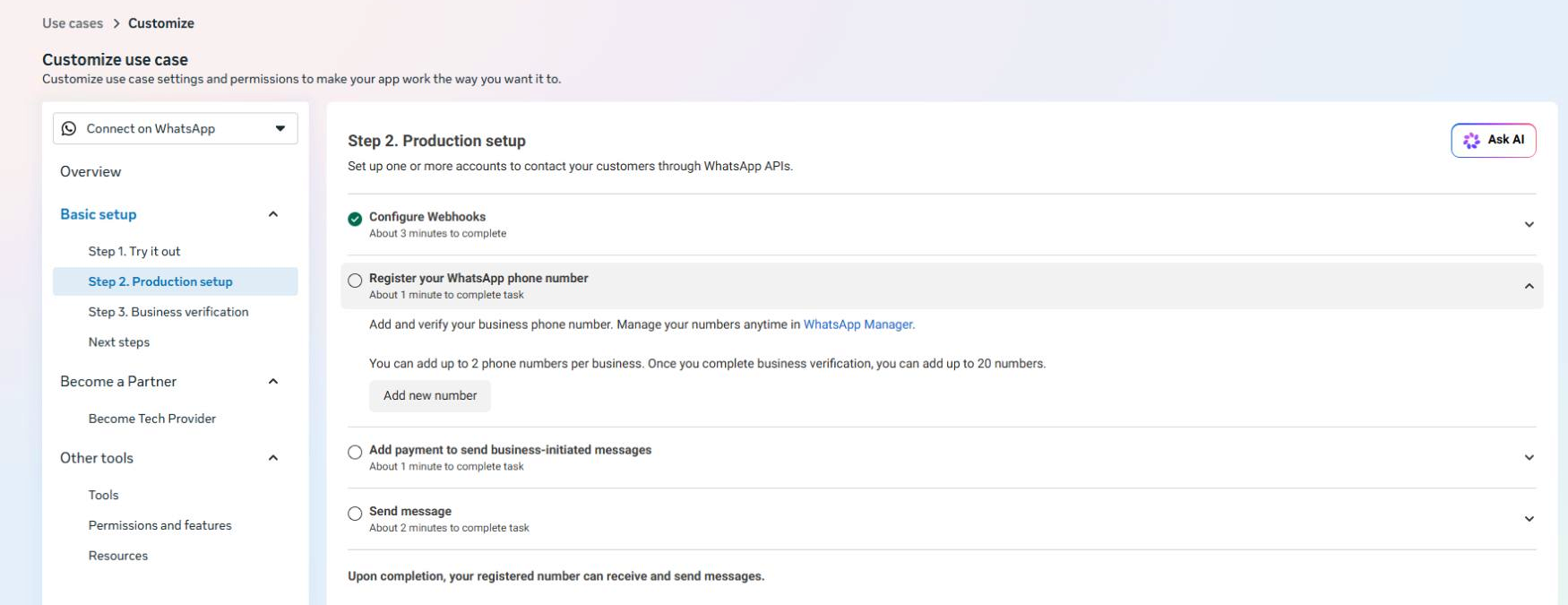
- In the Meta app, open Use cases -> Connect on WhatsApp -> Basic setup -> Step 2. Production setup.
- Expand Register your WhatsApp phone number, then select Add new number.
- Create or select the correct WABA, enter the display name, category, description, and timezone.
- Verify the number by SMS or voice call, then create and securely store the six-digit two-step verification PIN.
- Copy the exact Phone Number ID and WhatsApp Business Account ID from Meta.
Note
The Phone Number ID is not the visible phone number. It is a Meta identifier and must be copied exactly.
3. Create a production access token
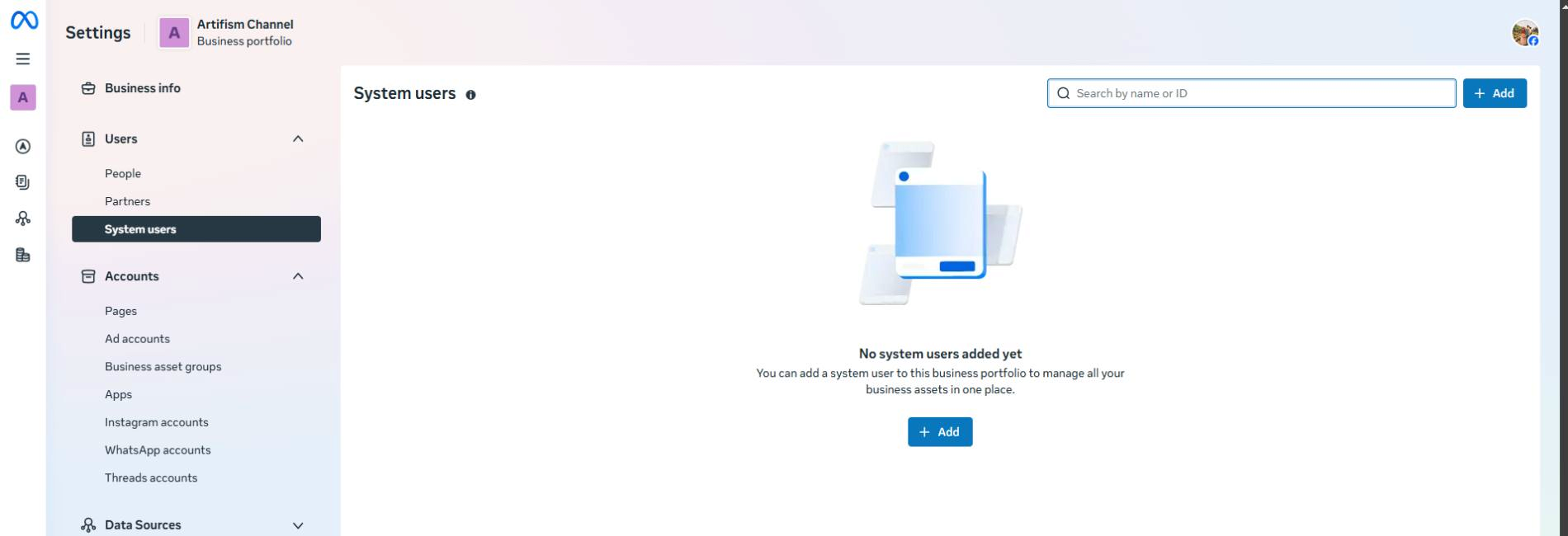
- Open Meta Business Settings -> Users -> System Users.
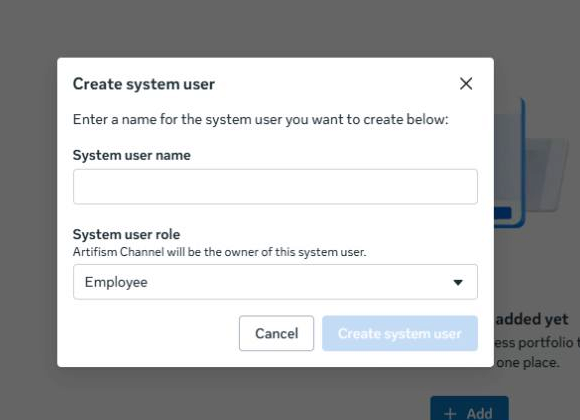
- Select Add if no system user exists. Give it a descriptive integration name and the least-privileged role that still supports the required assets.
- Assign the Meta app and WhatsApp Account/WABA to that system user.
- Select Generate new token, choose the same Meta app, and grant
whatsapp_business_managementandwhatsapp_business_messaging. Addbusiness_managementonly when the integration requires business-level asset queries. - Choose a non-expiring token when Meta makes that option available. Otherwise record the expiry and schedule rotation.
- Copy the token once and place it directly in the secrets vault.
Do not use a temporary token in production
The token shown under Step 1. Try it out is temporary. Once it expires, Artifism cannot send replies through the channel.
4. Collect the App Secret and create a Verify Token
- In the Meta app, open App Settings -> Basic.
- Select Show beside App Secret, then copy the value to the secrets vault.
- Create a unique random Verify Token with at least 32 characters. Use only letters, numbers, dots, underscores, and hyphens.
- Store the Verify Token with the App Secret. It is case-sensitive.

5. Add the Cloud API channel in Artifism
- Sign in to Artifism and open Chatbot -> [target chatbot] -> Channel.
- A first-time customer will not have a WhatsApp channel card. Select Add Channel, then choose WhatsApp.
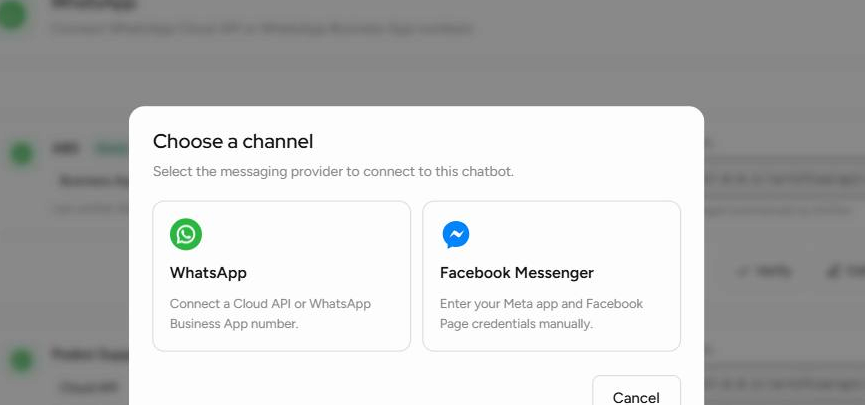
- Select Cloud API - manual setup.
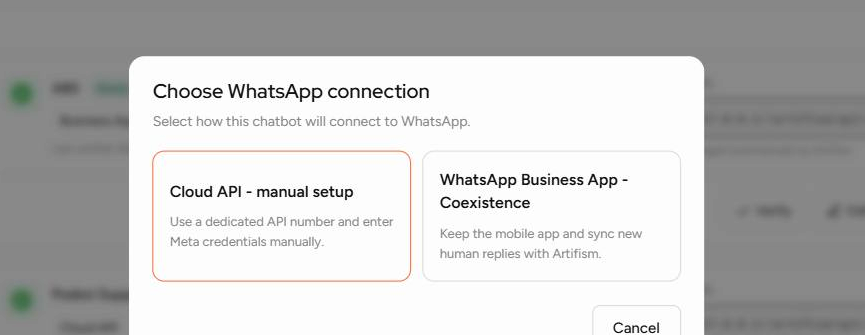
- Complete the form using the following source of truth:
| Artifism field | Required value |
|---|---|
| Display Name | Clear label for the channel, such as Customer Support. |
| Phone Number ID | Meta's Phone Number ID; enter digits only, never the visible phone number. |
| WhatsApp Business Account ID | The WABA ID from Meta; enter digits only. |
| Access Token | Production System User token. |
| Meta App Secret | App Settings -> Basic -> App Secret for the same Meta app. |
| Verify Token | The unique token created in step 4. |
- For human handoff, enable it and set the confidence threshold, handoff notice, allowed teams, and response-time limit. 0.45 is the product default and a sensible starting point; tune it after real conversations are reviewed.
- Keep Active Channel off and select Save Channel.
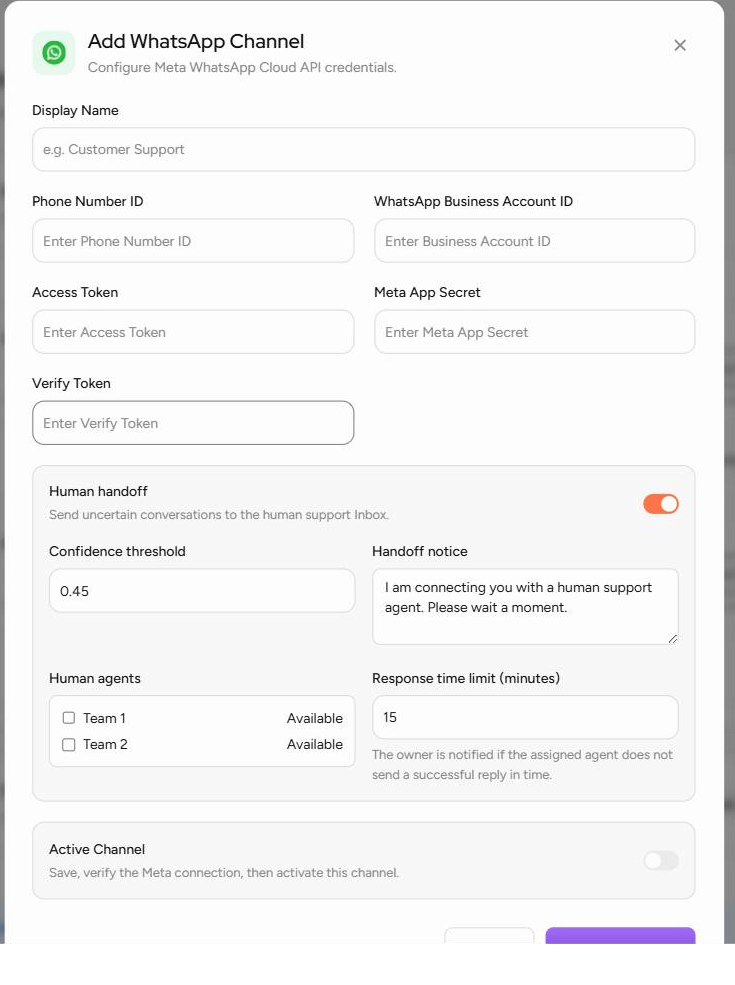
Active Channel remains unavailable until the Meta connection is saved and verified. When editing an existing channel, leave a secret field blank to preserve the stored value.
6. Configure Meta webhooks
The Artifism channel card is created only after step 5 saves the channel. It is not available before then.
- From the newly created Artifism channel card, copy the complete Webhook URL. Do not change any character in it.
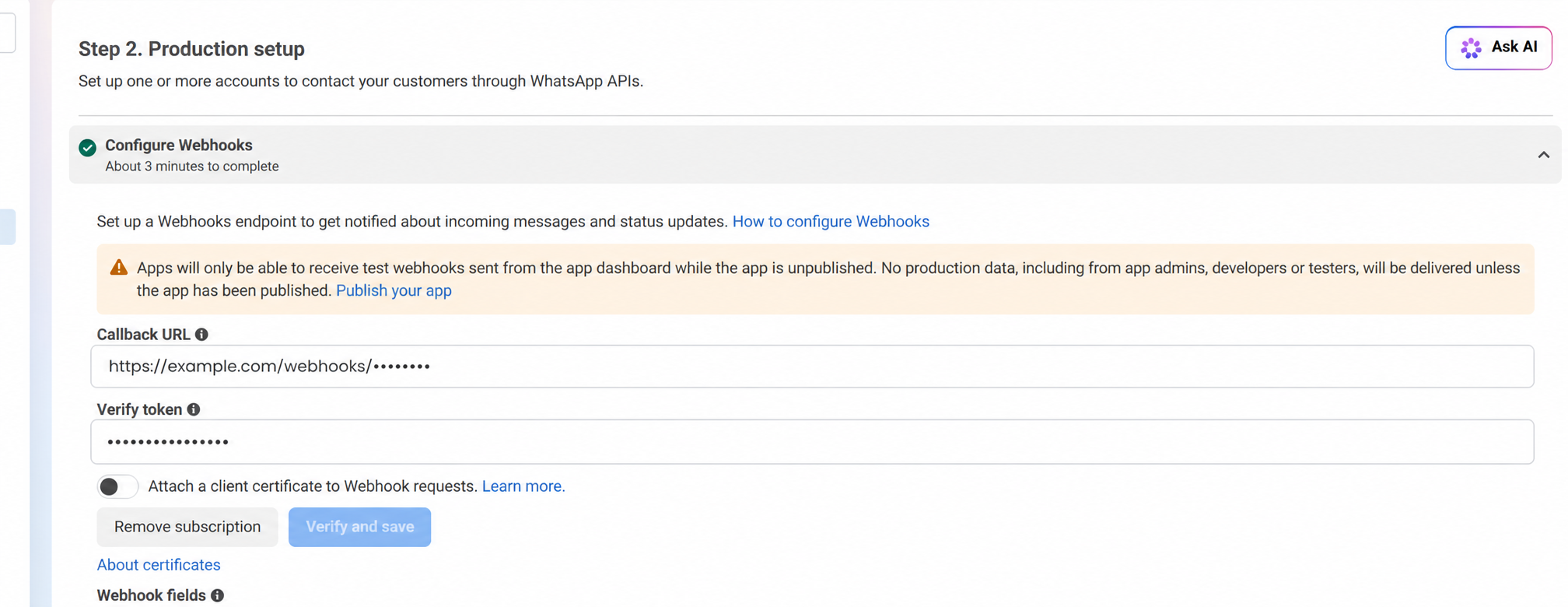
- Return to Use cases -> Connect on WhatsApp -> Basic setup -> Step 2. Production setup, and expand Configure Webhooks.
- Paste the URL into Callback URL and the same case-sensitive Verify Token into Verify token.
- Select Verify and save.
- Under Webhook fields, subscribe to
messages, select the Graph API version supported by the integration, and confirm the app is subscribed to the target WABA.
If Meta does not provide a dashboard control for the WABA subscription, a technical owner can subscribe the app through Meta's /{WABA-ID}/subscribed_apps endpoint using a token with the required management permission.
App publication
While the Meta app is unpublished, use Meta's dashboard test tools. Complete Meta's required review and verification before relying on it for production traffic.
7. Verify, activate, and test
- Return to Artifism's Channel page and select Verify.
- Wait for Verified and Ready to activate. Artifism checks that the token can access the WABA and that the Phone Number ID belongs to it. Resolve the displayed error before continuing if verification fails.
- Select Activate. Confirm that the card reports Ready and active.
- From a different WhatsApp customer number, send
Helloto the business number. - In Artifism -> Conversations, confirm the inbound message, AI reply, delivery/read status, human handoff, agent reply, and Resume AI flow.
Verified is not the same as end-to-end tested
Verified confirms the saved Meta token and phone configuration. It does not prove that every webhook subscription, queue worker, outbound reply, delivery receipt, or handoff path works. The real customer-number test is required.

8. Hand the channel to the support team
- Open Account -> Team Members -> Member Registration, invite the agent by email, and wait for them to join.
- Open the member's Edit page, set Status to Active, enable Chatbot under Feature Access, and save.
- In the WhatsApp channel's Edit screen, keep Human handoff on.
- Select the active team member under Human agents.
- Set the response-time limit from 1 to 1,440 minutes. Artifism notifies the owner when an assigned non-owner agent does not send a successful reply before the deadline.
- Ask the team member to sign in, open Chatbots -> Conversations, and turn Available on.
- Run one handoff test. Confirm that the team member sees the assigned conversation, sends a successful reply, and uses Resume AI when the issue is complete.
The owner sees the whole inbox and the Assign to selector. A team member sees only managed-channel conversations assigned to them.
Use WhatsApp team operations for the daily agent workflow.
Go-live checklist
- Public
APP_URLuses valid HTTPS. - The System User token is production-ready, has the required permissions, and has an owner/expiry record.
- The Phone Number ID, WABA ID, and App Secret all belong to the intended Meta business assets.
- The webhook is verified,
messagesis subscribed, and the app is subscribed to the WABA. - The Artifism channel is verified and active.
- A test covers inbound messages, AI replies, delivery/read state, human handoff, a human reply, and Resume AI.
- The assigned teams know the 24-hour service-window rule and the approved template process.
Troubleshooting
| Problem | What to check |
|---|---|
| WhatsApp option is disabled | Ask the administrator to enable Cloud API in Admin Panel -> Configuration -> Feature Preference -> Chatbot -> Channel Integrations. |
| Meta cannot verify the callback | Check public HTTPS, the exact Artifism Webhook URL, and the case-sensitive Verify Token. |
| Verification fails for the WABA or phone | Confirm the Meta Phone Number ID was used, not the visible phone number, and confirm the number belongs to the WABA. |
| Card says Verified but no inbound message arrives | Check the messages field, app-to-WABA subscription, public webhook reachability, active channel state, and the whatsapp-webhooks worker. |
| Replies do not send | Check active/verified status, token validity, Meta billing/account status, worker health, and the 24-hour customer-service window. |
| Duplicate-phone conflict | Do not add another active channel. Plan the old channel's deactivation/disconnection first. |
| A selected agent cannot see the conversation | Confirm the member is Active, has Chatbot feature access, is selected under Human agents, is Available, and is the current assignee. |
Security and handover
- Keep Meta two-factor authentication enabled.
- Do not put tokens, secrets, verify tokens, or PINs in source control, email, tickets, or screenshots.
- Record the business owner, technical owner, backup contact, Meta app, WABA, credential-vault location, and next token-rotation date.
- When staff leave, remove access and rotate credentials when required. Changing the Phone Number ID, WABA ID, or Access Token resets verification; changing any readiness credential also deactivates the channel. Verify and activate again after the update.