Facebook Messenger — Team Member Operations
This guide is for support agents working Messenger conversations assigned by a chatbot owner. It does not include Meta app, webhook, token, or Page setup.
About the screenshots
These pictures come from the live Artifism Conversations screen. Customer, Page, agent, avatar, and attachment details are blurred for privacy; the filters, labels, cards, and message layout are unchanged.
Before your shift
Confirm that:
- your Artifism team-member account is Active;
- the owner granted Chatbot feature access;
- the owner selected you under the Messenger channel's Human agents;
- the Page channel is verified and active;
- you understand the standard 24-hour window and, if approved, the restricted Human Agent window.
Sign in, open Chatbots -> Conversations, and set your availability to Available using the control shown for your account.
Find Messenger work
- Select the Messenger filter to see Messenger conversations.
- Use Needs human when prioritizing waiting handoffs.
- Select a conversation assigned to you.
- Check the Page name, customer label, mode, reply-window state, and assignee before writing.
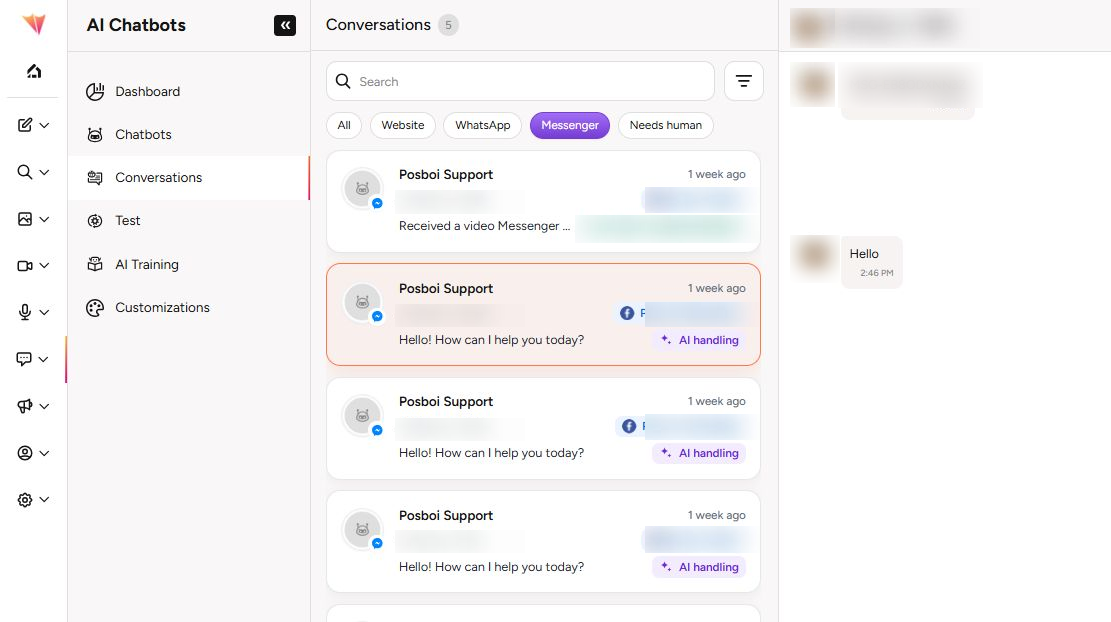
In the picture, the purple Messenger filter is selected. A purple AI handling badge means the chatbot still owns that conversation. A green Human badge means a support agent owns it.
The owner can see and reassign the managed inbox. A team member sees only managed-channel conversations that are assigned to them.
Take over and reply
When a conversation is waiting for a person:
- Read the full thread and any displayed attachment before responding.
- Select Take over if the conversation is not already in human mode.
- Confirm that your name appears as the assignee and the header shows a replyable window.
- Write a concise support response in Write a Messenger reply....
- Select Send, then confirm the reply appears successfully in the thread.
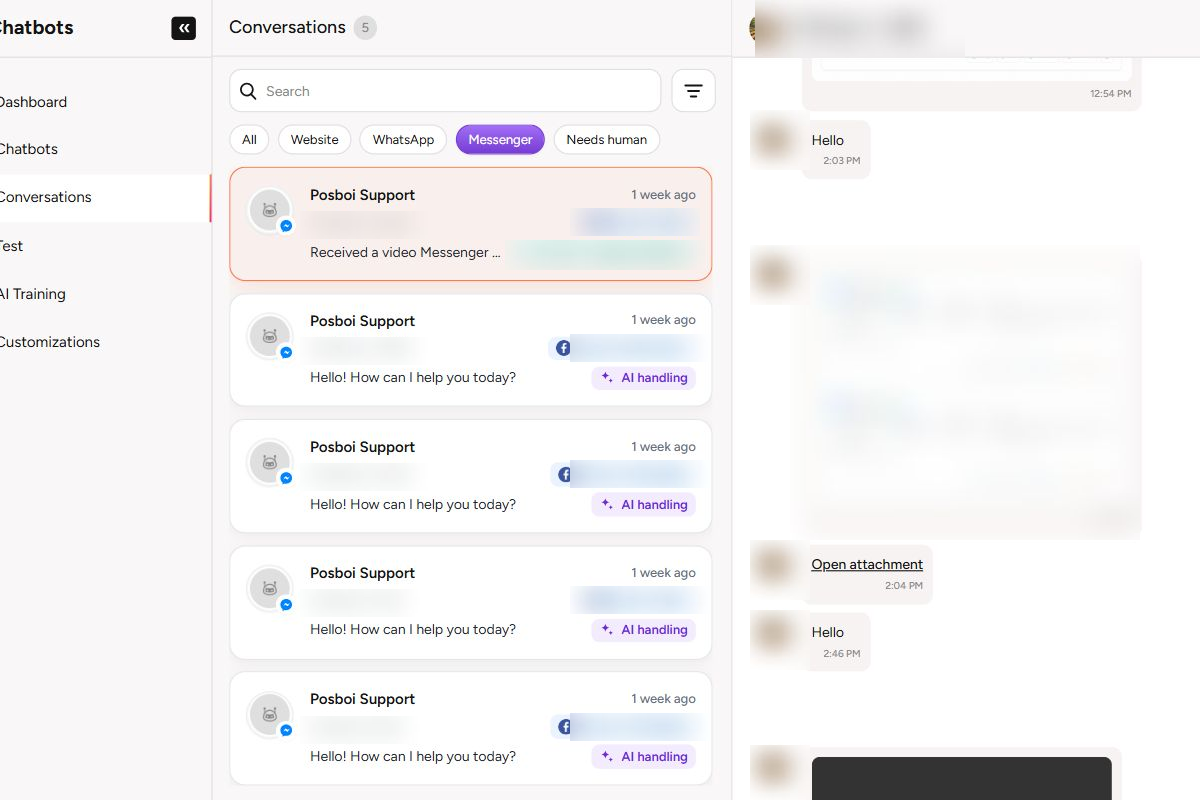
Use the left card to confirm the conversation owner, then read the message thread on the right. The image is intentionally blurred where it contains customer content and attachments.
The current Messenger composer sends text only and limits each reply to 2,000 characters. A plain Enter sends; use Shift+Enter when a line break is needed. Do not paste secrets, payment credentials, or unnecessary personal data into a reply.
Incoming quick replies and Messenger postbacks can appear as text in the thread. Incoming images, files, audio, video, locations, or reactions may appear as attachment/reaction context when Meta supplies them, but the Artifism Messenger composer cannot upload a new attachment in this release. If a received attachment is unavailable, ask the customer to describe the issue or resend it using an approved support method; never request sensitive documents in an insecure channel.
Know which window you are using
Standard window
For less than 24 hours after the customer's latest message, Artifism can allow normal AI and human replies. If the customer sends a new message, the standard window refreshes.
Human Agent window
After the standard window, Artifism may show Sent using Human Agent support window. Use it only for a manually written response to an unresolved customer-support issue. The global administrator switch, verified app, Meta approval confirmation, current assignee, and time limit must all permit it.
Never use this window for automation, bulk outreach, marketing, or a new unrelated conversation.
Closed window
When Artifism shows Window closed, do not look for a template or workaround in this Messenger composer. Wait for the customer to send a new message.
Return the conversation to AI
After the customer's issue is resolved:
- Send any final human response needed.
- Select Resume AI.
- Confirm the conversation changes from human mode to AI handling.
Artifism permits AI resume only while the standard 24-hour window is open. If the window is closed, leave the thread in its current safe state and wait for a new customer message.
When you cannot reply
Read the exact message shown by Artifism:
| Message/state | What to do |
|---|---|
| Take over this conversation to send a human reply | Select Take over if you are the intended agent. |
| Assigned to another agent | Ask the owner to reassign it; do not work around ownership controls. |
| Channel inactive or not fully connected | Notify the owner; they must reconnect, verify, or activate the Page. |
| Human Agent replies are not enabled | Notify the owner. They must confirm Meta approval and app/global settings; do not claim approval yourself. |
| Seven-day window closed | Wait for a new customer message. |
| Reply queued but no success appears | Avoid duplicate sends. Refresh once, then report the conversation and approximate time to the owner. |
| Attachment is visible but cannot be opened | Do not request a secret or identity document as a workaround. Record the time and Page, then ask the owner to check webhook/media handling. |
End-of-shift checklist
- Finish or clearly hand over every active conversation assigned to you.
- Use Resume AI for resolved conversations while the standard window is open.
- Tell the owner about failed replies, inactive channels, suspicious messages, or customers waiting beyond the response target.
- Set your availability to unavailable/off before leaving.
- Sign out on shared devices.
Safe support practice
- Verify the customer's request using approved business procedures before changing an account or order.
- Do not ask for passwords, one-time codes, full payment-card details, or Meta/Artifism credentials.
- Keep replies relevant to the customer's current support issue.
- Escalate threats, fraud, legal requests, and sensitive-data incidents using the business's policy.
- Do not copy customer conversations into external AI tools, personal notes, or unapproved tickets.
Owners should use Messenger owner operations for assignments, credentials, settings, and channel incidents.