← Back to Connection Guide | AI Social Suites Overview
🛠️ LinkedIn Developer App Setup
To connect your LinkedIn account to AI Social Suites, you need to create a developer application on the LinkedIn Developer Portal. This allows Artifism to securely communicate with your LinkedIn profile or Page.
You will need to generate a Client ID and Client Secret.
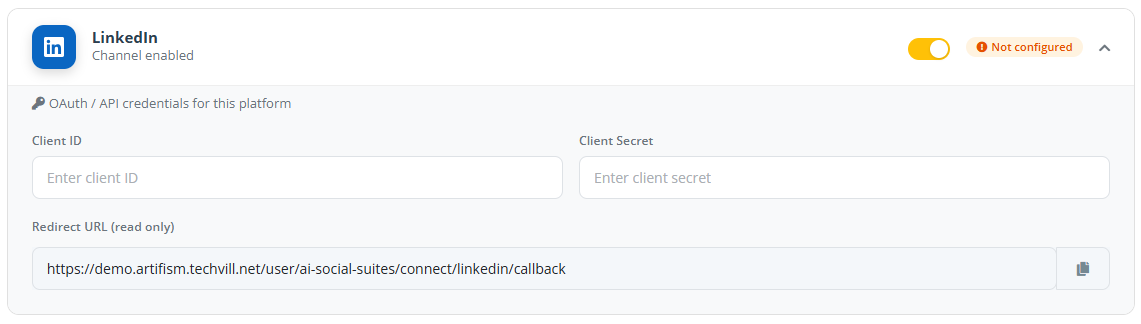
Step 1: Create a LinkedIn App
- Go to the LinkedIn Developer Portal.
- Log in with your LinkedIn account.
- Click the Create App button.
- App Name: Enter a name (e.g., "Artifism Social Suite").
Critical: LinkedIn Page Association
You must associate your app with an active LinkedIn Page. If you do not have one, you must create a placeholder Page first. Without a linked Page, you cannot generate the necessary API keys.
Step 2: Verify Ownership
LinkedIn requires you to verify that you own the Page linked to the app.
- Go to the Settings tab -> Verify.
- Click Generate verification URL.
- Open this URL yourself (or send it to the Page admin) and click Verify.
Your app will not work until its status is "Verified".
Step 3: Request Product Access
<<<<<<< HEAD LinkedIn uses Products to group the permissions your app needs. Add the products below from the Products tab:
- Go to the Products tab of your app.
- Add Advertising API and request access.
- Find Share on LinkedIn and click Request access. This allows posting to personal profiles with
w_member_social. - Find Sign In with LinkedIn using OpenID Connect and click Request access. This is required for the login flow.
- For Company Pages: If you intend to post to a company page, request Community Management API or Marketing Developer Platform as needed. This requires
w_organization_social.
======= LinkedIn groups access under "Products". To connect your account and publish posts, you should request these permissions:
openid,profile, andemailfor LinkedIn sign-inw_member_socialto publish posts from a personal profile-
r_organization_social,w_organization_social, andrw_organization_adminfor company page access and admin actions -
Go to the Products tab of your app.
- Request Share on LinkedIn. This allows you to publish posts from a personal LinkedIn profile.
- Request Sign In with LinkedIn using OpenID Connect. This lets users log in with LinkedIn and gives your app access to
openid,profile, andemail.develop
Step 4: Configure Authentication (OAuth 2.0)
- Go to the Auth tab.
- In the OAuth 2.0 settings section, find the Authorized Redirect URLs field.
- Click the edit icon and then + Add redirect URL.
- Copy the Redirect URL from Admin → Features → AI Social Suites → General Options and paste it here.
- Click Update.
Step 5: Get Your Credentials
- Still in the Auth tab, locate the Application credentials section.
- Copy your Client ID.
- Click the eye icon to reveal and copy your Client Secret.
Step 6: Connect to AI Social Suites
- Open your Artifism dashboard and go to Admin -> Features -> AI Social Suites -> General Options.
- Expand the LinkedIn card.
- Paste your Client ID and Client Secret.
- Click Save Configuration.
- Now click Connect New Account to authorize your LinkedIn account.
Account Connection Issues?
- App is not Verified? Check Step 2. You must click the generated verification link.
- Missing Organization Permissions? Ensure you requested the "Community Management API" and that you are an Administrator of the Page.
- Redirect URI Error? Double-check that your Artifism URL matches exactly in the Auth tab.